
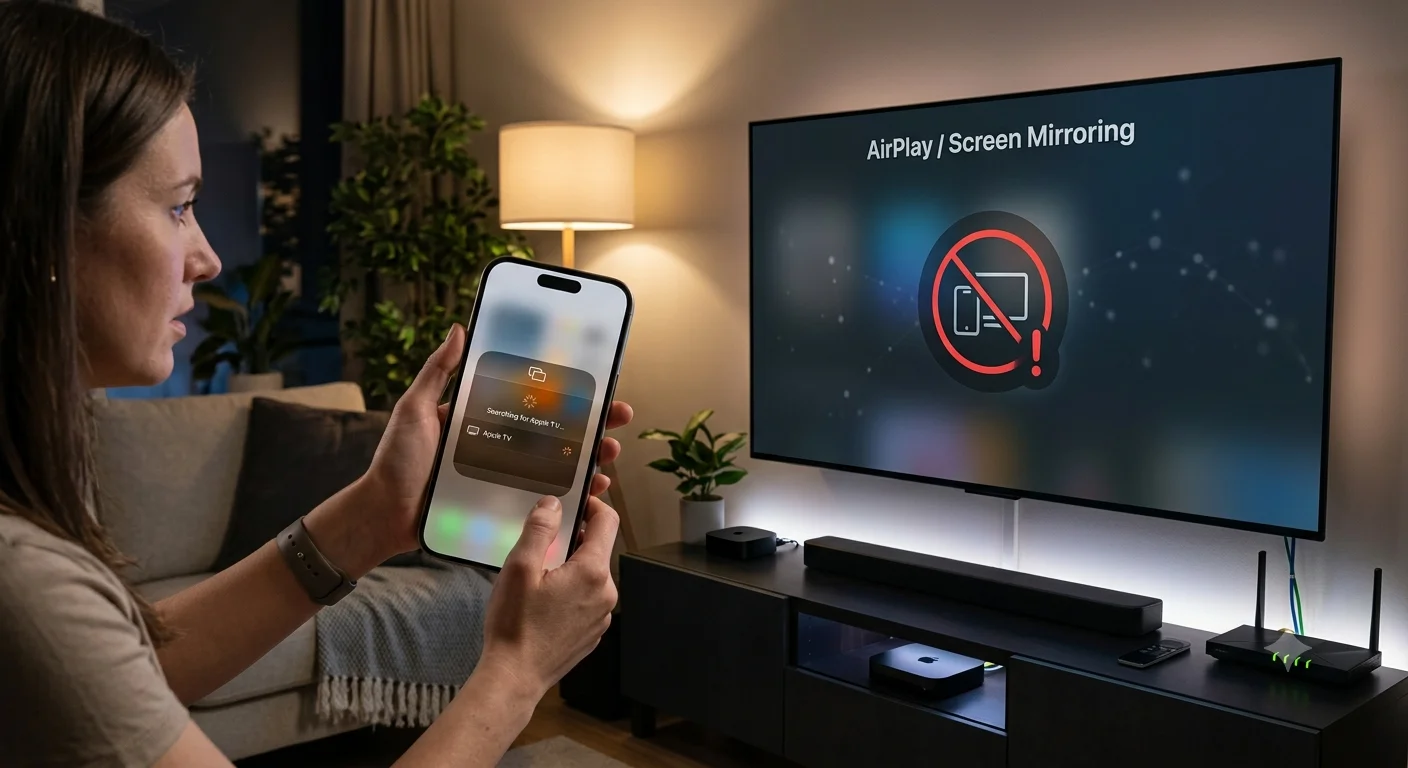
Screen mirroring connects your iPhone to a Mac, Apple TV, or smart television. This feature lets you stream your favorite content on a much larger display. However, unexpected connection drops and black screens can interrupt your viewing experience.
Modern iOS updates provide smoother connectivity. Yet, network misconfigurations still cause frequent AirPlay time-outs. This complete guide offers simple, proven fixes to resolve your mirroring issues quickly.
Why Is My iPhone Screen Mirroring Not Working?
Wireless casting depends on multiple simultaneous connections. Your phone uses Wi-Fi and Bluetooth to discover nearby compatible receivers. If one system fails, the entire transmission stops.
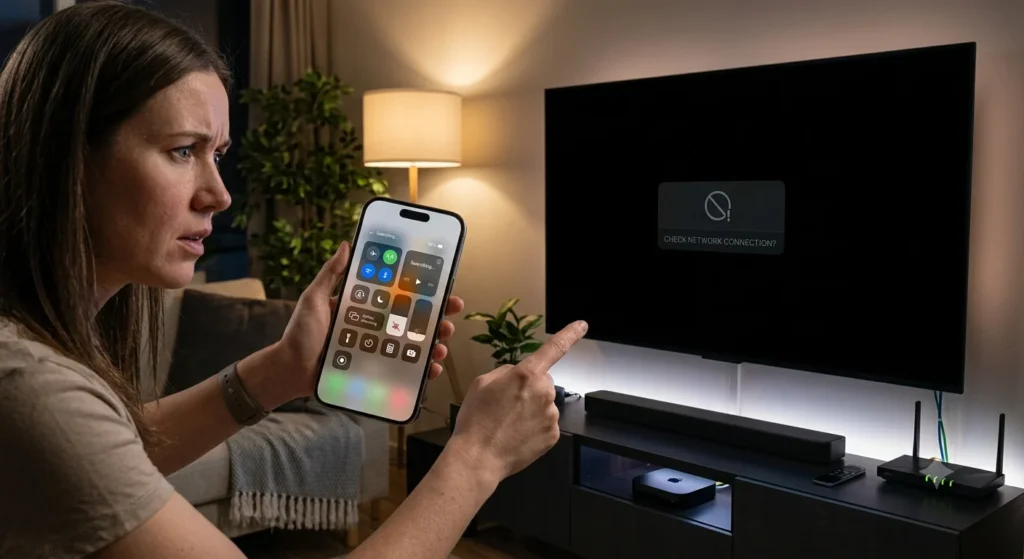
Common issues stem from different Wi-Fi bands. Outdated receiving firmware also blocks incoming signals from newer iOS versions. Additionally, active security software like a virtual private network (VPN) can isolate your device. Identifying the specific cause helps you choose the correct troubleshooting method.
Fundamental Prerequisites for AirPlay and Mirroring
Your streaming setup must meet basic software and hardware parameters. Skipping these requirements makes troubleshooting ineffective. Review these essential checkmarks before changing advanced software settings.
- Software Updates: Ensure your iPhone runs the latest version of iOS.
- Hardware Distance: Keep both devices within thirty feet of each other.
- AirPlay Status: Enable the AirPlay receiver option on your smart TV.
- Power Restrictions: Turn off Low Power Mode inside your battery settings.
How to Fix iPhone Screen Mirroring Issues
Follow these step-by-step procedures to restore your screen connection. Start with the basic network checks before moving to system resets.
1. Align Your Wi-Fi Networks
Both devices must share an identical wireless network to communicate. Dual-band routers often split traffic between 2.4 GHz and 5 GHz channels.
1.Check iPhone Network:Settings App.
Open the Settings app on your iPhone and select Wi-Fi. Note the exact network name.
2.Check TV Network:Receiver Menu.
Open the network menu on your smart TV or Mac. Verify its active connection.
3.Match Connections:Network Reconnect.
Switch both devices to the same frequency channel. Avoid public or guest networks.
2. Disable Background VPNs
Active VPN configurations alter your local internet protocol (IP) address. This digital masking hides your iPhone from local smart appliances.
1.Locate VPN Settings:General Menu.
Navigate to the Settings app and tap the General section.
2.Disconnect Configuration:Toggle Off.
Scroll down to VPN and Device Management. Toggle the active connection status to Not Connected.
3.Test AirPlay:Control Center.
Swipe down to open the Control Center. Tap Screen Mirroring to retry.
3. Turn Off Personal Hotspot
Using your iPhone as a cellular hotspot locks your wireless hardware. This restriction completely prevents AirPlay from transmitting data packets.
1.Open Hotspot Settings:Cellular Menu.
Launch Settings and select the Personal Hotspot tab.
2.Deactivate Tethering:Switch Off.
Turn off the switch next to Allow Others to Join.
3.Reset Wi-Fi:Quick Refresh.
Turn your Wi-Fi antenna off and back on. This action updates local device discovery.
4. Reset iOS Network Settings
Corrupted cache files break wireless handshakes. Resetting network configurations clears faulty system errors without deleting personal data.
1.Open Reset Options:Transfer or Reset.
Go to Settings, tap General, and choose Transfer or Reset iPhone.
2.Select Network Reset:Security Passcode.
Tap Reset, then select Reset Network Settings from the popup menu. Enter your device passcode.
3.Reconnect and Mirror:Fresh Setup.
Allow your phone to reboot. Reconnect to your home Wi-Fi and initiate mirroring.
Advanced Troubleshooting for Mac and Smart TVs
Hardware-specific bugs require tailored solutions. If basic network steps fail, use these platform-specific adjustments.
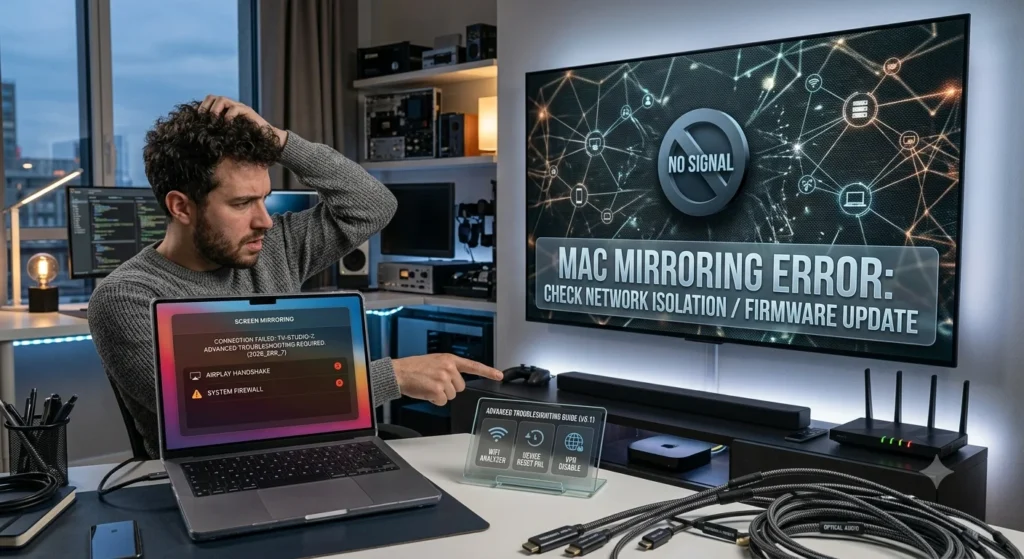
Fixing MacBook Mirroring Errors
MacOS Sequoia and later versions include a dedicated iPhone Mirroring application. If connectivity stalls, clearing out old pairing profiles fixes the issue. Open the system Terminal on your Mac and type defaults delete com.apple.ScreenContinuity to clear out old pairings. Restart your laptop afterward to complete the pairing reset.
Resolving Smart TV Screen Blackouts
A black screen with audio usually points to digital rights management (DRM) restrictions. Major streaming applications block screen sharing to prevent piracy. Try closing the target app on your phone. Alternatively, perform a cold reboot by unplugging your smart TV from the wall outlet for sixty seconds.
Expert Tips for Fast and Reliable Casting
Optimizing your home network prevents sudden stream disconnects. A clean network environment ensures consistent performance.
Network Optimization: Move your wireless router away from thick brick walls and heavy metal appliances to lower signal interference.
| Optimization Strategy | Target System | Main Benefit |
| Use 5 GHz Band | Wireless Router | Provides higher bandwidth and less congestion. |
| Toggle Airplane Mode | iPhone Hardware | Clears stuck local communication antennas quickly. |
| Update TV Firmware | Smart TV OS | Installs critical patches for modern iOS compatibility. |
Conclusion
Fixing iPhone screen mirroring issues is straightforward when you follow a structured plan. Most connection failures stem from simple Wi-Fi mismatches, active VPN profiles, or temporary software bugs. Checking basic prerequisites helps you resolve issues quickly.
Keeping your software updated ensures reliable casting across all household displays. Enjoy clear streaming on your large screen.