
Casting your favorite content from an iPhone or iPad to a TV via Chromecast should feel instant. However, connection drops, missing cast icons, and discovery failures often ruin the experience. When you try to share media from iOS, underlying network barriers can block the transmission completely.
This comprehensive guide explores proven strategies to fix chromecast issues ios users frequently encounter when using Apple mobile hardware.
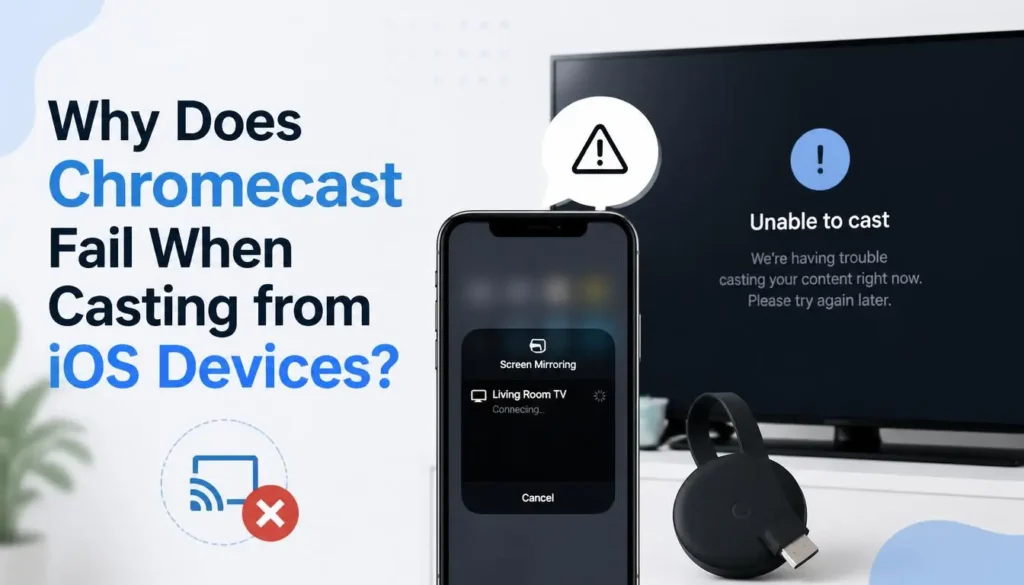
Why Does Chromecast Fail When Casting from iOS Devices?
Most casting failures happen due to software miscommunications rather than broken hardware. Apple devices rely heavily on local network discovery protocols. If your iPhone cannot see your Google Cast receiver, the root cause usually sits inside your router settings or app permissions.
Understanding these triggers helps you fix chromecast issues ios systems face without performing unnecessary factory resets.
1. The Local Network Permission Block
Apple enforces strict privacy protocols. If you deny an application permission to scan your local network, your iPhone cannot locate nearby casting targets.
2. Wi-Fi Band Discrepancies
Many modern home routers broadcast dual frequencies simultaneously. If your iPhone connects to the 5GHz band while your Chromecast sits on the 2.4GHz band, discovery fails instantly.
3. VPN and Ad-Blocker Interference
Active virtual private networks swallow multicast domain name system broadcasts. Your Chromecast depends on these local network broadcasts to advertise its availability.
Top Methods to Fix Chromecast Issues on iOS
Working through these troubleshooting steps in order will resolve nearly all connection blocks. If you want to fix chromecast issues ios devices trigger, follow these precise actions:
Step 1: Grant Local Network Access on iOS
Apple requires explicit permission for apps to discover hardware on your Wi-Fi network.
- Open Settings on your iPhone or iPad.
- Scroll down and select your casting app, such as YouTube or Google Home.
- Toggle the switch next to Local Network to the On position.
Step 2: Verify Your Wi-Fi SSID Match
Both devices must share the exact same network name and band restrictions.
- Check your iPhone Wi-Fi settings to confirm the active network name.
- Open the Google Home app, tap your Chromecast device tile, and verify its connected network.
- Ensure neither device operates on a guest network.
Step 3: Disable AP and Client Isolation on Your Router
Many routers feature security settings that prevent wireless devices from talking to each other directly.
- Log into your router admin dashboard via browser.
- Look under wireless settings for AP Isolation or Client Isolation.
- Turn this feature Off to allow local device communication.
Step 4: Perform a Clean Power Cycle
Clearing the temporary cache of your streaming hardware restores normal responsiveness.
- Unplug the power cable from your Chromecast device.
- Unplug your Wi-Fi router from the wall outlet.
- Wait for sixty seconds, plug the router back in, and wait for internet connectivity.
- Reconnect the Chromecast power cable and try casting again.
Alternative Options and Fast-Ranking Strategies
Publishing troubleshooting guides requires clean formatting to target featured snippets effectively. Structuring articles with clear diagnostic tables and precise technical answers helps you secure top search engine positions and helps readers fix chromecast issues ios gadgets present.
- Use Bulleted Symptom Checklists: Readers want fast answers to specific errors like missing cast icons or black screens.
- Embed Quick Troubleshooting Summaries: Placing high-value fix lists at the top improves user dwell time and lowers bounce rates.
- Keep Code and Technical Terms Accessible: Explain concepts like mDNS and AP isolation in plain language so everyday users can follow along.
Frequently Asked Questions (FAQs)
Conclusion
Troubleshooting iOS to Chromecast errors comes down to checking local network permissions, matching Wi-Fi SSIDs, and clearing router isolation barriers. Work through these steps methodically to fix chromecast issues ios users face and restore smooth wireless streaming.