
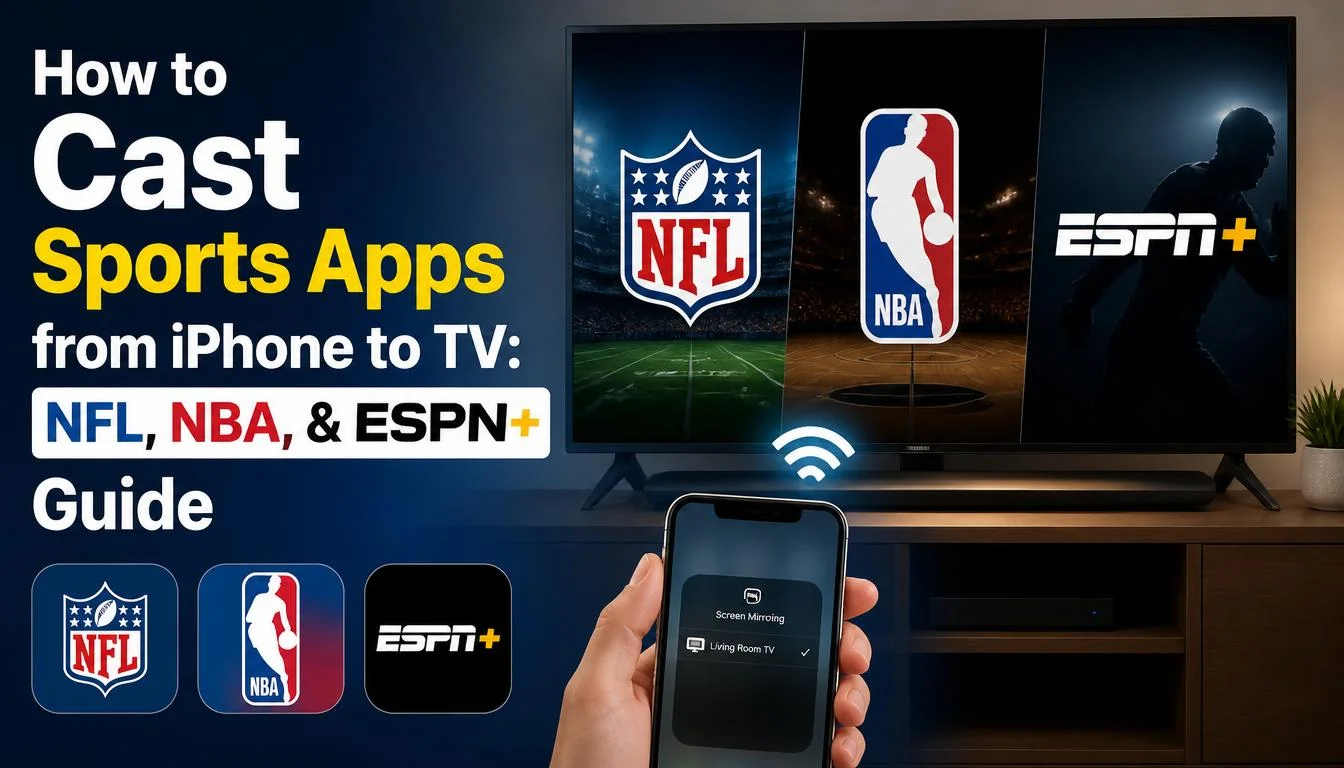
Catching live sports on a tiny screen ruins key moments. Streaming live games requires smooth frame rates, zero audio delay, and sharp video clarity.
Connecting your phone to a large display usually takes seconds. However, users often run into buffering, lag, or complete black screens when launching live streams.
This step-by-step guide explains how to cast sports apps from iPhone to TV without playback errors.
How to Cast Sports Apps from iPhone to Smart TV Using Native AirPlay
Native AirPlay offers the most reliable wireless connection for live sports. It sends the direct video feed directly to your display rather than mirroring raw phone pixels.
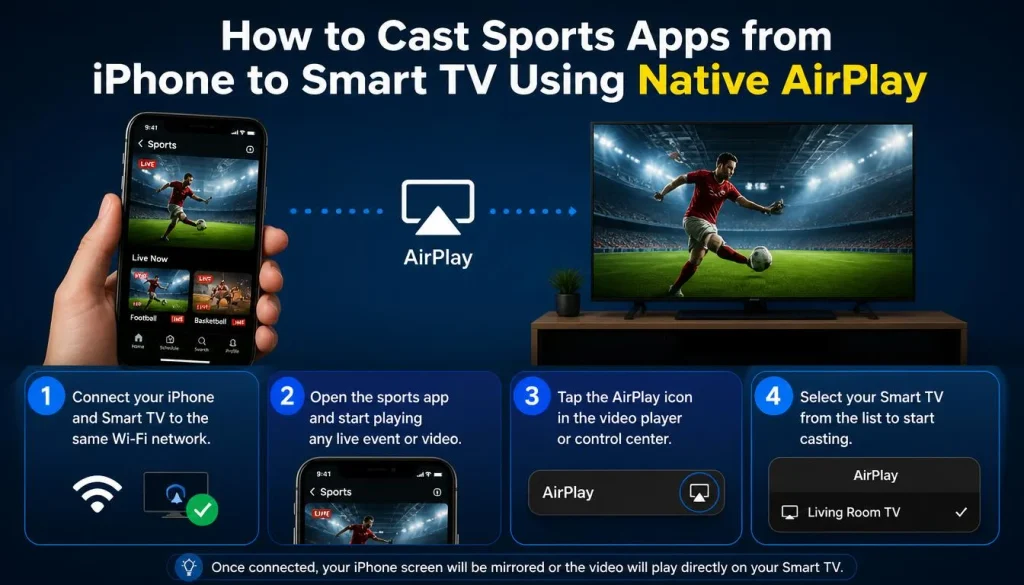
- Connect your iPhone and Smart TV to the exact same Wi-Fi network.
- Open the NFL, NBA, or ESPN+ app on your iPhone.
- Select the live game stream you wish to watch.
- Tap the AirPlay or Cast icon inside the video playback overlay.
- Choose your TV, Apple TV, or compatible receiver from the popup menu.
How to Cast Sports Apps from iPhone to Chromecast or Google TV
Google Chromecast works seamlessly with iOS sports applications. Built-in casting tools pass security handshakes quickly to preserve full high-definition video.
- Power on your Chromecast device or built-in Google TV.
- Verify both devices share the same 5 GHz Wi-Fi band.
- Launch your chosen sports streaming app on iOS.
- Tap the rectangular Google Cast button on the screen top.
- Pick your Chromecast target device to start instant playback.
How to Fix Black Screen and Lag When Screen Mirroring Live Sports
Digital Rights Management (DRM) and network strain cause video dropouts. You can solve these common hurdles with simple configuration tweaks.
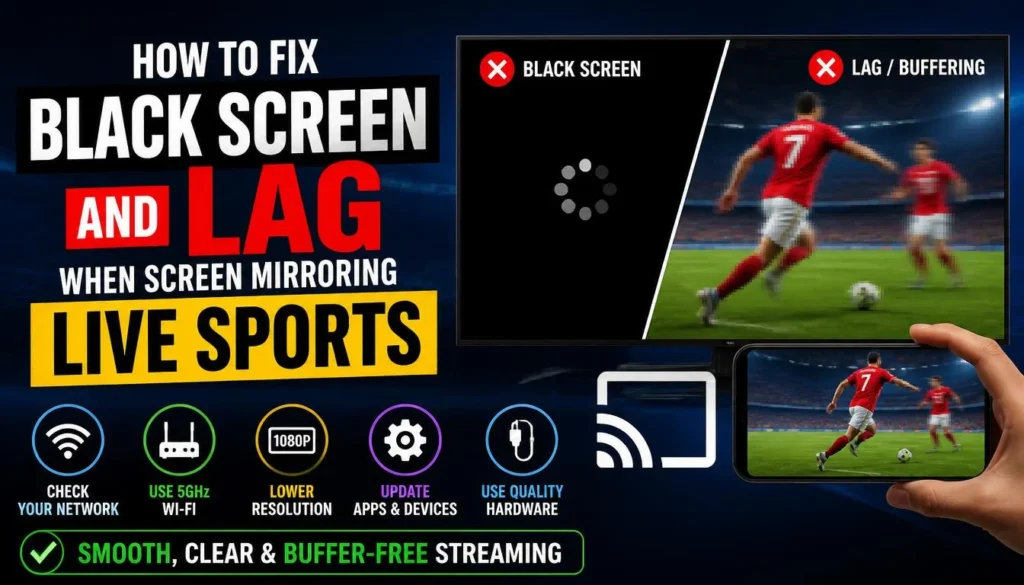
- Stop Using Control Center Mirroring: Avoid full-screen duplication via Control Center. DRM blocks screen capture to prevent content copying, resulting in a black screen.
- Switch to a 5 GHz Wi-Fi Network: High-bandwidth live broadcasts require fast connections. Move your router closer or switch off the congested 2.4 GHz band.
- Disable Low Power Mode: Low power settings throttle GPU performance on iOS. Turn off power-saving features under Settings > Battery.
- Use an Apple Lightning to HDMI Adapter: Plug an official HDMI adapter into your TV for zero-lag physical playback. Uncertified cables fail HDCP authorization.
Frequently Asked Questions (FAQs)
Conclusion
Learning how to cast sports apps from iPhone to TV eliminates playback glitches during major games. You can bypass annoying black screens and lag by using native in-app casting, connecting to 5 GHz Wi-Fi, or running official HDMI cables. Set up your connection early so you never miss a game-winning play.