
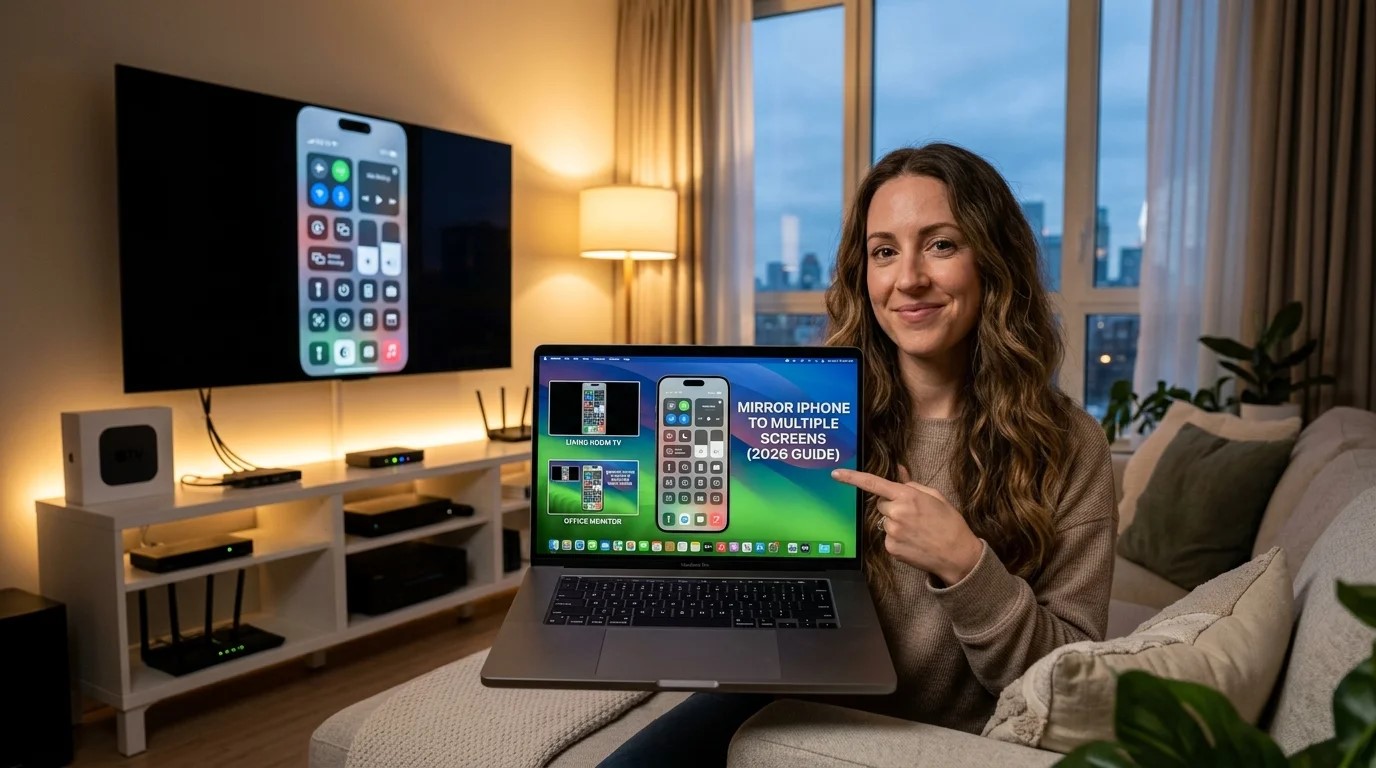
Screen mirroring makes sharing content incredibly easy. Most users only connect their device to a single television. However, you might want to display your screen on several displays simultaneously. This setup is perfect for business presentations, classroom lectures, or home entertainment events.
Apple does not provide a native one-click button to broadcast your screen to multiple AirPlay receivers. Fortunately, several simple workarounds exist to overcome this limitation. This complete guide will teach you exactly how to mirror your iPhone to multiple screens at the same time.
Can You Mirror an iPhone to Multiple Screens Naturally?
Many Apple users wonder if iOS includes a built-in multi-screen option. Knowing what your device can do out of the box helps you choose the right tools.
The Limitations of Native AirPlay 2
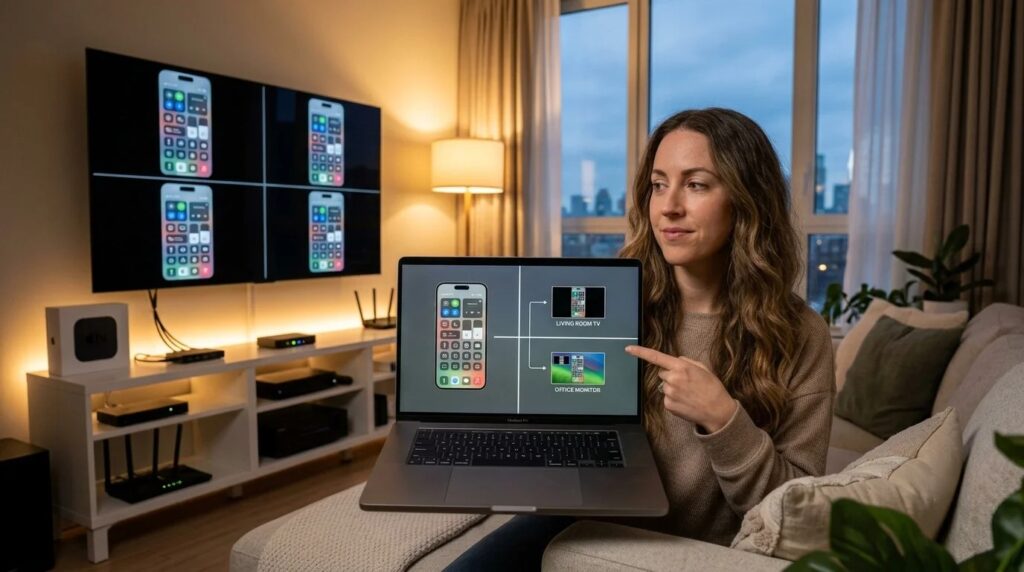
AirPlay 2 is excellent for audio broadcasting. You can easily stream music from your iPhone to multiple smart speakers at once. However, Apple limits video mirroring to just one screen at a time due to hardware constraints and bandwidth management.
Why iOS Restricts Multi-Screen Mirroring
Simultaneous video streaming requires immense processing power from your phone. Your iPhone must encode live high-definition video frames repeatedly. Sending these heavy data packets to multiple IP addresses causes severe battery drain and device overheating. Therefore, iOS restricts this behavior to maintain system stability.
Method 1: Mirroring to Multiple Screens Using a Mac or PC
Using a computer is the most stable way to split your iPhone display. The computer acts as a central distribution hub for your video feed.
Setting Up a Reflector Software on a Computer
You can install a specialized screen receiver application like AirServer or Reflector on your Mac or Windows PC. These programs turn your desktop computer into a powerful AirPlay destination. First, connect your iPhone to the computer using the standard Control Center mirroring option.
Broadcasting from Computer to Multiple TVs
Once your iPhone screen appears on your computer, you can share it further. Connect your computer to multiple monitors using physical HDMI splitter cables. Alternatively, you can use the computer’s native display settings to extend or duplicate the mirrored screen across multiple connected smart TVs.
Method 2: Using Hardware HDMI Splitters for Zero Lag
If you dislike software configurations, hardware tools provide an excellent alternative. Physical connections offer the highest reliability and zero signal delay.
Choosing the Right Digital AV Adapter
First, you need a high-quality physical adapter for your iOS device. Purchase an official Apple Lightning or USB-C to Digital AV Adapter. Plug this adapter directly into your iPhone charging port. This converts your phone’s internal display signal into a standard HDMI output.
Connecting to a Powered HDMI Splitter
Next, connect a short HDMI cable from your adapter to the input port of a powered HDMI splitter. Ensure you choose a 1×4 or 1×2 splitter that requires an external wall plug. Run separate HDMI cables from the splitter output ports to each individual television screen. Your iPhone display will instantly duplicate across all monitors without any wireless lag.
Method 3: Utilizing Third-Party Streaming Applications
Wireless applications provide great flexibility if you do not own extra hardware cables. Several software developers offer smart casting tools specifically designed for multi-display setups.
Exploring Multi-Screen Casting Apps
Look for advanced casting applications in the iOS App Store. Apps such as ApowerMirror or LetsView offer robust network-based mirroring solutions. Download and install your chosen application on both your iPhone and all the target smart TVs or tablets.
Configuring the App for Simultaneous Display
Open the application on your iPhone and scan your local network for active receivers. Select all the available screens from the app dashboard to begin a multi-device broadcast. Ensure your local Wi-Fi router handles heavy data traffic well before initiating the stream.
Best Settings for Smooth Multi-Screen Mirroring
Broadcasting to several displays puts a heavy load on your home network. You must optimize your system settings to avoid annoying frame drops or stuttering.
Optimizing Your Wi-Fi Network Bandwidth
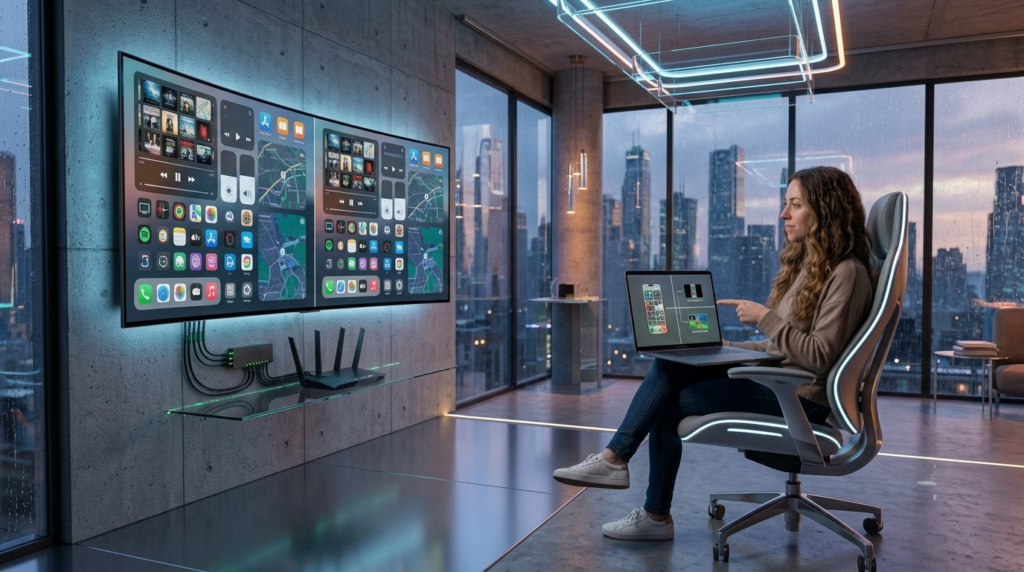
Wireless multi-screening requires a robust internet setup. Disconnect unnecessary smart home products from your network to free up essential bandwidth. Always connect your casting devices to the less crowded 5 GHz Wi-Fi frequency band rather than the slower 2.4 GHz band.
Lowering iPhone Display Resolution
High-resolution streams require more processing power and data transfer speeds. Go to your iPhone camera and display settings to reduce video quality if you notice heavy stuttering. Lowering the source resolution ensures a much smoother frame rate across all your remote screens.
Troubleshooting Multi-Screen Mirroring Failures
Setting up multiple screens sometimes leads to unexpected technical bugs. Follow these quick troubleshooting tips to resolve the most common connection errors.
Fixing Disconnection and Drop Out Issues
Frequent signal drops usually indicate weak Wi-Fi coverage or wireless interference. Move your internet router closer to your primary broadcasting area. If you use hardware splitters, check that all HDMI connections are pushed firmly into their ports.
Resolving Audio Sync Problems
Audio delay often happens when different TV models process sound at different speeds. To fix this, mute the volume on all target televisions except for one main speaker unit. Alternatively, route your iPhone audio directly to an external Bluetooth soundbar for unified playback.
Conclusion
Mirroring your iPhone to multiple screens at the same time is entirely possible with the right approach. While native iOS settings limit you to one screen, hardware splitters and computer software bridge the gap perfectly. Choose the method that best matches your available equipment and enjoy seamless multi-display streaming.