
You want to share your iPhone screen on your Windows 11 PC. Maybe you want to stream videos on a bigger display, play mobile games, or present photos to family. While Apple devices connect easily to Macs via AirPlay, connecting an iPhone to Windows requires a slightly different approach.
Apple uses a closed ecosystem. Windows 11 uses open architecture. Fortunately, bridging this gap is simple once you know the right tools.
This comprehensive guide shows you every working method to mirror your iPhone screen to a Windows 11 computer quickly, safely, and wirelessly.
Why Mirror Your iPhone to Windows 11?
Screen mirroring offers several key practical benefits for work, entertainment, and content creation:
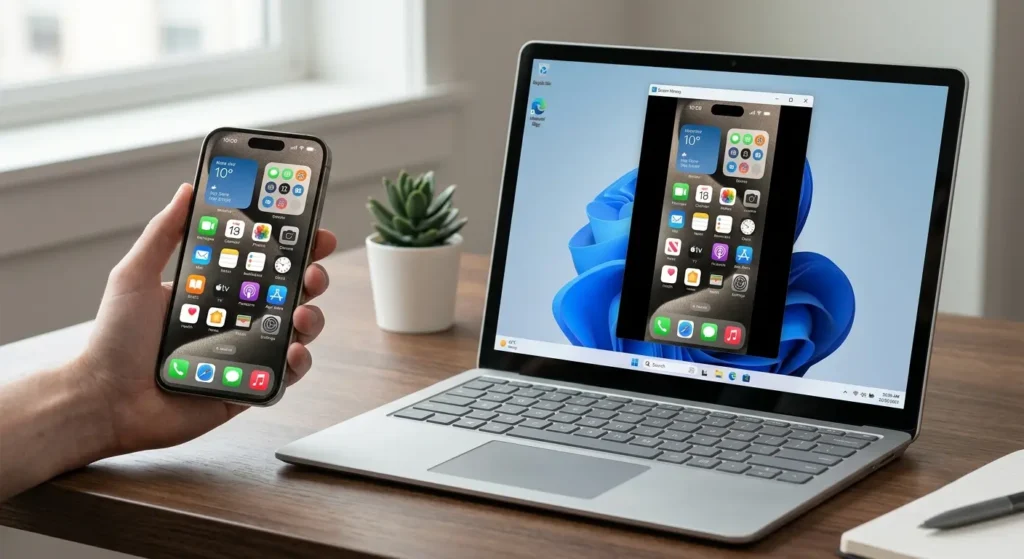
- Larger Screen Viewing: Enjoy your photos, videos, and streaming apps on a crisp computer monitor.
- Seamless Presentations: Share mobile apps, slides, or app walkthroughs during online meetings on Zoom or Teams.
- Mobile Gaming: Stream iOS games straight to your PC display for an immersive setup.
- Content Creation: Record your iPhone screen directly on your computer to create tutorials and video content easily.
Prerequisites Before Connecting
Before starting, double-check these basic requirements to ensure a smooth, lag-free connection:
- Same Wi-Fi Network: Connect both your iPhone and your Windows 11 PC to the exact same Wi-Fi network. 5GHz networks work best.
- Bluetooth Enabled: Turn on Bluetooth on both devices to improve discovery.
- Updated Software: Ensure your iPhone runs iOS 14 or later and Windows 11 is up to date.
Method 1: Mirror iPhone using Phone Link (Official Microsoft Method)
Microsoft’s built-in Phone Link app allows you to connect your iPhone directly to Windows 11. While it primarily handles calls, messages, and notifications, it is the safest native connection method.
How to Set Up Phone Link:
- Open the Phone Link app on your Windows 11 PC.
- Select iPhone as your device type.
- Open the Link to Windows app on your iPhone (download it from the App Store if needed).
- Scan the QR code displayed on your PC screen using your iPhone camera.
- Pair both devices via Bluetooth when prompted on screen.
- Grant the necessary permissions on your iPhone to allow notifications and contacts.
Note: Phone Link handles notifications, calls, and messages seamlessly. However, if you need full screen mirroring for streaming or gaming, third-party AirPlay receivers offer better performance.
Method 2: Mirror iPhone using Third-Party AirPlay Receivers (Best for Screen Mirroring)
Since Windows 11 does not natively support AirPlay receiving out of the box, installing a lightweight AirPlay receiver app on your PC is the best option for smooth screen mirroring.
Option A: Using LonelyScreen (Simple & Free)
LonelyScreen acts as a virtual AirPlay receiver on your Windows PC. It turns your computer into an Apple TV target.
- Download and install LonelyScreen on your Windows 11 PC.
- Launch the app and allow access through the Windows Firewall if prompted.
- On your iPhone, swipe down from the top-right corner to open the Control Center.
- Tap the Screen Mirroring icon (two overlapping rectangles).
- Select LonelyScreen from the list of available devices.
- Your iPhone screen will display instantly on your PC.
Option B: Using AirServer or Reflector (Best Quality for Gaming & Streaming)
If you require high frame rates, 4K resolution, or screen recording capabilities, premium tools like AirServer or Reflector 4 deliver professional-grade performance.
- Download and install AirServer or Reflector on your Windows 11 PC.
- Open the app on your computer.
- On your iPhone, open the Control Center.
- Tap Screen Mirroring and select your PC name from the list.
- Enter the passcode displayed on your PC screen if required.
Method 3: Connect iPhone to Windows 11 via USB Cable (Zero Lag)
Wireless screen mirroring depends heavily on Wi-Fi stability. If you experience lag or latency, a wired USB connection offers zero delay and maximum stability.
Step-by-Step USB Connection Guide:
- Download an application like ApowerMirror or iTools on your PC.
- Connect your iPhone to your Windows 11 PC using an authentic Lightning to USB or USB-C cable.
- Tap Trust on your iPhone screen when prompted, then enter your passcode.
- Launch the mirroring software on your PC and select the USB Connection mode.
- The app detects your iPhone automatically and mirrors your screen without network latency.
Troubleshooting Common Screen Mirroring Issues
If your iPhone fails to mirror to your PC, try these quick troubleshooting steps:
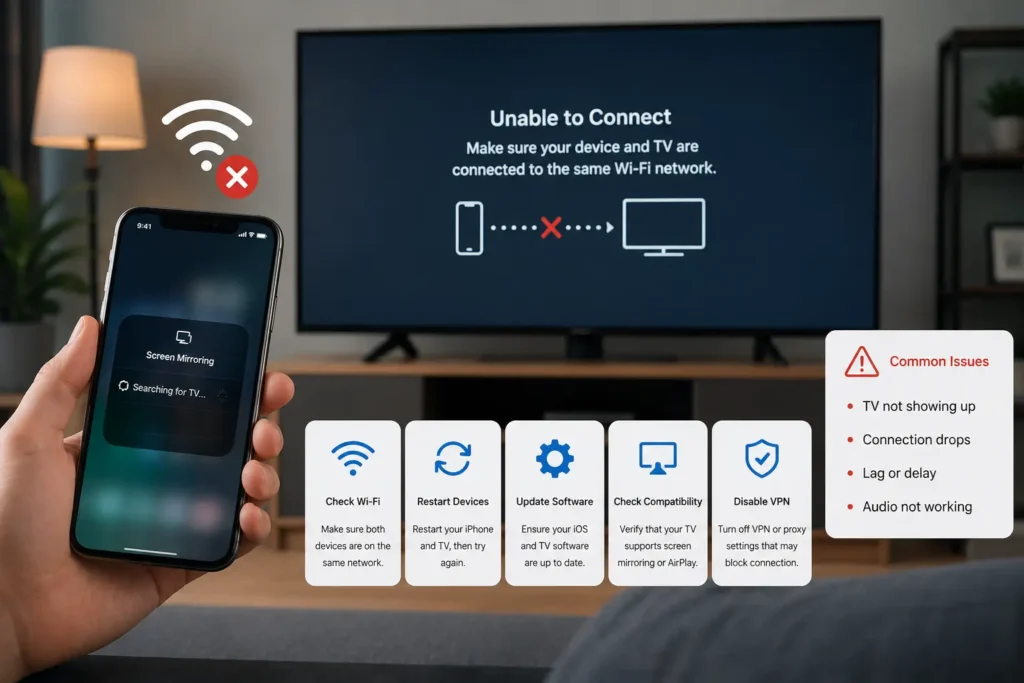
- Check Network Settings: Make sure both devices use the same Wi-Fi band (preferably 5GHz).
- Toggle Screen Mirroring: Turn Screen Mirroring off and on in the iPhone Control Center.
- Disable VPNs: Virtual Private Networks (VPNs) block local device communication. Turn off active VPNs on both devices.
- Allow Firewall Access: Open Windows Defender Firewall settings and make sure your mirroring app has permission to communicate on private networks.
- Restart Devices: Rebooting both your iPhone and Windows 11 PC resolves temporary software glitches instantly.
Frequently Asked Questions (FAQs)
Conclusion
Mirroring your iPhone to a Windows 11 PC is simple once you choose the right method. For basic daily notifications, Microsoft Phone Link works great. For full high-definition wireless screen mirroring, free AirPlay receivers like LonelyScreen or paid tools like AirServer deliver crisp visuals. If you need zero-latency performance for gaming or recording, stick with a reliable USB connection. Follow the steps above to enjoy your mobile content on a bigger screen today!