
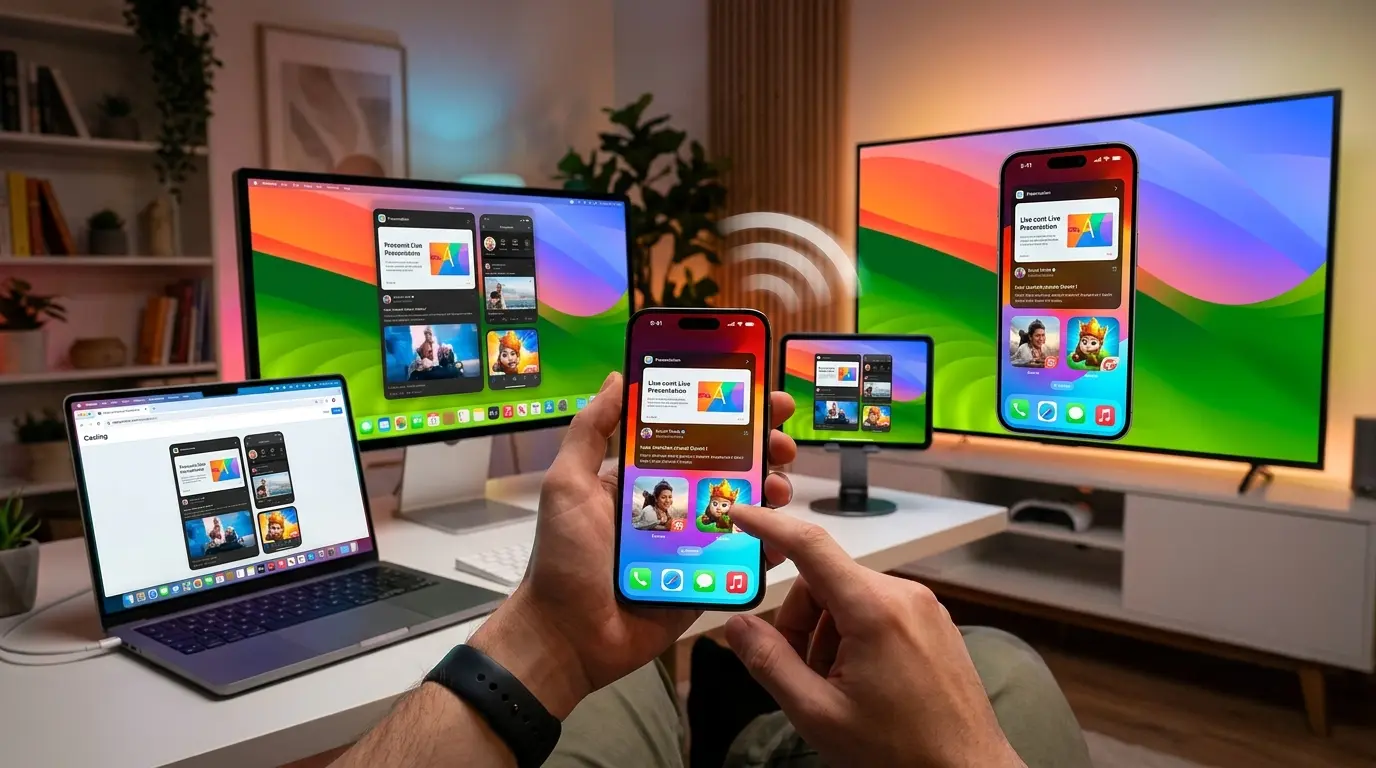
Can you mirror iPhone to multiple screens at the same time? Standard AirPlay allows you to connect your iOS device to only one screen at a time. However, many users need to stream their display to several monitors simultaneously. You can cast your device to multiple displays using smart workarounds.
This tutorial shows you how to mirror iPhone to multiple screens including TVs, PCs, and monitors. You will learn wireless app methods, hardware setups, and streaming tricks.
Why Apple AirPlay Limits Multi-Screen Mirroring
Apple designs native AirPlay for simple, one-to-one connections. Your iPhone connects directly to a single smart TV or Apple TV receiver. This protocol secures your data and preserves battery life.
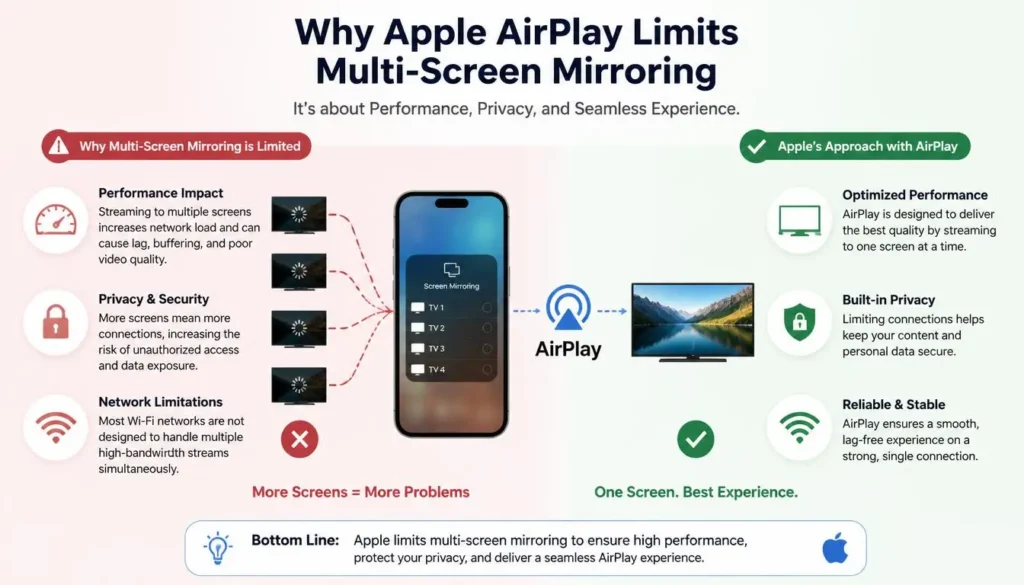
Sending high-definition video to multiple screens demands heavy processing power and network bandwidth. iOS restricts multi-stream AirPlay to prevent overheating and lag. Therefore, you need specialized software or hardware splitters to bypass this default limitation.
Method 1: Mirror iPhone to Multiple Screens Using Hardware HDMI Splitters
Hardware splitters offer the most stable multi-screen connection. This approach creates zero input lag and does not rely on Wi-Fi speeds.
Equipment Needed to Mirror iPhone to Multiple Monitors
- Official Apple Lightning or USB-C to Digital AV Adapter.
- A powered HDMI Splitter (1-in 2-out, or 1-in 4-out).
- High-speed HDMI cables for each connected screen.
Step-by-Step Hardware Setup Procedure
- Connect your Apple Digital AV Adapter to your iPhone charging port.
- Plug an HDMI cable from the adapter into the HDMI input on the splitter.
- Connect separate HDMI cables from the splitter outputs to each TV or monitor.
- Plug in the power cable of the HDMI splitter.
- Turn on all displays and set their input source to HDMI.
Method 2: Wireless Screen Mirroring Apps for Multiple Displays via Web Browser
Third-party receiver apps bypass native AirPlay restrictions. They host a local stream that any device with a modern web browser can open. This allows you to mirror iPhone to multiple screens wirelessly over your local Wi-Fi network.
How to Mirror iPhone to Multiple Screens via Browser
- Connect your iPhone and all target devices to the same Wi-Fi network.
- Download a multi-screen casting app (such as Smart Mirror or AirBeamTV) from the App Store.
- Open the app on your iOS device and select the web broadcast option.
- Note the unique local IP address displayed on your iPhone screen.
- Open the web browser on your smart TVs, laptops, or tablets.
- Enter the displayed IP address into each browser’s address bar.
- Tap Start Broadcast on your iPhone to mirror your screen to all connected displays.
Method 3: Stream iPhone Screen to Multiple PC Monitors Using OBS Studio
This method suits gamers, teachers, and business presenters who need to manage multiple monitor feeds from a single laptop or PC setup.
Steps to Stream to Multiple Displays via OBS Studio
- Connect your iPhone to your computer using a USB cable or desktop receiver app.
- Launch OBS Studio on your PC or Mac.
- Add a new Video Capture Device source and select your iPhone.
- Right-click the video preview canvas in OBS Studio.
- Select Windowed Projector (Preview) or Fullscreen Projector.
- Drag the preview windows to your different connected monitors.
Performance Optimization Tips when Mirroring iPhone to Multiple Screens
Broadcasting to multiple displays increases hardware load. Use these optimization steps to ensure smooth video playback:
- Use 5GHz Wi-Fi: Switch your Wi-Fi router to the 5GHz frequency band to minimize latency.
- Lower Resolution Settings: Set the app output to 1080p instead of 4K to preserve network bandwidth.
- Close Background Applications: Clear unused background apps on your iPhone to free up system memory.
- Keep iPhone Connected to Power: Multi-screen broadcasting drains battery power quickly.
- Update iOS System Software: Ensure your iPhone runs the latest version of iOS for optimal driver support.
Frequently Asked Questions (FAQs)
Conclusion
Learning how to mirror iPhone to multiple screens at the same time is simple with the right setup. While native Apple AirPlay limits you to a single receiver, third-party browser apps and powered HDMI splitters overcome this barrier. Choose physical splitters for latency-free gaming and presentation environments. Alternatively, use wireless browser-based casting for quick multi-device sharing across room displays. Select the method above that matches your hardware, and enjoy seamless multi-screen streaming today.