
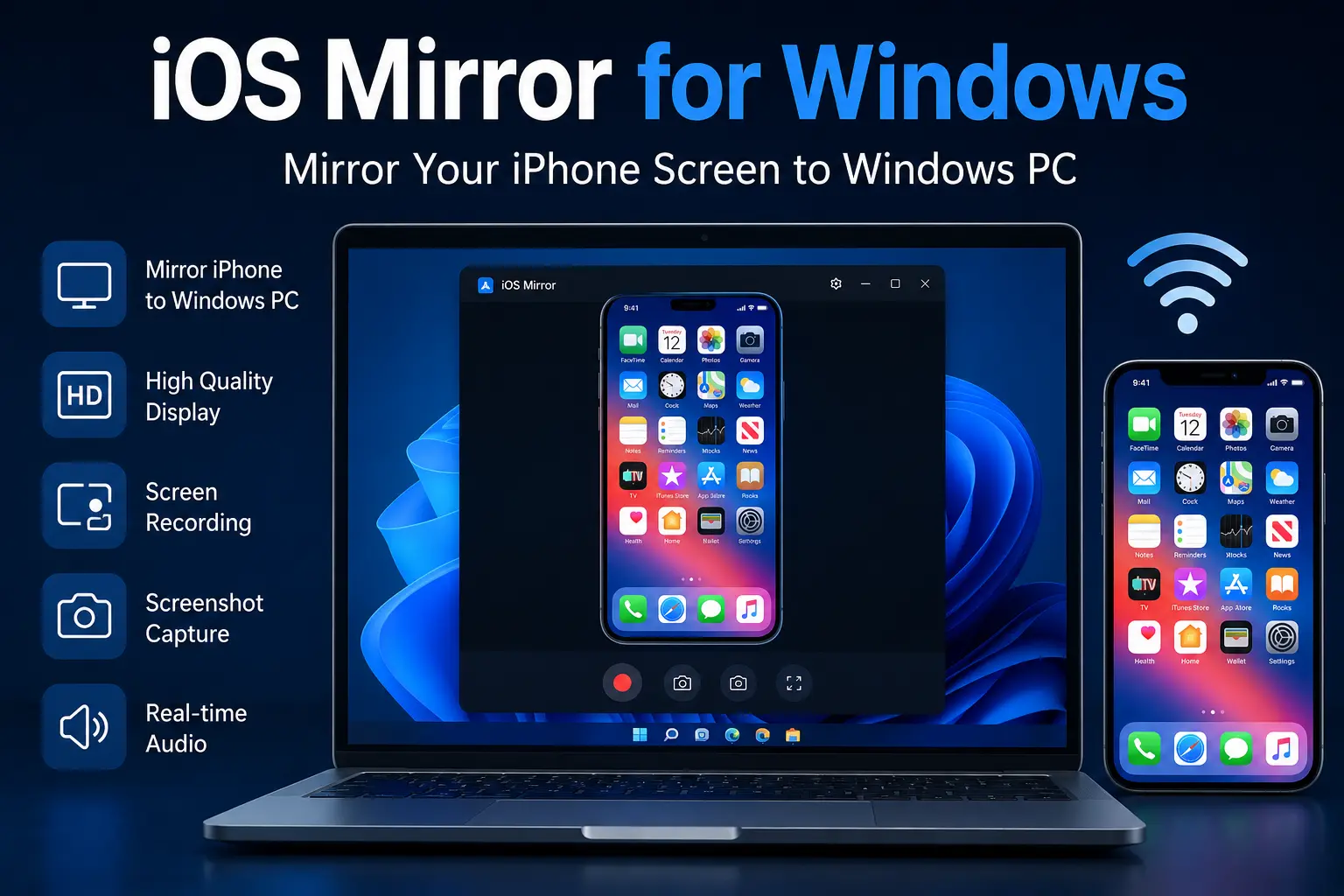
Connecting an iPhone to a Windows computer used to feel almost impossible. Apple devices work best inside their own closed ecosystem. Windows computers rely on completely different wireless display protocols.
However, thousands of users need to display their iPhone screens on larger monitors daily. Teachers present mobile applications during live classroom lectures. Gamers record high-definition iPhone gameplay directly onto their hard drives. Business managers present mobile app prototypes during corporate meetings.
You do not need an expensive Mac to view your iOS screen on a larger monitor. Modern software bridges the gap between iOS and Windows effortlessly. This comprehensive guide covers everything about iOS Mirror for Windows. You will discover working methods, setup steps, performance fixes, and safety recommendations.
What Is iOS Mirror for Windows?
iOS Mirror for Windows refers to software applications that broadcast an iPhone screen to a PC display. Apple uses a proprietary wireless technology called AirPlay. Windows computers do not include native AirPlay receiving capabilities out of the box.
Screen mirroring tools turn your Windows PC into a compatible AirPlay receiver. The connection streams video and audio signals in real time over your local network. Your PC displays every swipe, tap, and app operation without noticeable delay.
Why Screen Mirroring Matters Today
- Enhanced Presentations: Show mobile apps on large projectors during corporate meetings.
- Mobile Gaming: Play graphic-heavy iOS games on larger monitors with full detail.
- Content Creation: Record clean iPhone app tutorials directly on Windows PCs.
- Productivity: View incoming notifications and mobile app data while typing on your desktop keyboard.
How AirPlay Technology Bridges iOS and Windows
Understanding the underlying technology helps you troubleshoot connection issues quickly. Apple builds AirPlay into every iOS operating system. The feature compresses screen frames and streams them using H.264 or HEVC video codecs.
When you launch screen mirroring software on Windows, it creates a virtual AirPlay listener. Your iPhone detects this receiver as if it were an Apple TV. The devices build a direct peer-to-peer channel over your Wi-Fi network. High frame rates and minimal latency make the overall experience smooth and fluid.
Best Methods to Mirror iOS Screen to Windows PC
You can connect your iPhone to a Windows PC using two primary methods. Wireless solutions provide maximum convenience. USB cable connections offer absolute stability and ultra-low latency.
Method 1: Wireless Connection (Wi-Fi)
Wireless screen mirroring keeps your workspace clean and free of physical cables. It relies entirely on your local Wi-Fi router to transmit video and audio data.
- Pros: Fast setup, zero cables required, and easy freedom of physical movement.
- Cons: Sensitive to heavy network traffic and long router distances.
Method 2: Wired Connection (USB Cable)
USB mirroring uses a physical Lightning or USB-C cable to connect your iPhone directly to your PC.
- Pros: Virtually zero latency, maximum frame rates, and continuous phone charging.
- Cons: Requires a physical cable and specific USB driver installation.
Step-by-Step Guide: How to Set Up iOS Mirroring on Windows
Setting up your wireless mirroring environment takes less than three minutes. Follow these precise steps to establish a stable connection between your devices.
Step 1: Prepare Network Settings
Connect your iPhone and your Windows PC to the exact same Wi-Fi network. Disable guest networks or isolated Wi-Fi frequency bands.
Step 2: Install Receiver Software
Download and install a trusted AirPlay receiver app on your Windows PC. Allow the software through your Windows Defender Firewall when prompted.
Step 3: Activate AirPlay on iPhone
Swipe down from the top-right corner of your iPhone screen to open Control Center. Tap the Screen Mirroring icon (two overlapping rectangles).
Step 4: Establish the Connection
Select your Windows PC name from the list of available AirPlay receivers. Your iPhone display will instantly appear on your Windows computer screen.
Top Features to Look for in iOS Mirroring Software
Not all screen mirroring applications perform equally well. Therefore, you should evaluate essential features before choosing a tool for daily work.
| Feature | Importance | Why It Matters |
| 4K & 60 FPS Support | High | Delivers crisp visuals for high-bitrate video playback and gaming. |
| Real-Time Audio Sync | High | Prevents audio delays during movie streaming and voice calls. |
| Built-in Screen Recording | Medium | Lets you capture mobile tutorials directly without extra software. |
| Two-Way Input Control | Medium | Enables controlling your iPhone using your desktop mouse and keyboard. |
| Hardware Acceleration | High | Reduces CPU load on budget or older Windows laptops. |
Performance Optimization & Troubleshooting Tips
Slow connections and screen stuttering can ruin your mirroring experience. Fortunately, you can fix latency issues instantly using these proven technical strategies.
Fix Lag and Stuttering
Switch your Wi-Fi router frequency from 2.4 GHz to 5 GHz. 5 GHz bands provide significantly higher bandwidth and less wireless interference. Additionally, close heavy background downloads on your PC to free up local network capacity.
Solve Firewall Connection Blocks
Windows Firewall often blocks incoming AirPlay signals from newly installed applications. Open Windows Security, navigate to Firewall & Network Protection, and select Allow an app through firewall. Ensure your screen receiver application has both Private and Public network permissions checked.
Restore Missing Audio
If your screen mirrors without sound, check your iPhone physical mute switch. Flip the side switch to turn off Silent Mode immediately. Furthermore, verify that your receiver software settings allow audio output routing to your desktop speakers.
Frequently Asked Questions (FAQs)
Conclusion
a Windows PC opens up fantastic opportunities for gaming, streaming, and professional productivity. You do not need expensive hardware setups to display your mobile screen on a computer monitor. By selecting the right software, utilizing 5 GHz Wi-Fi networks, and adjusting your firewall rules, you achieve smooth, low-latency performance every time. Set up your screen mirroring today to enjoy your favorite iOS content on a bigger screen.