
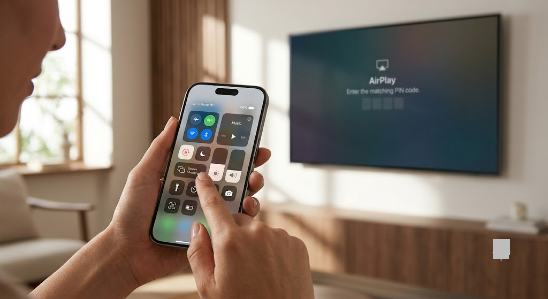
Learning how to connect iPhone to Smart TV transforms your daily entertainment experience. You can stream high-definition movies, share family photos, or run business presentations effortlessly. Modern technology makes this setup seamless, whether you prefer wireless screen mirroring or reliable wired cables.
Many users struggle with compatibility settings or network dropouts. However, establishing a solid connection requires only a few straightforward steps. Consequently, this complete tutorial walks you through every reliable method to screen mirror iPhone to TV without stress.
Prerequisites for Connecting iPhone to Smart TV
Before starting the connection process, you must verify basic hardware and network setups. Preparing these items beforehand prevents frustrating connection drops later.
- Active Wi-Fi Network: Both devices must use the exact same 2.4 GHz or 5 GHz Wi-Fi band.
- Updated iOS Software: Update your iPhone to the latest iOS build to avoid AirPlay bugs.
- Compatible Smart TV: Ensure your television supports Apple AirPlay 2, Chromecast, or HDMI input.
- Necessary Accessories: Keep a Digital AV adapter or streaming stick nearby if wireless options fail.
Method 1: Connect iPhone to Smart TV Wirelessly via Apple AirPlay 2
Apple AirPlay 2 is the most effective tool to connect iPhone to Smart TV wirelessly. Major TV brands like Samsung, LG, Sony, and Roku natively include AirPlay support.
Step-by-Step AirPlay Setup Guide
- Turn on your Smart TV and open its general settings menu to confirm that AirPlay is active.
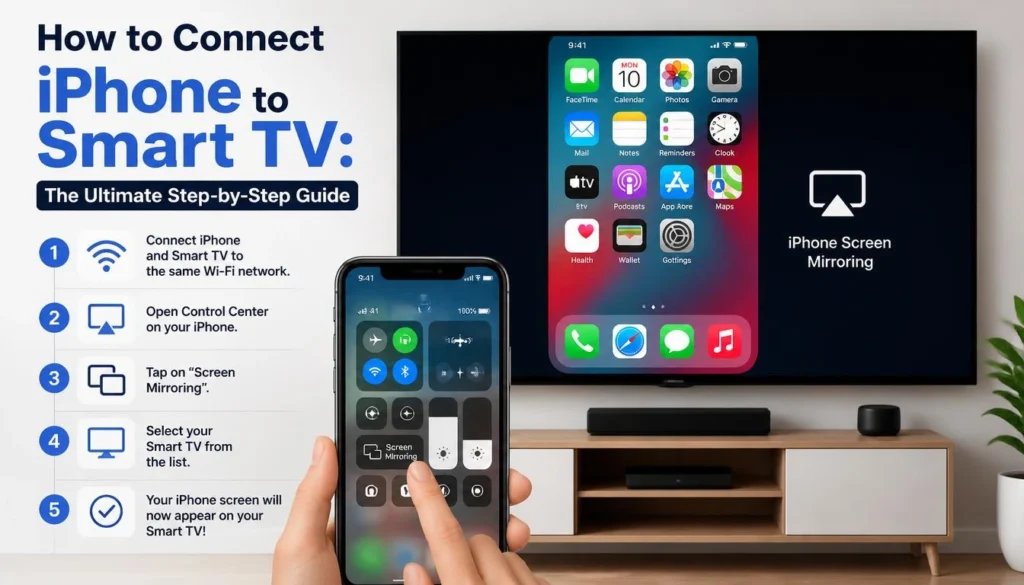
- Connect your iPhone and Smart TV to the same Wi-Fi network.
- Swipe down from the top-right corner of your iPhone screen to open the Control Center.
- Tap the Screen Mirroring icon (represented by two overlapping rectangles).
- Select your Smart TV from the list of available devices.
- Enter the four-digit passcode displayed on your television screen into your iPhone.
Once accepted, your phone screen will display immediately on the big screen. Furthermore, you can stop mirroring anytime by tapping the Control Center icon again.
Method 2: How to Connect iPhone to Smart TV Without AirPlay
If your television is an older model or lacks native AirPlay support, you can still stream content wirelessly. Third-party streaming devices and dedicated mobile applications bridge the gap effortlessly.
Using Google Chromecast
Google Chromecast offers a smooth alternative for non-AirPlay televisions.
- Plug the Chromecast dongle into your TV HDMI port and connect it to power.
- Download the Google Home app on your iPhone from the App Store.
- Configure your Chromecast using the on-screen prompts.
- Open any cast-enabled application like YouTube, Netflix, or Hulu.
- Tap the Cast button on the video player and choose your Chromecast device.
Using Roku Streaming Devices
Roku OS supports direct mirroring as well as native media casting.
- Ensure your Roku device is running Roku OS 9.4 or higher.
- Navigate to Settings > Apple AirPlay and HomeKit on your Roku interface.
- Verify that AirPlay is switched to On.
- Use the iPhone Control Center to mirror your full display instantly.
Using Third-Party Mirroring Apps
When standard options are unavailable, third-party apps fill the void. Reliable applications like Replica, DoCast, or AirScreen work remarkably well across Android TV platforms.
- Install your preferred mirroring app on both your iPhone and Smart TV.
- Launch the app on your mobile device and grant local network permissions.
- Select your television from the discovered device list.
- Tap Start Broadcast to begin casting your phone screen.
Method 3: How to Connect iPhone to Smart TV via HDMI Cable (Wired Connection)
Wireless signals can occasionally lag during fast-paced gaming or live sports broadcasting. Therefore, a physical cable connection remains the best solution for zero latency and uncompressed video quality.
Required Hardware
- Apple Lightning to Digital AV Adapter (for iPhone 14 models and older)
- USB-C Digital AV Multiport Adapter (for iPhone 15, 16, and newer models)
- Standard High-Speed HDMI Cable
Step-by-Step Wired Setup
- Connect the HDMI cable to an open port on your Smart TV.
- Plug the opposite end of the HDMI cable into your Apple Digital AV Adapter.
- Insert the adapter connector into your iPhone charging port.
- Switch your television input source to the corresponding HDMI port using your TV remote.
Your iPhone display will project instantly without requiring any software configuration or Wi-Fi connectivity.
Key Benefits of Screen Mirroring iPhone to TV
Connecting your mobile device to a television screen opens up numerous functional possibilities for home and office environments.
| Feature | AirPlay 2 (Wireless) | HDMI Cable (Wired) | Streaming Sticks |
| Setup Time | Under 30 Seconds | Instant | 2-3 Minutes |
| Video Quality | Up to 4K HDR | Crisp 4K Uncompressed | Up to 4K HDR |
| Latency / Lag | Minimal (Network Dependent) | Zero Latency | Low Latency |
| Wi-Fi Required | Yes | No | Yes |
| Best Used For | Photos, Movies, Presentations | Gaming, High-Bitrate Video | Older Televisions |
Troubleshooting Common iPhone to Smart TV Connection Issues
Even with correct procedures, technical glitches can occasionally occur. You can solve most screen mirroring problems quickly by following these basic checks.
Why Is AirPlay Not Finding My Smart TV?
First, verify that both devices share the exact same Wi-Fi network. Routers often separate 2.4 GHz and 5 GHz bands into different SSID names. Thus, move both devices to the same frequency. Additionally, restart your router and toggle your iPhone Airplane Mode on and off.
How to Fix Screen Mirroring Lag and Stuttering
Lag usually happens due to network congestion or excessive distance from your router. Disconnect secondary devices consuming heavy bandwidth, or lower video stream resolution within app settings. Alternatively, switch to a physical HDMI connection for gaming.
Fixing “No Audio” During Screen Mirroring
If video plays without sound, check that your iPhone Ring/Silent switch is not set to Silent mode. Furthermore, verify that your Smart TV volume is turned up and that audio output is set to internal speakers.
Frequently Asked Questions (FAQs)
Conclusion
Knowing how to connect iPhone to Smart TV gives you full control over your media experience. Wireless setups via AirPlay 2 or Chromecast offer unmatched daily convenience. Meanwhile, physical HDMI adapters provide rock-solid stability for high-bitrate video playback and low-latency gaming. By following the troubleshooting steps outlined above, you can resolve connection drops quickly and enjoy your favorite content on a bigger display anytime.