
Many people want to view their iPad screens on a larger display. Knowing how to mirror your iPad to a laptop can make your work and entertainment much easier. Whether you are using a Windows PC or a macOS laptop, sharing your screen is highly beneficial.
Fortunately, you do not need expensive cables or complicated setups to achieve this. In this easy guide, we will break down the best free wireless and wired methods. These simple solutions will help you share your screen in just a few minutes.
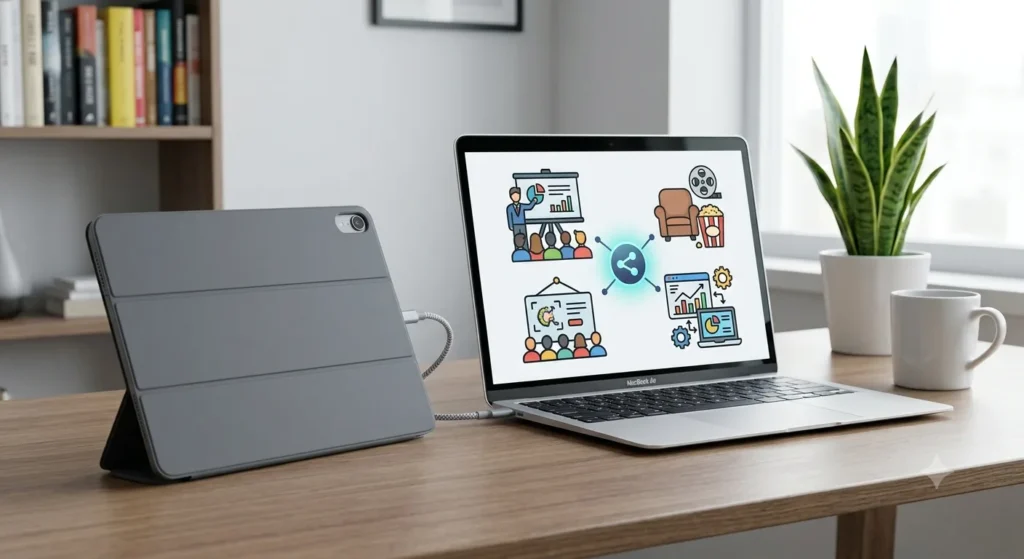
Connecting your tablet to your computer screen opens up many possibilities. It is incredibly useful for several everyday tasks:
- Better Presentations: You can easily showcase your design drafts, slide decks, or documents directly from your tablet to a larger laptop screen during meetings.
- Comfortable Media Streaming: You can watch your favorite family videos, mobile games, and streaming shows on a larger and more comfortable display.
- Productive Dual-Screen Setup: You can turn your portable iPad into a functional second monitor to handle multitasking while working remotely.
Now that you understand the main benefits, let us explore the step-by-step methods to connect your devices.
1: Mirror iPad to a Windows Laptop for Free (Using LetsView)
Windows laptops do not support Apple AirPlay by default. To bridge this gap, you can use a free, reliable screen mirroring app called LetsView. This app allows you to mirror your screen wirelessly with audio.
1.Download the LetsView App:
Required on both devices.
Visit the official website on your laptop to download and install the Windows client. Next, open the iOS App Store on your iPad and install the mobile version.
2.Connect to the Same Wi-Fi Network:
Crucial for detection.
Make sure both your iPad and your Windows laptop are connected to the exact same Wi-Fi network. If they are on different channels, they will not see each other.
3.Launch LetsView on Both Devices:
Initialization.
Open the LetsView software on your Windows laptop. At the same time, open the app on your iPad. Your laptop name should quickly appear in the iPad connection list.
4.Activate Apple Screen Mirroring:
Final step.
Swipe down from the top-right corner of your iPad to open the Control Center. Tap the Screen Mirroring icon (two overlapping rectangles) and select your laptop.
Method 2: Use iPad as a Second Display for Mac (Using Sidecar)
1: Mirror iPad to a Windows Laptop for Free (Using LetsView)
If you own a MacBook, Apple provides a built-in feature called Sidecar. This official feature requires no third-party software downloads or account setups. It allows you to mirror your screen or use your iPad as an extended display.
To use Sidecar, make sure both devices are signed into the same Apple ID. You also need to enable Bluetooth and Wi-Fi on both systems.
1.Check Your System Settings:
Mac configuration.
Open the Apple Menu on your Mac and select System Settings. Navigate to the Displays menu located in the left sidebar.
2.Select Your iPad:
1: Mirror iPad to a Windows Laptop for Free (Using LetsView)
Connection initiation.
Click on the “+” dropdown icon on the right side of the display menu. Choose your iPad from the list of available devices.
3.Configure Mirroring Settings:
1: Mirror iPad to a Windows Laptop for Free (Using LetsView)
Display layout.
By default, Sidecar extends your desktop. To mirror your screen instead, click the Screen Mirroring icon in the Mac menu bar and select Mirror Built-in Display.
Method 3: Mirror iPad to Laptop via USB (For Lag-Free Performance)
1: Mirror iPad to a Windows Laptop for Free (Using LetsView)
Wireless mirroring is highly convenient, but local network interference can sometimes cause lag. If you need a completely lag-free connection for streaming videos or drawing, a wired USB setup is best.
You can use ApowerMirror to set up a reliable USB connection:
1.Install ApowerMirror:
Setup on PC or Mac.
Download and install the desktop software on your laptop. You do not need to install the mobile app if you are using a direct USB cable connection.
2.Connect via USB Cable:
Physical link.
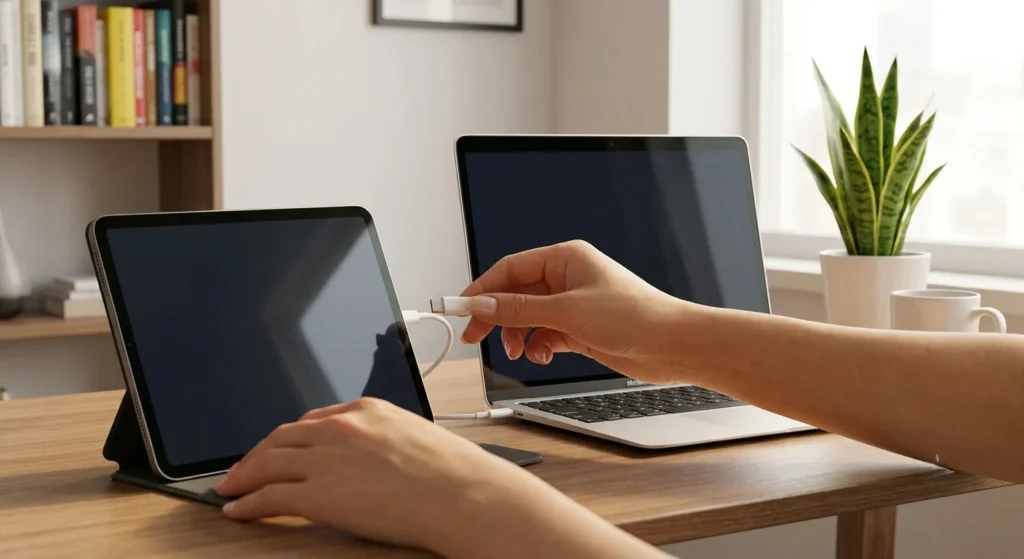
Connect your iPad to your laptop using a compatible Lightning or USB-C cable. Make sure the cable is plugged in securely.
3.Trust the Computer:
Security authorization.
Unlock your iPad screen. A prompt will ask, “Trust This Computer?” Tap Trust and enter your tablet passcode to allow access.
4.Start Mirroring:
Live stream activation.
Launch ApowerMirror on your laptop and choose the USB Connection tab. The software will instantly detect your iPad and mirror the screen.
Simple Tips for Fast Screen Mirroring
If you experience issues, simple adjustments can quickly fix your connection. These basic tips will ensure a smooth streaming experience:
- Use 5GHz Wi-Fi:
- Ensure both devices are connected to a 5GHz Wi-Fi channel rather than a slower 2.4GHz channel to minimize delay.
- Close Active Background Apps:
- Shut down resource-heavy apps on your tablet to free up processing power.
- Update Your Operating Systems:
- Keep your iPadOS and laptop operating system updated to prevent driver errors.
Frequently Asked Questions (FAQs)
Conclusion
Mirroring your iPad to a laptop is a straightforward process. You can easily connect your devices using free tools like LetsView for Windows, or Apple’s built-in Sidecar feature for macOS. If you need a lag-free experience, a wired USB cable connection is the most reliable option. Simply pick the method that works best for your setup and enjoy a larger screen.