
Do you want to watch your favorite mobile games on a massive TV screen? Maybe you need to share a quick slide presentation directly from your phone. Apple’s built-in AirPlay works wonders, but only if you own compatible Apple devices.
What happens when you want to connect your iOS device to a Roku, Chromecast, Fire Stick, or a Windows computer?
Third-party screencasting applications solve this exact problem. They bypass ecosystem restrictions and deliver smooth, high-definition streaming. This ultimate guide breaks down the most reliable screen mirroring apps for iPhone users. We will explore their distinct features, pricing, and overall ease of use.
Quick Comparison of the Top iPhone Mirroring Software
Selecting the perfect platform depends heavily on your specific hardware setup. Different tools excel at different tasks like low-latency gaming or simple office slideshows.
| App Name | Primary Strengths | Best Connection Type | Price Point |
| AirDroid Cast | Universal remote casting, web browser mirroring | USB Cable & WiFi | Free (Premium from $2.49/mo) |
| ApowerMirror | Multi-device casting, real-time recording | USB & Local WiFi | Free Trial (Paid from $19.95/mo) |
| LetsView | Completely free, wireless office whiteboard | Wireless WiFi only | Free (Pro starts at $5.99/mo) |
| AirBeamTV | Direct Smart TV mirroring without Apple TV | Local WiFi Network | Free Trial (Varies by TV brand) |
| Replica | Clean design, ideal for Chromecast & Roku | Local WiFi Network | Free with in-app purchases |
Detailed Reviews of the 10 Best Screen Mirroring Apps for iPhone
1.AirDroid Cast — Best Overall Tool for Remote Mirroring
AirDroid Cast is incredibly versatile and reliable. It lets you share your iOS screen directly to a web browser without installing any software on the receiving device.
The setup process requires only a quick scan of a QR code. Users enjoy highly stable video transfers with crisp, two-way audio streams. It also features a zero-latency USB connection option for intense mobile gaming.
- Key Advantage: It supports remote casting even when your devices are connected to completely different networks.
- Best Suited For: Gamers, remote workers, and online teachers.
2.ApowerMirror — Best Option for High-Resolution Control
ApowerMirror stands out with its gorgeous, high-definition output. It allows you to mirror up to four different devices to a single screen simultaneously.
This software includes a built-in screen recorder, screenshots, and visual markup tools. You can also reverse-control your mobile screen from your computer using a mouse and keyboard. The connection remains fluid, keeping latency to an absolute minimum.
- Key Advantage: You can easily stream mobile gameplay directly to OBS Studio or Twitch.
- Best Suited For: Live streamers, content creators, and business presenters.
3.LetsView — Best Fully Free Screen Mirroring Software
LetsView is a highly popular, budget-friendly option. Unlike other tools, its core wireless mirroring features come with absolutely no time limits.
The user interface feels clean and highly intuitive. It provides convenient extra features like a digital whiteboard for drawing and a single-click screen recorder. It works seamlessly across Windows, Mac, Android, and iOS.
- Key Advantage: No intrusive watermarks are placed on your mirrored screen during free sessions.
- Best Suited For: Budget-conscious students and classroom educators.
4.AirBeamTV — Best for Cable-Free Smart TV Streaming
AirBeamTV specializes in connecting your phone directly to smart televisions. It completely eliminates the need for expensive HDMI cords or Apple TV boxes.
The developer provides dedicated apps tailored for major brands. These brands include Samsung, LG, Sony, Roku, and Fire TV. The app beams video and audio in high definition with a simple tap.
- Key Advantage: No extra hardware is needed to connect your phone to non-AirPlay TVs.
- Best Suited For: Binge-watching movies, sharing family photos, and home entertainment.
5. Replica — Best Lightweight Option for Chromecast and Roku
Replica is a highly rated app found on the Apple App Store. It provides incredibly simple casting to Chromecast, Roku, and Android TV devices.
The app guides you step-by-step through a straightforward setup wizard. It maintains a sharp image quality when casting web videos and browser tabs. It is perfect for displaying vacation photos or streaming fitness apps onto your living room wall.
- Key Advantage: A very simple interface that connects in under ten seconds.
- Best Suited For: Minimalists who prefer basic, hassle-free casting to streaming dongles.
6. Mirroring360 — Best Tool for Large-Scale Classroom Displays
Mirroring360 is widely used in school systems and corporate boardrooms. It allows you to display your iOS screen on computers and large projectors wirelessly.
The software includes a premium feature that lets you share your screen with up to forty viewers simultaneously. Viewers can easily watch your screen through a simple web link. It runs smoothly on older operating systems and maintains solid network stability.
- Key Advantage: The unique “Mirroring Assist” feature simplifies connections across complex school or corporate networks.
- Best Suited For: Teachers, corporate trainers, and large group presenters.
7. Reflector 4 — Best Wireless Receiver for Professional Demos
Reflector is a popular receiver program designed for macOS and Windows. It turns your desktop into an advanced AirPlay receiver with no cables required.
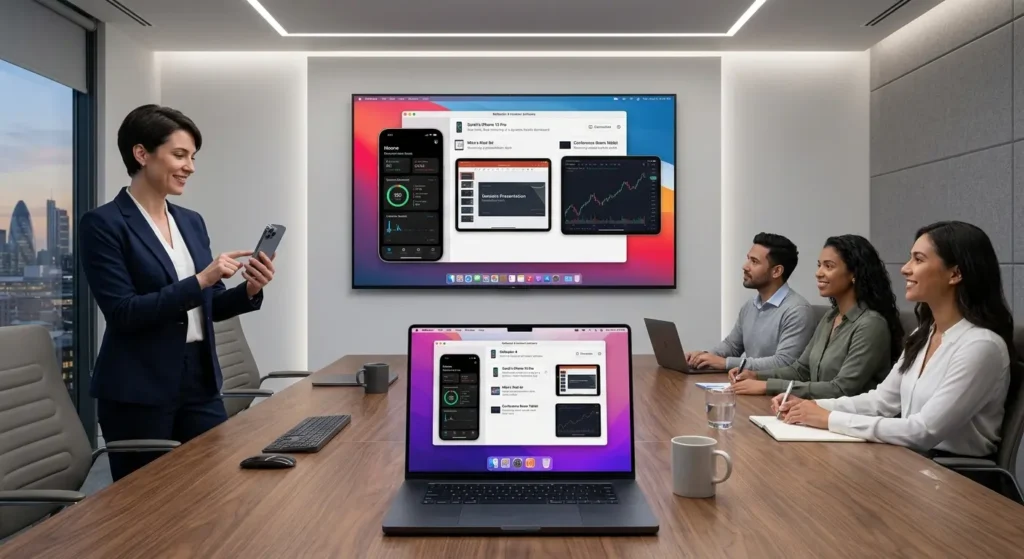
The application automatically wraps your mirrored screen in a stylish device frame. This feature makes it highly professional for recording app walk-throughs. It can record multiple devices at once while adding custom voiceover audio.
- Key Advantage: It combines AirPlay, Google Cast, and Miracast into a single desktop receiver.
- Best Suited For: App developers, tech reviewers, and software instructors.
8.AnyDesk — Best Software for Advanced Remote Support
AnyDesk is highly respected for its incredibly fast remote desktop access. Its unique DeskRT codec compresses visual data with great efficiency.
This app allows you to share your iPhone screen with remote systems over cellular networks. It provides a secure, password-protected environment for data safety. The software remains very lightweight and fast.
- Key Advantage: It operates incredibly well even on highly congested, low-bandwidth networks.
- Best Suited For: Remote IT support, troubleshooting, and secure business casting.
9. Zoom — Best Integrated Mirroring for Virtual Collaboration
Zoom is primarily a video conferencing tool, but its built-in iOS screen sharing is top-tier. You do not need to install extra casting tools if you already use Zoom for meetings.
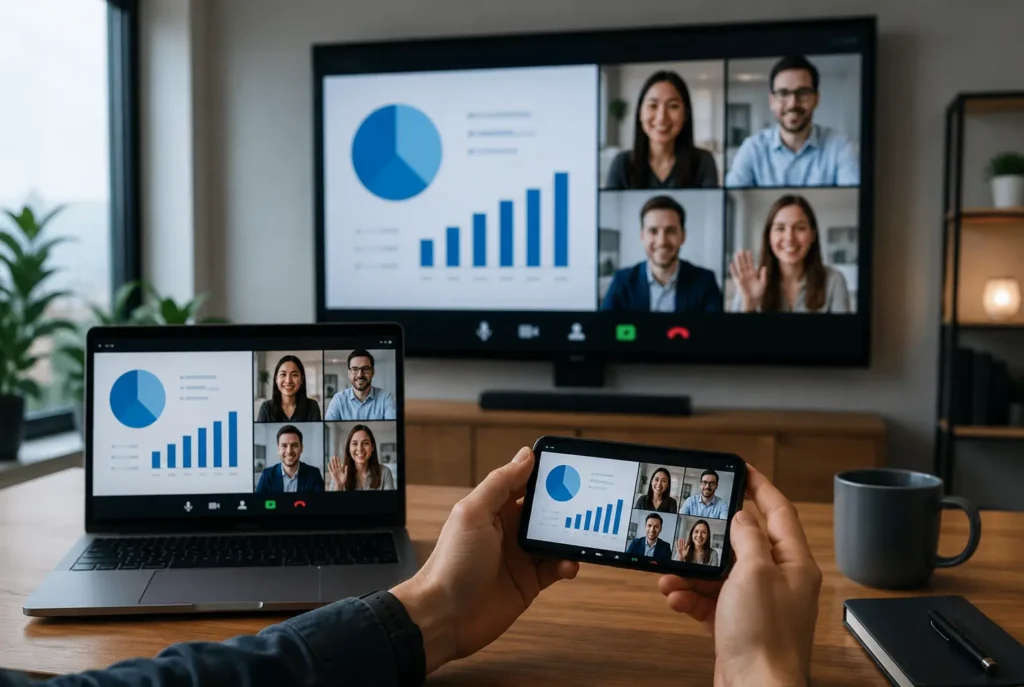
It lets you share your iPhone screen wirelessly using the local network during any call. The platform supports native AirPlay routing directly inside the desktop client. It is highly reliable and handles audio sharing perfectly.
- Key Advantage: It is already installed on millions of business computers worldwide.
- Best Suited For: Remote business workers, corporate teams, and virtual students.
10. TeamViewer — Best Enterprise-Grade Screen Sharing Tool
TeamViewer is an industry-leading tool designed for remote device access. It allows secure, real-time screen sharing from your iPhone to any computer.
The app includes an encrypted connection to protect sensitive personal or business data. It features dual-screen support, simple file transfers, and instant chat options. It is highly reliable for enterprise environments.
- Key Advantage: Offers bank-level, end-to-end security encryption for every streaming session.
- Best Suited For: Enterprise teams, system administrators, and corporate IT support.
Pro Tips to Speed Up Screen Mirroring and Reduce Lag
A slow connection can quickly ruin your screencasting experience. You can significantly boost your performance by following these advanced, proven tricks:
- Use the 5 GHz WiFi Band: Standard 2.4 GHz channels suffer from heavy wireless interference. Switch your router settings to the 5 GHz band to secure a much wider, faster pipeline.
- Connect via USB Cable: When latency is a critical issue, bypass your wireless network entirely. Connect your iPhone directly using a lightning or USB-C cable.
- Close background Apps: Running too many active apps drains your iPhone’s processing power. Force-close heavy applications to free up system memory for the video encoder.
- Keep Your Router Close: Physical obstacles like thick walls degrade your wireless signals. Position your phone and receiving device within the same room as your router.
Conclusion: Which Screen Mirroring App Should You Pick?
Your final choice depends heavily on your hardware and budget.
If you want a highly versatile, cross-platform tool that works on web browsers, download AirDroid Cast. If you want a completely free option with unlimited casting time, LetsView is your best choice. For direct, cable-free streaming to a smart television, AirBeamTV remains the easiest choice.