
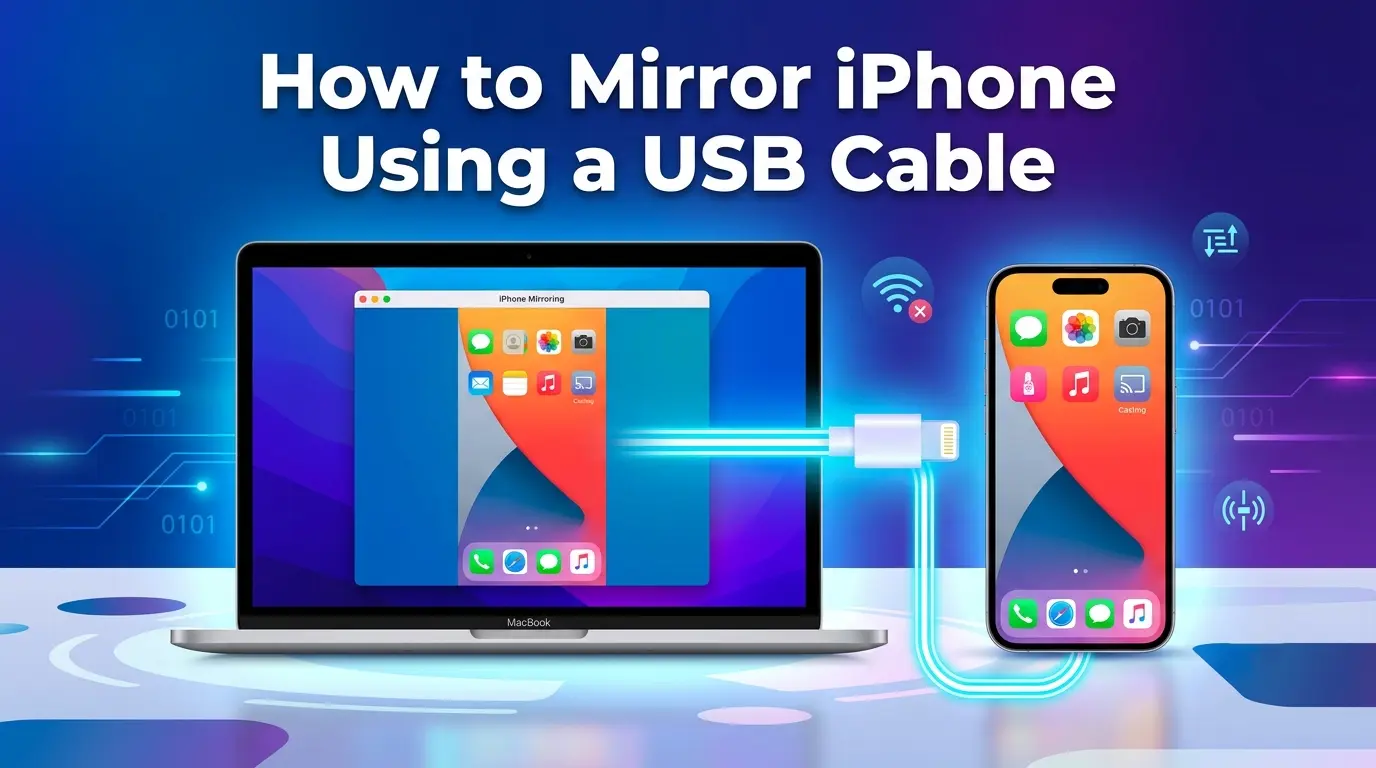
Mirror iPhone using a USB cable have you ever tried to share your iPhone screen during a crucial meeting only to have your Wi-Fi drop? Or maybe you wanted to play a high-speed mobile game on a larger monitor, but the wireless lag made it unplayable. Wireless casting is convenient, but it is often unstable and laggy.
Fortunately, you can easily bypass bad wireless signals. When you mirror iPhone using a USB cable, you get a lightning-fast, zero-delay and crystal-clear connection.
This comprehensive guide will walk you through the easiest, most reliable ways to connect your iOS device to both Mac and Windows computers. We will cover free built-in tools and powerful third-party software to get your screen mirrored in seconds.
Why Choose USB Over Wi-Fi to Mirror iPhone?
Wireless mirroring via AirPlay is great for casual viewing, but it has severe limitations. If you want professional results, a physical cable is always the superior choice.
Zero Lag and Ultra-Low Latency
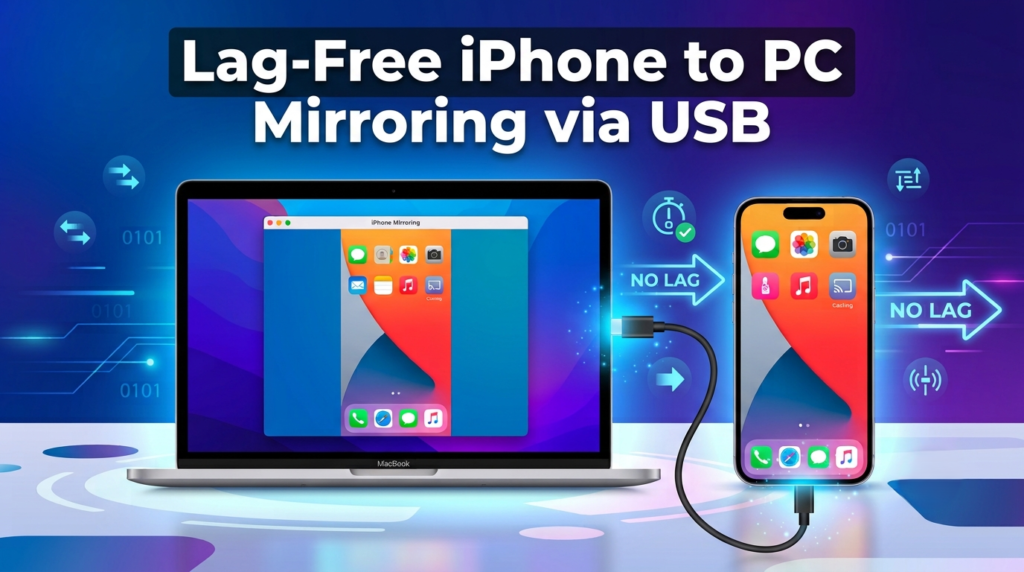
Wi-Fi signals carry data packets through the air, which inevitably introduces minor delays. This delay is highly frustrating when you try to stream fast-paced mobile games or present real-time app demonstrations. A high-quality USB connection transmits video and audio instantly with zero noticeable lag.
No Wi-Fi? No Problem
Sometimes you need to project your screen in places without a stable local network. This scenario is common in hotels, conference rooms, or schools. Using a physical cable allows you to cast your display completely offline without worrying about network permissions.
Consistent Charging While Casting
Screen mirroring is a resource-heavy process that drains your battery quickly. When you connect via a physical wire, your computer automatically charges your phone. You can stream or record your screen for hours without checking your battery percentage.
How to Mirror iPhone Using a USB Cable to a Mac (The Easiest Free Ways)
If you own a Mac, Apple has already provided excellent built-in features to accomplish this task. You do not need to purchase expensive premium software.
Method 1: Mirror Using QuickTime Player (Completely Free)
Every Mac comes pre-installed with QuickTime Player. While many people view it as a simple media player, it is actually a highly efficient, free screen receiver.
Here is how to use it:
- Grab your lightning-to-USB or USB-C cable and connect your iPhone directly to your Mac.
- Unlock your iPhone screen. If you see a prompt asking to “Trust This Computer,” tap “Trust” and enter your passcode.
- Open QuickTime Player on your Mac.
- Go to the top menu bar, click on File, and select New Movie Recording.
- Next to the red record button, click the small drop-down arrow icon.
- Select your iPhone from the camera and microphone lists.
Your iPhone screen will instantly appear on your Mac desktop in high resolution. You do not need to click the record button unless you want to save a video of your session.
Method 2: Native iPhone Mirroring on macOS Sequoia and Tahoe
If your Mac runs macOS Sequoia (or the newer macOS Tahoe) and you have a modern Apple Silicon Mac, you can use the built-in iPhone Mirroring app. This native feature allows you to fully view and interact with your iPhone directly from your Mac screen.
- Ensure your Mac has Bluetooth and Wi-Fi enabled, even though the data will route efficiently.
- Click the iPhone Mirroring icon in your Mac’s dock or find it in your Applications folder.
- Follow the quick on-screen instructions to pair your devices.
- Once connected, your phone’s home screen will pop up in a dedicated window.
Now you can use your Mac’s trackpad and keyboard to open apps, type messages, and receive phone notifications in real-time.
How to Mirror iPhone Using a USB Cable to a Windows PC
Windows PCs do not natively support Apple’s proprietary AirPlay casting protocol. To establish a stable connection, you will need to utilize trusted third-party applications.
Method 1: Mirror Using AirDroid Cast
AirDroid Cast is a top-tier tool for cross-platform casting. The USB connection feature provides incredibly smooth frame rates and high stability.
Follow these simple steps:
- Download and install the AirDroid Cast desktop client on your Windows PC.
- Install the companion AirDroid Cast app on your iPhone from the App Store.
- Open the desktop app on your PC and click on the Cable tab.
- Connect your iPhone to your PC using a reliable USB cable.
- Select your device from the list of available connections on your PC screen.
- Tap Trust on your iPhone when prompted.
The application will initialize the stream within seconds. You can now enjoy full-screen iOS viewing on your Windows monitor.
Method 2: Cast Your Screen with ApowerMirror
ApowerMirror is another fantastic, highly polished alternative that handles up to 2K resolution streams.
Here is how to set it up:
- Download and install ApowerMirror on both your Windows computer and iOS device.
- Launch the application on both platforms.
- Plug your iPhone into the computer’s USB port.
- On the PC app, click the USB Connection option.
- Allow any necessary driver installations on your PC if prompted.
- Confirm the “Trust This Computer” prompt on your mobile screen.
Your screen will sync automatically, giving you access to lag-free visual streaming and screenshot tools.
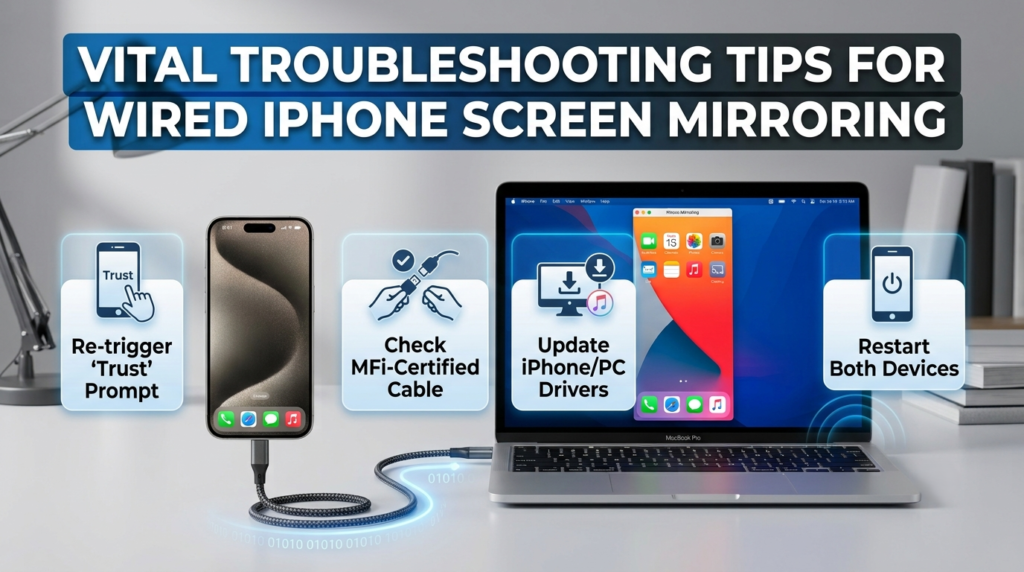
Vital Troubleshooting Tips for Wired iPhone Screen Mirroring
Even with a physical connection, you might occasionally run into minor software glitches. Use these quick troubleshooting tips to resolve issues fast:
- Check Your Cable Quality: Always use an original Apple cable or an MFi-certified (Made for iPhone) cable. Cheap third-party charging cords often do not support high-speed data transfer.
- Re-trigger the Trust Prompt: If your computer does not detect your device, disconnect the wire. Go to your iPhone settings, tap General, choose Transfer or Reset iPhone, select Reset, and tap Reset Location & Privacy. Plug the cord back in to see the trust prompt again.
- Update Your Drivers: If you are on Windows, ensure you have the latest version of iTunes installed. iTunes installs the official Apple USB drivers that third-party mirroring tools rely on to work correctly.
- Restart Both Devices: A quick system reboot on both your computer and your phone can clear stubborn background memory loops.
FAQs
Conclusion
Learning how to mirror iPhone using a USB cable is a fantastic skill for gamers, teachers, and content creators alike. While wireless setups offer convenience, they simply cannot match the rock-solid reliability and speed of a physical connection.
If you are on a Mac, stick to the free QuickTime Player or native mirroring settings. If you are a Windows user, download a robust utility tool like AirDroid Cast or ApowerMirror. Connect your cable, trust your computer, and enjoy high-speed, lag-free viewing instantly.