
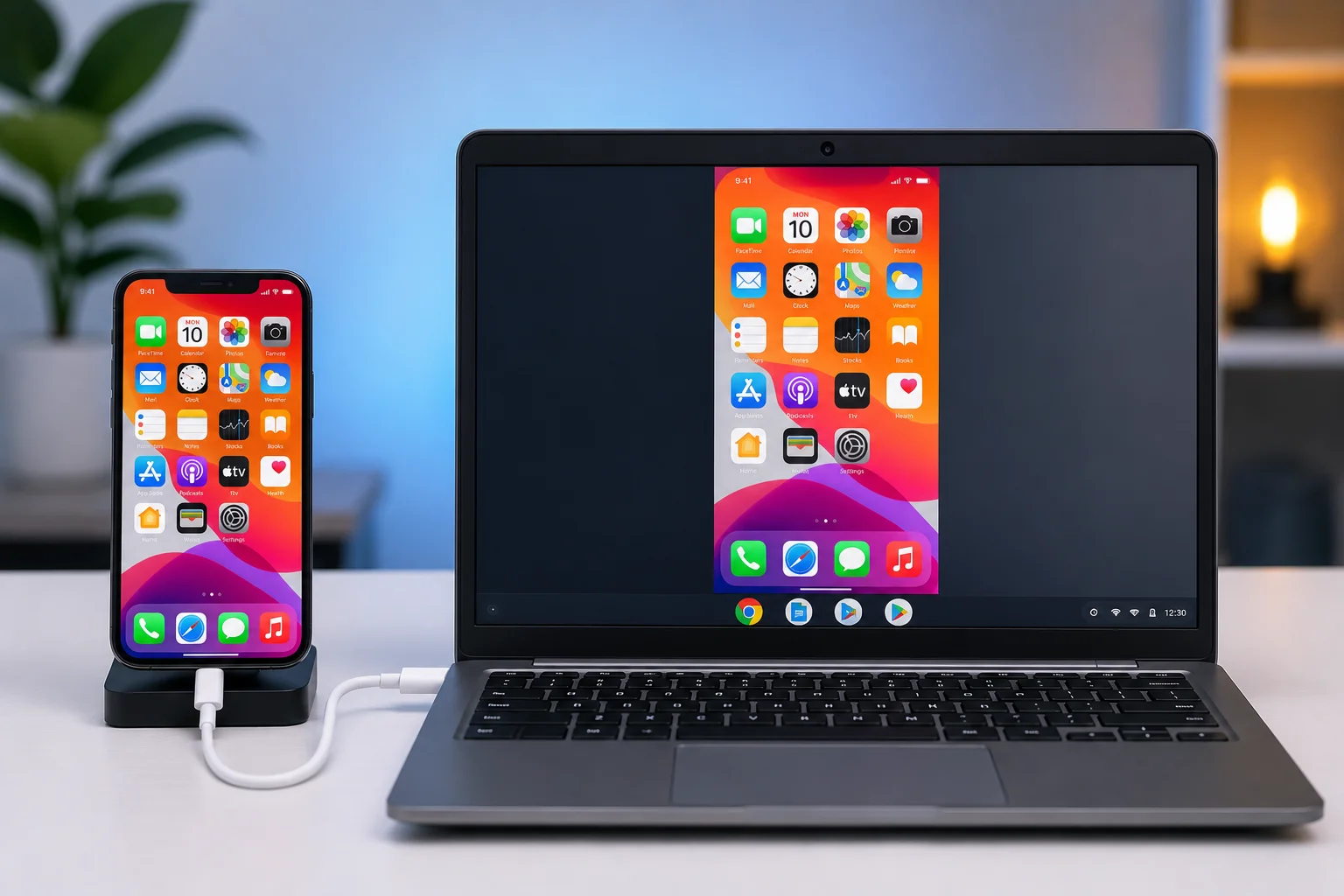
Connecting an Apple device to a Google ecosystem can feel tricky. You tap the screen mirroring button on your iPhone, but your Chromebook never shows up.
Why does this happen? Apple uses AirPlay technology. Google uses Google Cast. These two systems do not talk to each other directly without help.
You can easily bypass this barrier with simple workarounds. You can stream mobile games, share photos, or present slides on a bigger screen quickly. Here are the easiest methods to mirror your iPhone to a Chromebook today.
Method 1: Mirror iPhone Screen to Chromebook Free via Google Meet
The fastest way to view your iPhone screen on Chrome OS uses Google Meet. This method requires zero extra apps on your laptop. You only need the standard Google Meet app on your iOS phone.
Step-by-Step Instructions:
- Open Chrome on your Chromebook and visit meet.google.com.
- Click New Meeting and choose Start an instant meeting.
- Open the Google Meet app on your iPhone.
- Tap Join with a code and type the code from your laptop.
- Tap the three dots menu at the bottom right of your phone screen.
- Select Share screen and tap Start Broadcast.
Your entire mobile display will appear instantly inside the browser window on your Chromebook.
Method 2: Use an AirPlay Receiver App on Chromebook
If you want true wireless casting, you can turn your Chromebook into an AirPlay receiver. Installing an Android app on Chrome OS enables your iPhone to recognize the laptop in Control Center.
Popular AirPlay Receiver Apps:
- LetsView: A completely free app with fast screen rendering.
- AirServer: A professional receiver tool offering high-definition display options.
- Mirroring360: Excellent for stable presentations and classroom lectures.
How to Connect:
1.Download the Receiver:1 minute.
Open the Google Play Store on your Chromebook. Search for LetsView or AirServer Connect and install it.
2.Check Wi-Fi Settings:30 seconds.
Connect both your iPhone and Chromebook to the exact same Wi-Fi network.
3.Launch the App:30 seconds.
Open the receiver app on your Chromebook to activate the AirPlay signal.
4.Enable AirPlay on iOS:30 seconds.
Swipe down on your iPhone screen to open Control Center. Tap Screen Mirroring and select your Chromebook from the list.
Method 3: Cast Specific Apps directly (YouTube and Media)
Full display mirroring is not always necessary. You can cast media content straight from popular iPhone apps to your laptop screen effortlessly.
How In-App Casting Works:
- Connect your phone and laptop to the same network.
- Launch a supported app on your iPhone, such as YouTube or Netflix.
- Tap the rectangular Cast icon located at the top of the video player.
- Pick your Chromebook from the popup menu to begin streaming.
Method 4: Access iPhone Content via Cloud Services
You can access photos, videos, and documents without any video lag by using cloud synchronization.
- Google Photos: Install Google Photos on your iPhone to back up pictures automatically. Open photos.google.com on Chrome OS to view them instantly in high resolution.
- iCloud Web: Open iCloud.com in the Chrome browser. Log in with your Apple ID to check iPhone notes, photos, and files.
- Google Drive: Move documents to your Drive app on iOS. Access those files immediately on your laptop web browser.
Comparison of iPhone to Chromebook Mirroring Options
| Method | Setup Time | Cost | Best Used For |
| Google Meet | 2 minutes | 100% Free | Live presentations, app demos |
| LetsView App | 3 minutes | Free | Mobile gaming, general screen display |
| In-App Casting | 30 seconds | Free | YouTube and movie streaming |
| Cloud Syncing | Instant | Free | Sharing photos, documents, and notes |
Can You Mirror iPhone to Chromebook via USB Cable?
Many users try connecting their devices with a Lightning or USB-C cable. USB screen mirroring does not work directly between an iPhone and a Chromebook.
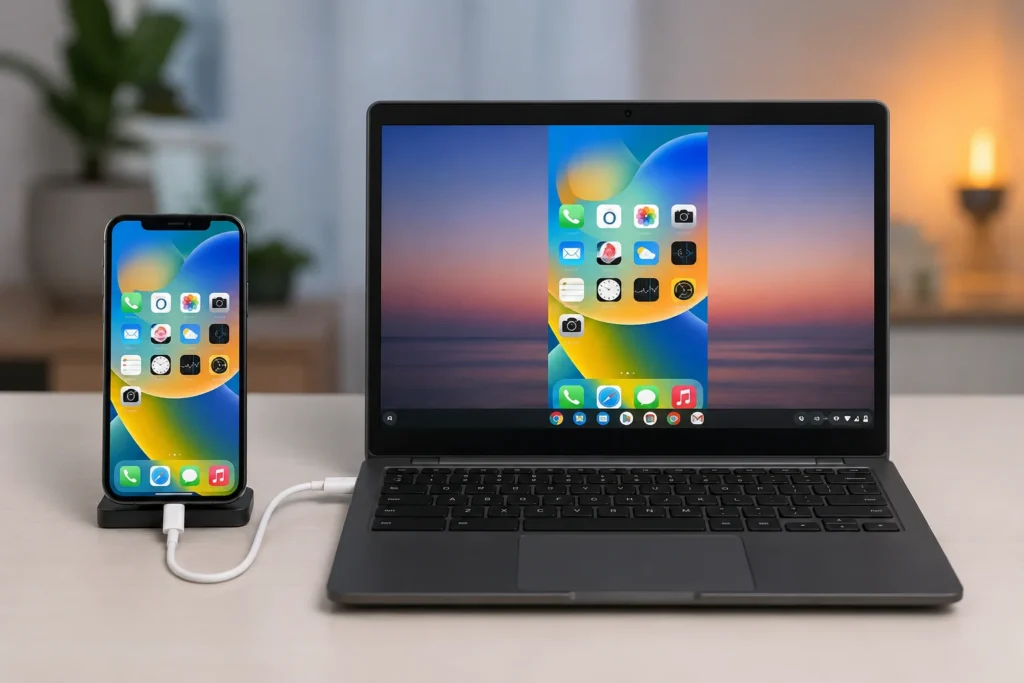
Chrome OS lacks native display drivers for Apple hardware. The cable will charge your phone, but it will not transmit your mobile video feed. Wireless solutions remain the most effective choice.
Frequently Asked Questions (FAQs)
Conclusion
Connecting an iOS device to a Google Chromebook takes a few simple steps. You can launch a quick meeting with Google Meet, download an AirPlay app like LetsView, or cast media directly. Choose the solution that best fits your workflow and enjoy your mobile content on a larger display immediately!