
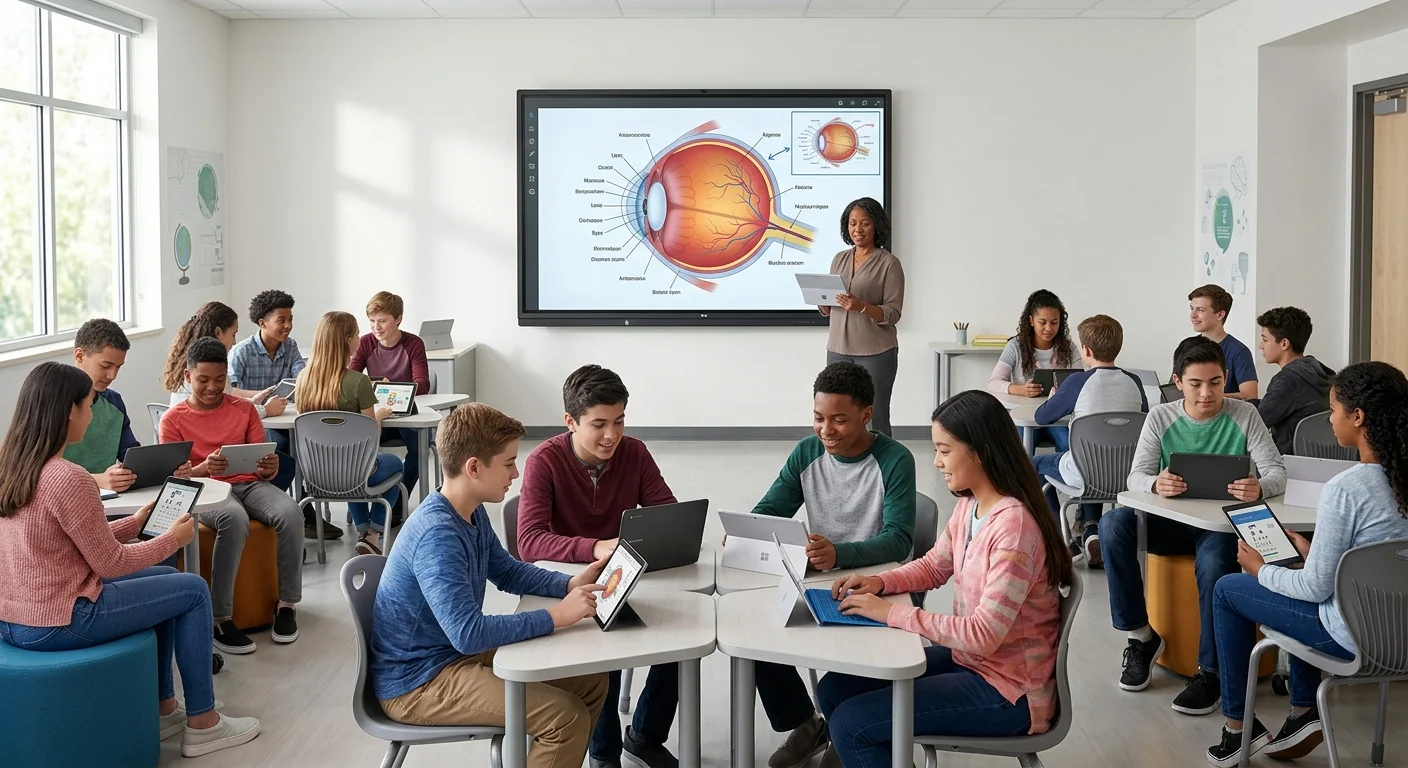
Finding the best wireless screen mirroring apps for education is essential for creating interactive, modern classrooms. Cable tangles often slow down lectures, but wireless screen mirroring software solves this issue instantly. It allows teachers to walk around the room while sharing lesson materials seamlessly. Students can also present their work on the main screen without plugging in any wires.
Choosing the right casting platform upgrades both remote and hybrid learning environments. Below, we break down top-rated wireless display tools, key classroom features, and smart installation strategies.
Why the Best Wireless Screen Mirroring Apps for Education Matter
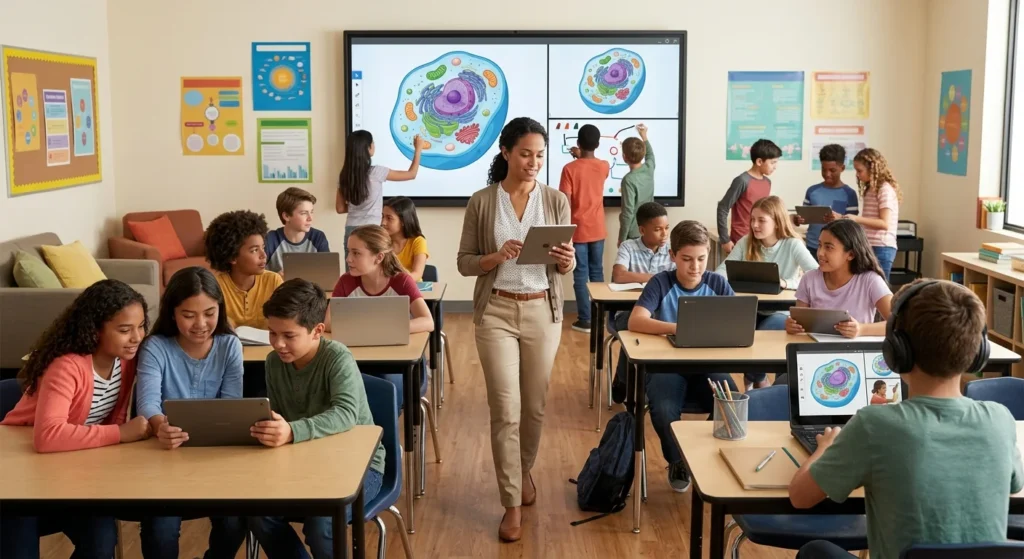
Interactive education relies on real-time visual collaboration. Teachers can control presentations directly from a tablet or smartphone using classroom screen sharing software. This freedom improves classroom engagement significantly.
                 +--------------------------+
                 |   Teacher / Presenter    |
                 |  (iPad, PC, Chromebook)  |
                 +------------+-------------+
                              |
                     [ Wi-Fi / Cloud Network ]
                              |
            +-----------------+-----------------+
            |                                   |
            v                                   v
+-----------------------+           +-----------------------+
|  Classroom Display    |           |   Remote Students     |
| (Projector / Smart TV)|           | (Zoom / Teams Session)|
+-----------------------+           +-----------------------+
Traditional setups bind educators to a static podium or desk. Modern educational screen mirroring applications break those physical limits completely. Furthermore, screen mirroring supports Bring Your Own Device (BYOD) policies seamlessly. Students can connect Windows, Mac, Android, iOS, or Chromebook devices without technical delay.
Top 5 Wireless Screen Mirroring Apps for Education and Remote Learning
Here are the most reliable wireless display tools tested for hybrid teaching and remote classrooms:
1. Reflector 4 – Top Wireless Display App for Education
Reflector 4 turns any Mac or Windows PC into an AirPlay, Google Cast, and Miracast receiver. It requires no extra software on sending devices.
- Best Feature: Multi-device screen layouts for side-by-side student comparisons.
- Security: Moderator controls allow teachers to accept or deny screen connections.
- Supported Platforms: Windows, macOS, iOS, Android, Chromebook.
2. AirServer – Enterprise Screen Mirroring Tool for Classrooms
AirServer is an enterprise-grade receiver that transforms standard classroom displays into universal wireless hubs. It streams crystal-clear 4K video at 60 FPS smoothly.
- Best Feature: Zero client software installation needed on student hardware.
- Performance: Ultra-low latency protocol for real-time video playback.
- Supported Protocols: AirPlay, Google Cast, Miracast.
3. Vivi – Dedicated Educational Screen Mirroring Software
Designed specifically for K-12 and higher education, Vivi offers built-in classroom management tools alongside wireless screen casting.
- Best Feature: Live digital signage and emergency school-wide broadcast alerts.
- Teacher Tools: Integrated student polling, whiteboarding, and annotation tools.
- Supported Platforms: Cross-platform support for all educational operating systems.
4. Mirroring360 Pro – High-Performance Wireless Screen Mirroring App for Schools
Splashtop’s Mirroring360 Pro lets educators mirror device screens directly to a computer or projector. You can also broadcast the teacher’s screen to up to 40 student devices at once.
- Best Feature: One-to-many screen broadcasting ideal for remote learning sessions.
- Bonus Tool: Built-in screen recording captures live lectures for absent students.
- Supported Platforms: Windows, Mac, Chromebook, iOS, Android.
5. LetsView – Free Wireless Screen Mirroring Tool for Remote Learning
LetsView is a powerful, budget-friendly wireless display app that offers robust annotation and recording features for virtual classrooms.
- Best Feature: Built-in interactive digital whiteboard tool.
- Ease of Use: Instant connection via QR code or PIN code access.
- Supported Platforms: iOS, Android, Windows, Mac, TV.
Comparison of Leading Screen Mirroring Apps for Education
| Feature | Reflector 4 | AirServer | Vivi | Mirroring360 Pro | LetsView |
| Max Resolution | 1080p HD | 4K UHD | 1080p HD | 1080p HD | 1080p HD |
| Multi-Screen Display | Yes (up to 4) | Yes (up to 8) | Yes | Yes (up to 4) | Yes |
| Built-in Recording | Yes | Yes | No | Yes | Yes |
| Classroom Control Tools | Moderate | Basic | Advanced | Moderate | Basic |
| License Model | One-time purchase | One-time purchase | Subscription | Annual subscription | Free / Freemium |
Key Features in Wireless Screen Mirroring Apps for Education
To select the best software, assess these essential classroom requirements:
Crucial Tip: Always verify that your school’s Wi-Fi network supports Multicast traffic. Most screen casting drops occur due to local network firewall restrictions rather than software bugs.
- Cross-Platform Compatibility: The app must support iOS, Android, macOS, Windows, and ChromeOS devices seamlessly.
- Low Latency Performance: Frame rates must stay steady during video playback and dynamic simulations.
- Security & On-Screen PINs: Prevent unauthorized casting pranks by requiring a visible access code before sharing screens.
- Interactive Whiteboard & Markups: Live drawing tools let teachers emphasize important lecture points instantly.
How to Set Up Wireless Screen Mirroring Apps for Education
Follow this procedural setup to establish a lag-free wireless classroom setup:
1.Connect to the Same Wi-Fi Network:Network Preparation.
Verify that both sender devices (tablets, phones, laptops) and receiver displays share the exact same local area network subnet.
2.Launch the Wireless Screen Mirroring App:Display Setup.
Open your selected application (e.g., Reflector 4 or AirServer) on the main classroom computer or smart display.
3.Enable On-Screen Security Codes:Access Control.
Activate dynamic PIN authentication inside the app settings to keep uninvited device cast requests blocked during class.
4.Initiate Screen Mirroring:Device Connection.
Open the native AirPlay, Cast, or Miracast menu on your source device. Select the target receiver name, enter the PIN, and begin presenting.
Frequently Asked Questions (FAQs)
Conclusion
Using the best wireless screen mirroring apps for education turns standard lectures into collaborative learning experiences. It removes tethered cabling, improves mobility, and lets students share work interactively. Choose a platform that fits your hardware ecosystem, enforce screen security PINs, and maintain a fast 5GHz connection for optimal performance.