
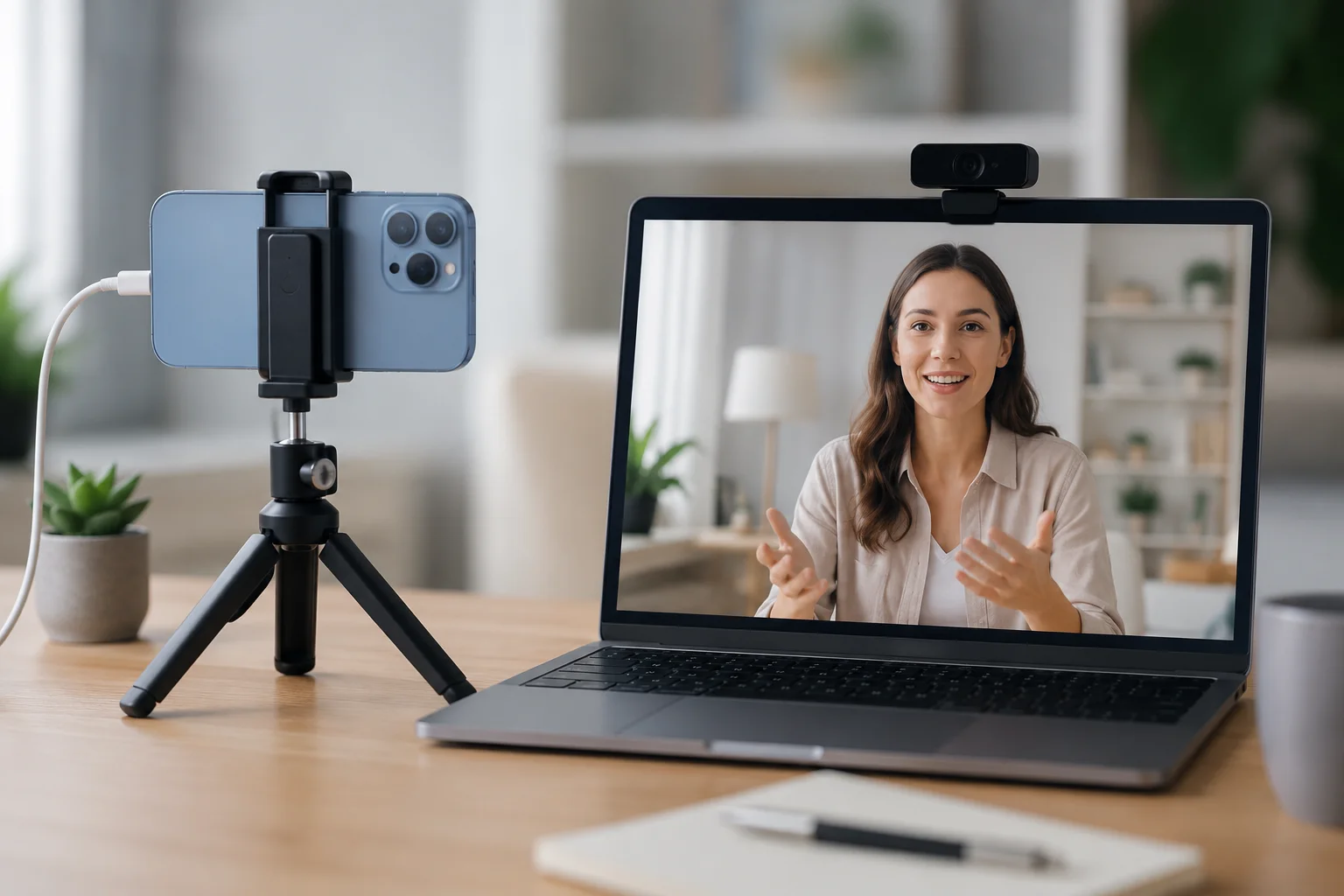
Built-in computer webcams often produce blurry, grainy video during crucial virtual presentations. Fortunately, your iPhone contains one of the most advanced digital cameras available today. Furthermore, you can stream that crisp high-definition lens straight into your PC desktop apps.
Using your iPhone as a webcam instantly elevates your video quality for Zoom, Microsoft Teams, and Google Meet. Moreover, this setup gives you professional lighting adjustments, portrait background blur, and ultra-smooth frame rates. In this guide, you will learn the absolute easiest ways to connect your iPhone camera to a Windows PC without technical headaches.
Why Use Your iPhone Camera Instead of a Standard PC Webcam?
Most laptop webcams capture video at basic 720p resolution with poor low-light processing. Consequently, your video feed looks pixelated during evening meetings or dim office environments. In contrast, modern iPhones feature advanced sensor processing, wide color gamuts, and optical image stabilization.
When you switch to an iPhone camera, you immediately unlock several distinct advantages:
- Superior Resolution: Stream in 1080p HD or 4K crystal-clear clarity.
- Advanced Auto-Focus: Keep your face sharp even when moving or holding up presentation materials.
- Built-in Studio Lighting: Leverage portrait modes to balance harsh background shadows.
- Flexibility: Position your phone at eye level using mounts or tripods easily.
Therefore, upgrading your webcam costs nothing extra if you already own an iOS device. You simply need the right connection software.
Method 1: Mirror iPhone Camera to PC Using USB Cable (Lowest Latency)
A wired USB connection provides the most reliable connection for critical business meetings. Because wired transfer bypasses Wi-Fi network congestion, your video stream experiences zero frame drops or audio delays.
1.Install Webcam Software on Windows PC:Step 1.
Download a reliable receiver app such as Camo, FineShare FineCam, or EpocCam on your Windows computer. Launch the setup file and follow the on-screen prompts.
2.Install the Companion App on Your iPhone:Step 2.
Open the Apple App Store on your iPhone. Search for the matching mobile application (such as Camo or EpocCam) and tap install.
3.Connect Phone to PC via Lightning or USB-C:Step 3.
Plug your Apple cable directly into a high-speed USB port on your PC. If prompted on your iPhone screen, tap Trust This Computer and enter your passcode.
4.Select Your iPhone in Meeting Software:Step 4.
Open Zoom, Teams, or Google Meet settings on your PC. Navigate to Video Settings and select your new virtual camera from the device dropdown list.
Method 2: Wireless Screen Mirroring via AirPlay & Wi-Fi
If you want a cable-free desktop setup, wireless AirPlay streaming offers extreme flexibility. However, ensure both your Windows PC and iPhone connect to the exact same 5 GHz Wi-Fi network for optimal speed.
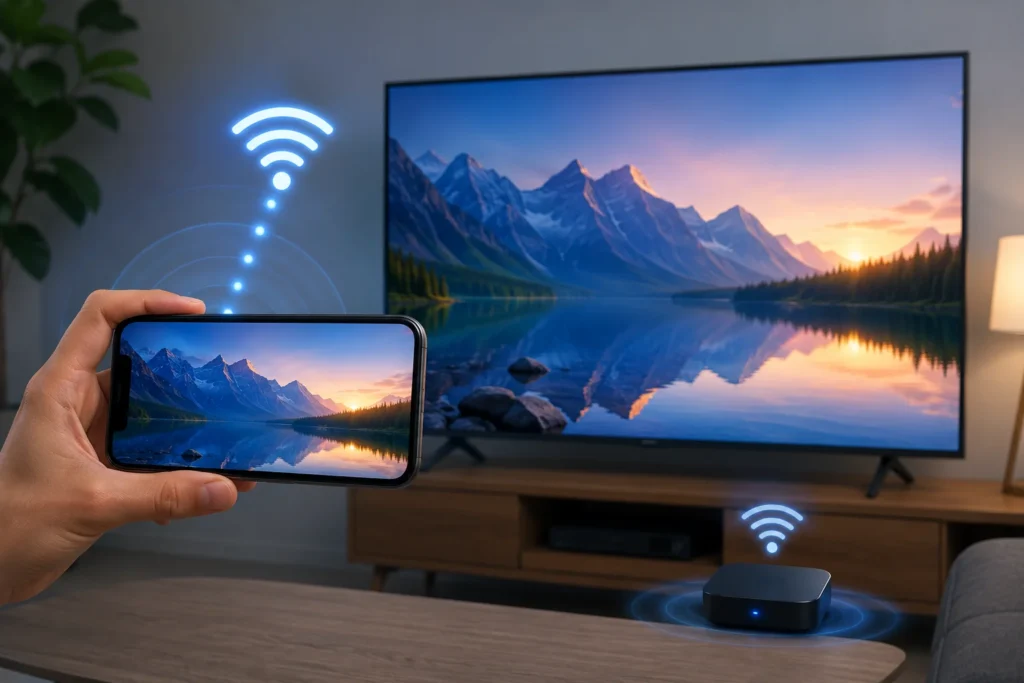
Setting Up AirPlay Receivers on Windows
Windows does not natively support Apple AirPlay out of the box. Therefore, you must install a lightweight AirPlay receiver app on your PC to catch the stream. Popular options include:
- AirServer: Excellent high-frame-rate rendering for professional workspaces.
- LonelyScreen: Simple, minimal tool ideal for quick setup.
- Reflector: Feature-rich utility allowing simultaneous recordings and camera controls.
Once you launch the AirPlay receiver software on your PC, swipe down on your iPhone to access the Control Center. Next, tap the Screen Mirroring icon and select your computer name from the list. Finally, open your iPhone Camera app or launch a live preview mode to project your camera instantly.
Optimizing Video Quality for Zoom, Teams, and Google Meet
Connecting your camera feed represents only half the job. To stand out in professional online meetings, you must configure your video settings properly within your preferred conferencing software.
| Platform | Best Video Setting | Recommended Feature |
| Zoom | Enable HD + Adjust for Low Light | Touch Up My Appearance |
| Microsoft Teams | Turn on High Fidelity Audio | Soft Focus + Background Blur |
| Google Meet | Select 1080p Send Resolution | Dynamic Lighting Mode |
Additionally, always position your iPhone horizontally (landscape mode) to fill the standard 16:9 widescreen frame without black side bars.
Essential Gear to Enhance Your Setup
While software handles the signal, hardware accessories ensure your video stream looks intentional and polished.
- Monitor Mounts: Clips your iPhone directly to the top edge of your laptop screen at natural eye level.
- Ring Lights: Softens harsh facial shadows and balances indoor ambient lighting.
- Flexible Tripods: Allows desktop adjustments for desk overviews or whiteboard demonstrations.
Troubleshooting Common Connection Drops
Occasionally, screen mirroring tools might freeze or lag during video calls. Fortunately, you can fix 95% of streaming issues using these proven troubleshooting steps:
Quick Fix: Always close background apps on your iPhone before starting a call. Heavy background background processing consumes processing power and throttles video transfer speeds.
- Unplug and Replug Cable: Resetting the physical connection refreshes the USB handshake between iOS and Windows.
- Check Wi-Fi Bandwidth: Switch your router from 2.4 GHz to 5 GHz to eliminate wireless interference.
- Update Software Drivers: Keep both the mobile app and computer driver updated to the latest versions.
- Grant Camera Permissions: Open iPhone Settings > Privacy & Security > Camera and ensure your webcam app switch remains enabled.
Conclusion
Transforming your iPhone into a high-performance PC webcam is the fastest way to upgrade your virtual presence. By using dedicated USB bridging apps or wireless AirPlay receivers, you instantly gain cinema-quality optics, rich color saturation, and sharp auto-focus. Choose a wired USB connection for maximum stability during essential meetings, pair it with a simple monitor mount, and leave low-quality webcams behind for good.