
Learning how to mirror iPhone to projector for presentations gives you total control over your meetings. When you know how to mirror iPhone to projector for presentations quickly, you save time and eliminate technical stress. You never have to carry heavy laptops to client meetings again.
Connecting your smartphone to big screens is very straightforward today. Modern display devices support both wireless connections and direct cable links. As a result, you can share slide decks instantly from anywhere.
Why Mirror iPhone to Projector for Presentations?
Running meetings from mobile devices creates seamless workflow flexibility. In addition, mobile slide apps like Keynote and PowerPoint work smoothly on iOS.
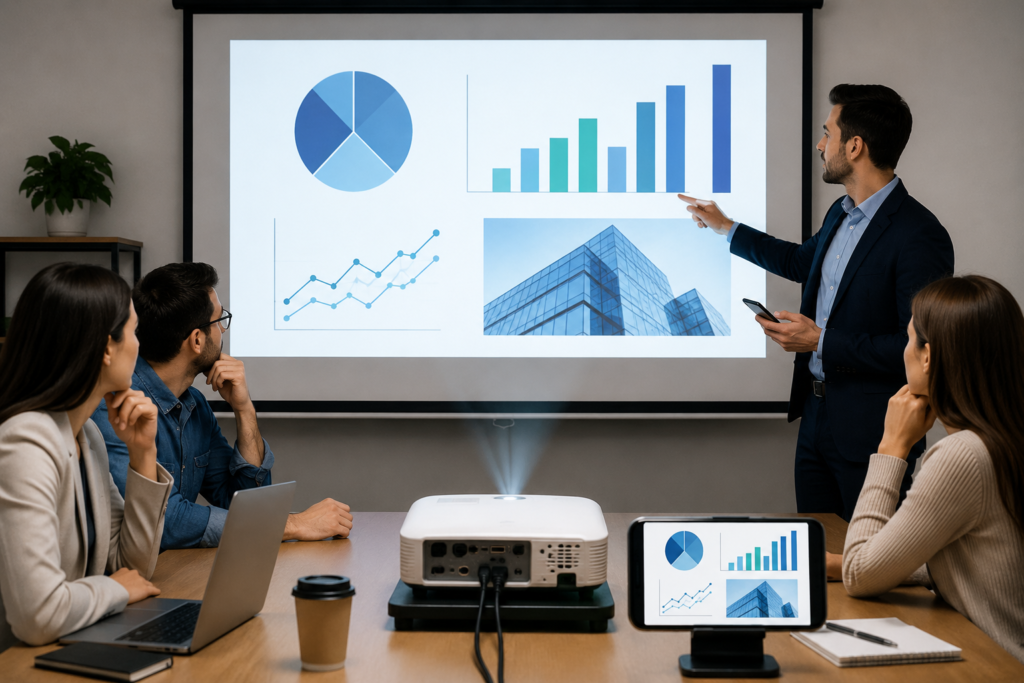
Main Benefits of Mobile Presenting
- Ultra portability: You carry entire presentation decks inside your pocket.
- Instant touch control: Swiping slides feels far more natural than pressing laptop keys.
- Backup reliability: Your phone acts as an immediate replacement if a primary laptop crashes.
Method 1: Mirror iPhone to Projector via AirPlay (Wireless)
Wireless streaming delivers maximum freedom on stage. Thus, AirPlay remains the premier wireless method when you need to mirror iPhone to projector for presentations.
1.Connect to the Same Wi-Fi Network:Prerequisite step.
Turn on Wi-Fi on your iPhone. Next, connect your AirPlay-compatible projector or Apple TV to the exact same Wi-Fi network.
2.Open iOS Control Center:Swipe action.
Swipe down from the top-right corner on modern iPhones. On older models with home buttons, swipe up from the bottom edge instead.
3.Tap Screen Mirroring:Device detection.
Select the Screen Mirroring icon (two overlapping rectangles). Afterwards, pick your projector or streaming device from the popup menu.
4.Enter AirPlay Passcode:Final pairing.
If an onscreen PIN appears on the projector screen, type it into your iPhone prompt to start mirroring instantly.
Method 2: Wired Steps to Mirror iPhone to Projector for Presentations
Wi-Fi networks in corporate offices can sometimes prove unstable. Consequently, a wired HDMI adapter offers bulletproof reliability without lag when you mirror iPhone to projector for presentations.
       [ iPhone ]
           │
           ▼ (Lightning or USB-C Port)
[ Digital AV Adapter ]
           │
           ▼ (Standard HDMI Cable)
      [ Projector ]
Cable Requirements by iPhone Model
- iPhone 15, 16, and newer: Uses a standard USB-C to HDMI adapter or direct USB-C to HDMI cable.
- iPhone 14 and older: Requires an official Lightning Digital AV Adapter paired with a standard HDMI cable.
Steps for Wired Connection
First, plug your HDMI cable into the projector port. Next, connect the other end to your Apple AV adapter. Finally, plug the adapter directly into your phone charging port. Select the correct HDMI input channel on your display unit.
Method 3: Third-Party Tools to Mirror iPhone to Projector for Presentations
If your presentation display lacks native AirPlay support, third-party media streamers bridge the gap effectively.
| Adapter Device | Protocol Used | Internet Needed? | Ideal Use Case |
| Apple TV 4K | Native AirPlay | No (supports Peer-to-Peer) | Boardrooms & dedicated offices |
| Chromecast | Google Cast App | Yes | Budget setups with Wi-Fi |
| Roku Stick | AirPlay 2 / Miracast | Yes | Traveling presenters |
| Wireless HDMI Dongle | Direct Wi-Fi Signal | No | Emergency backup kits |
Method 4: Use Mirroring Apps for Wi-Fi Projectors
Many modern office projectors run on Android operating systems. However, they may require companion apps for screen sharing.
- EZCast: Connects your phone over localized Wi-Fi signals effortlessly.
- AirServer: Turns Android-based display equipment into AirPlay receivers.
- iMirror App: Simple app designed for older smart projectors without native iOS support.
Best Settings Before You Mirror iPhone to Projector for Presentations
Before starting your live presentation, adjust key phone settings to prevent embarrassing interruptions on screen.
Critical Pre-Presentation Checklist
Enable Do Not Disturb: Swipe into Control Center and activate Focus/Do Not Disturb mode. This stops private text notifications and phone calls from appearing on the big screen during your deck.
- Turn Off Auto-Lock: Navigate to Settings > Display & Brightness > Auto-Lock and choose Never. This keeps your presentation screen active throughout long discussions.
- Check Screen Orientation: Ensure Portrait Orientation Lock is toggled off so slide decks rotate into full-screen landscape view automatically.
- Adjust Brightness & Volume: Set your iPhone media volume to max level if your presentation includes embedded video clips with sound.
Troubleshooting Common Screen Mirroring Issues
Even well-planned setups face occasional glitches. Therefore, keep these fixes in mind for quick technical troubleshooting.
1. Projector Shows Black Screen or “No Signal”
Check your adapter connections firmly. In addition, verify that the input source on the display menu matches the physical port (e.g., HDMI 1 vs HDMI 2).
2. Audio Plays from iPhone Instead of Projector
Open the iOS Control Center and tap the AirPlay audio icon. Select your external speaker system or projector audio output manually.
3. Screen Lag or Frozen Slides
Disconnect from Wi-Fi and reconnect immediately. Alternatively, switch to a direct HDMI adapter cable to eliminate wireless interference completely.
Frequently Asked Questions (FAQs)
Conclusion
Knowing how to mirror iPhone to projector for presentations transforms how you deliver slide decks. Whether you prefer the wireless convenience of AirPlay or the rock-solid reliability of an HDMI cable adapter, setting up takes just seconds. By preparing your iOS settings beforehand—like enabling Do Not Disturb and adjusting auto-lock—you guarantee a professional, smooth experience for your audience every time.