
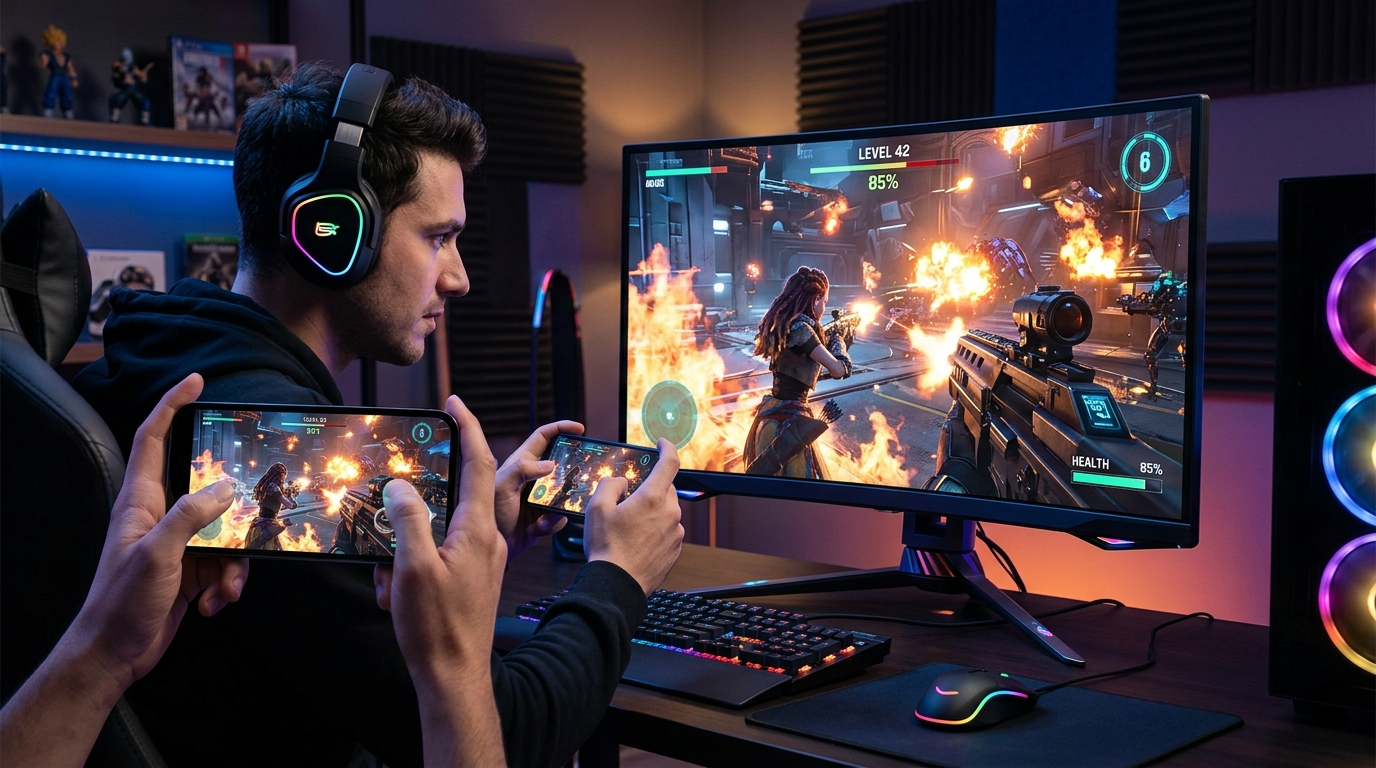
Mobile gaming has evolved dramatically over the past few years. Titles like PUBG Mobile, Call of Duty: Mobile, Genshin Impact, and Free Fire now feature PC-grade graphics and competitive mechanics. However, playing high-octane action games on a small phone display often limits your view and controls. Consequently, when you mirror iPhone to PC, you gain a massive display, better ergonomic posture, and the ability to stream or record gameplay effortlessly.
The biggest challenge gamers face during screen mirroring is display delay or latency. Specifically, a millisecond lag between your touch input and the monitor output can ruin your aim and cost you the match. Wireless screen casting often suffers from frame drops, jitter, and noticeable delay due to Wi-Fi congestion.
To achieve a true low-latency experience, you need the right setup, optimal connection methods, and proper system configurations. Therefore, this guide breaks down every technique required to mirror iPhone to PC with zero noticeable lag.
Why Low Latency Matters When You Mirror iPhone to PC
In competitive mobile esports, timing is everything. Input latency measures the delay between your finger touching the screen and that action appearing on your computer monitor. Furthermore, high latency causes sluggish movement, missed shots, and severe eye fatigue.
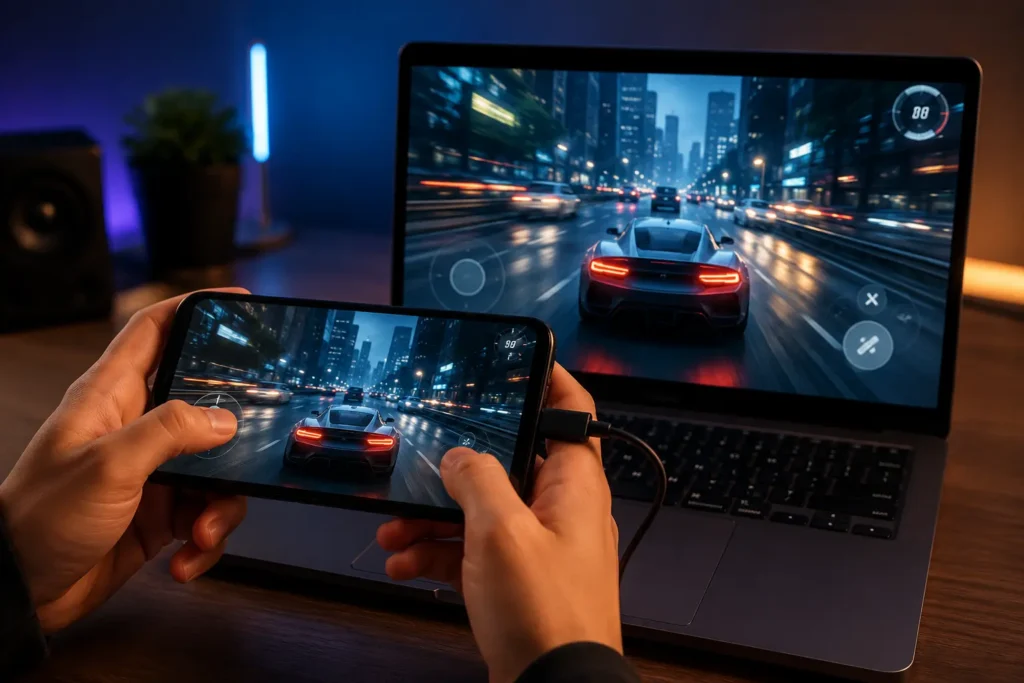
Standard Wi-Fi screen mirroring works fine for casual video playback or presentations. However, gaming demands a consistent 60 FPS or 120 FPS stream with under 15 milliseconds of latency. Achieving this speed requires stable bandwidth, efficient video encoding, and direct hardware communication between your iOS device and Windows PC.
When you eliminate delay, your reactions become instantaneous. In addition, low-latency screen mirroring allows you to map keyboard and mouse controls or use direct PC audio capture without sound desynchronization.
Hardware vs. Software: Best Ways to Mirror iPhone to PC Without Lag
Choosing the right connection method determines whether your setup will feel snappy or sluggish. Currently, you can connect your iOS device using three primary methods: USB cables, wireless Wi-Fi receivers, or dedicated hardware capture cards.
+------------------------+-------------------+--------------------+-----------------------+
| Feature                | USB Cable (Wired) | Wi-Fi (AirPlay)    | HDMI Capture Card     |
+------------------------+-------------------+--------------------+-----------------------+
| Latency Range          | 5ms – 15ms        | 50ms – 200ms       | 1ms – 5ms             |
| Stability              | Extremely High    | Network Dependent  | Unbeatable            |
| Resolution Support     | Up to 2K/4K       | Up to 1080p        | Up to 4K 60FPS        |
| Hardware Cost          | Low (Standard USB)| Free               | Medium to High        |
| Best For               | Fast-Paced Gaming | Casual Content     | Streaming & Recording |
+------------------------+-------------------+--------------------+-----------------------+
USB Wired Connection (The Speed King)
Wired mirroring via a Lightning or USB-C cable offers the best balance of speed, affordability, and ease of use. Because data travels directly through physical copper wires, it completely bypasses wireless network interference. As a result, this method guarantees frame-rate stability and reduces delay down to single-digit milliseconds.
Wi-Fi AirPlay Connection (Wireless Convenience)
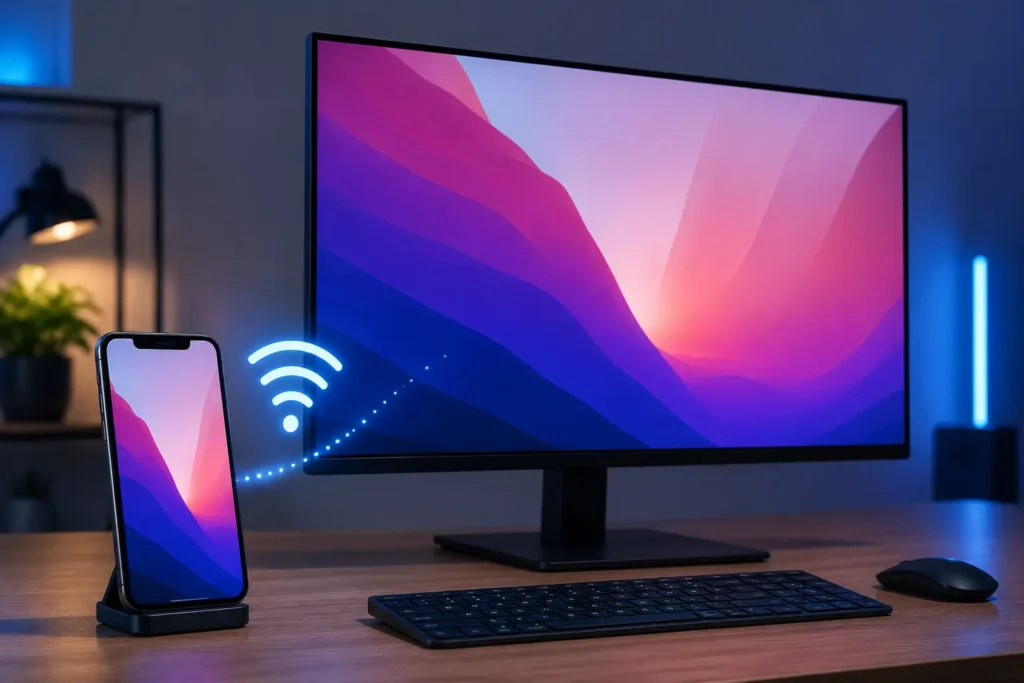
Wireless AirPlay mirroring uses your home network to transmit video packets. Although it eliminates physical cables, wireless signals remain vulnerable to interference from routers, Bluetooth devices, and physical walls. Thus, network jitter causes variable input lag, making wireless casting unsuitable for fast-paced shooter games.
Hardware Capture Cards (Pro Streamer Choice)
Using an HDMI capture card alongside a Digital AV Adapter sends an uncompressed video signal straight into your PC. Moreover, this method delivers zero latency because your computer treats the capture card as a direct webcam feed. While it frees up your PC CPU from heavy decoding tasks, it requires buying additional hardware.
Top Software Apps to Mirror iPhone to PC for Gamers
Selecting high-performance software ensures your PC decodes the iOS display feed instantly. Below are the top-performing apps designed specifically to help you mirror iPhone to PC seamlessly.
+--------------------+----------------+--------------------+--------------------+
| Software           | Connection     | Max Frame Rate     | Built-in Control   |
+--------------------+----------------+--------------------+--------------------+
| DouWan             | USB Wired      | 120 FPS            | Keyboard Mapping   |
| ApowerMirror       | USB / Wi-Fi    | 90 FPS             | PC Control Support |
| AirDroid Cast      | USB / Wi-Fi    | 60 FPS             | Direct Mouse Control|
| 5KPlayer           | AirPlay Wireless| 60 FPS            | Media Recording    |
+--------------------+----------------+--------------------+--------------------+
1. DouWan (Ultra-Low Latency USB Mirroring)
DouWan is specifically built for mobile gamers and content creators. It operates primarily over wired USB, providing ultra-low latency playback up to 120 FPS. Additionally, the program supports full lossless audio transfer, screen recording, and direct zero-lag streaming straight to OBS Studio.
2. ApowerMirror (Wired & Wireless Dual Mode)
ApowerMirror is a versatile application designed for gaming and productivity. Its proprietary USB connection protocol lowers display lag significantly while enabling keyboard mapping features. Consequently, you can map touch buttons to your PC keys to play mobile titles with a standard mouse and keyboard.
3. AirDroid Cast (Direct USB Control & Audio Routing)
AirDroid Cast delivers reliable wired display casting with minimal setup effort. Furthermore, it handles both video transmission and digital audio routing through a single USB connection. Because it allows you to cast up to five mobile screens simultaneously, it is ideal for team co-op analysis or multiplayer streams.
4. LonelyScreen & 5KPlayer (Free AirPlay Alternatives)
If you prefer a wireless software setup for casual gaming, LonelyScreen and 5KPlayer turn your Windows PC into an AirPlay receiver. Although wireless latency is slightly higher than USB cable setups, these free software options require no premium subscriptions.
How to Mirror iPhone to PC via USB Cable (Step-by-Step)
Setting up a wired connection delivers the fastest response speeds. Therefore, follow this detailed step-by-step workflow to configure your iOS device and Windows PC for low-latency gaming.
Step 1: Install iOS Drivers and Trust Your PC
- First, download and install iTunes or the official Apple Devices app on your Windows PC to install the required USB drivers.
- Next, connect your iPhone to the PC using a certified Apple Lightning or USB-C cable.
- Finally, unlock your iPhone screen, tap Trust This Computer on the pop-up dialogue, and enter your passcode.
Step 2: Configure Your Mirroring Application
- Launch your chosen software (such as DouWan or ApowerMirror) on your PC.
- After that, select USB Connection as your primary input source within the app settings menu.
- On your iPhone, enable USB Tethering or follow the on-screen prompts to allow direct screen capture permissions.
Step 3: Calibrate Frame Rate and Screen Resolution
- Open the video settings tab in your mirroring software on the PC.
- Set the resolution to 1080p or match your monitor’s native aspect ratio.
- Meanwhile, select 60 FPS or 120 FPS depending on your phone model’s refresh rate capability.
- Lastly, set the rendering protocol to Hardware Accelerated (Direct3D/OpenGL) to offload video decoding to your PC graphics card.
How to Route iPhone Game Audio to PC Without Latency
Playing games without crisp, real-time sound makes it impossible to hear enemy footsteps or audio cues. Therefore, getting low-latency audio alongside your video stream requires proper configuration.
Method A: Direct USB Audio Transfer
Modern USB mirroring software routes digital sound directly through the cable alongside the video signal. As a result, this yields perfectly synchronized game sound with zero background hiss.
- Select your mirroring app as an Audio Input Source inside Windows Sound Settings.
- Route sound directly to your main PC headphones or gaming headset.
Method B: AUX Cable with a Ground Loop Isolator
If your software does not support direct USB audio decoding, you can output audio using an analog cable setup instead.
- Connect a 3.5mm AUX cable from your iPhone dongle to the PC’s Line In port.
- Plug a Ground Loop Noise Isolator inline along the AUX cable because this eliminates electrical buzz caused by active charging.
- Open the Windows Sound Control Panel, select Line In, and check the box for Listen to this device.
Pro Optimization Settings for Zero-Lag Gaming
Even with a wired USB connection, improper system settings can introduce micro-stutters. However, applying these pro settings will keep your game running smoothly when you mirror iPhone to PC.
1. Optimize Windows System Settings
- Enable Game Mode: Open Windows Settings, navigate to Gaming, and turn on Game Mode. Consequently, your system prioritizes CPU and GPU resources for your active game window.
- Set High GPU Performance: Go to Display Settings > Graphics Settings. Browse for your mirroring application executable file and set its preference to High Performance.
- Disable Background Downloads: Pause Windows updates and close bandwidth-heavy background software like cloud syncing tools or web browser tabs.
2. Tweak iOS Performance Features
- Disable Low Power Mode: Low Power Mode throttles the iPhone processor, causing reduced frame rates during screen rendering.
- Turn Off Guided Access & Background App Refresh: Go to Settings > General > Background App Refresh and turn it off to prevent background processes from consuming system memory.
- Keep Your Device Cool: Thermal throttling degrades gaming performance and causes video frame drops. Therefore, play in a cool room or attach a clip-on smartphone cooling fan.
Frequently Asked Questions (FAQs)
Final Thoughts on Low-Latency iPhone Mirroring
Learning how to mirror iPhone to PC transforms your mobile gaming experience completely. By switching from unstable Wi-Fi connections to a high-speed USB setup, you eliminate input lag and frame drops entirely. Furthermore, combined with proper PC graphics prioritization and digital audio routing, you can enjoy mobile titles on a large display with instant responsiveness. Simply choose the software tool that best fits your workflow, plug in your cable, and take your gaming performance to the next level.