
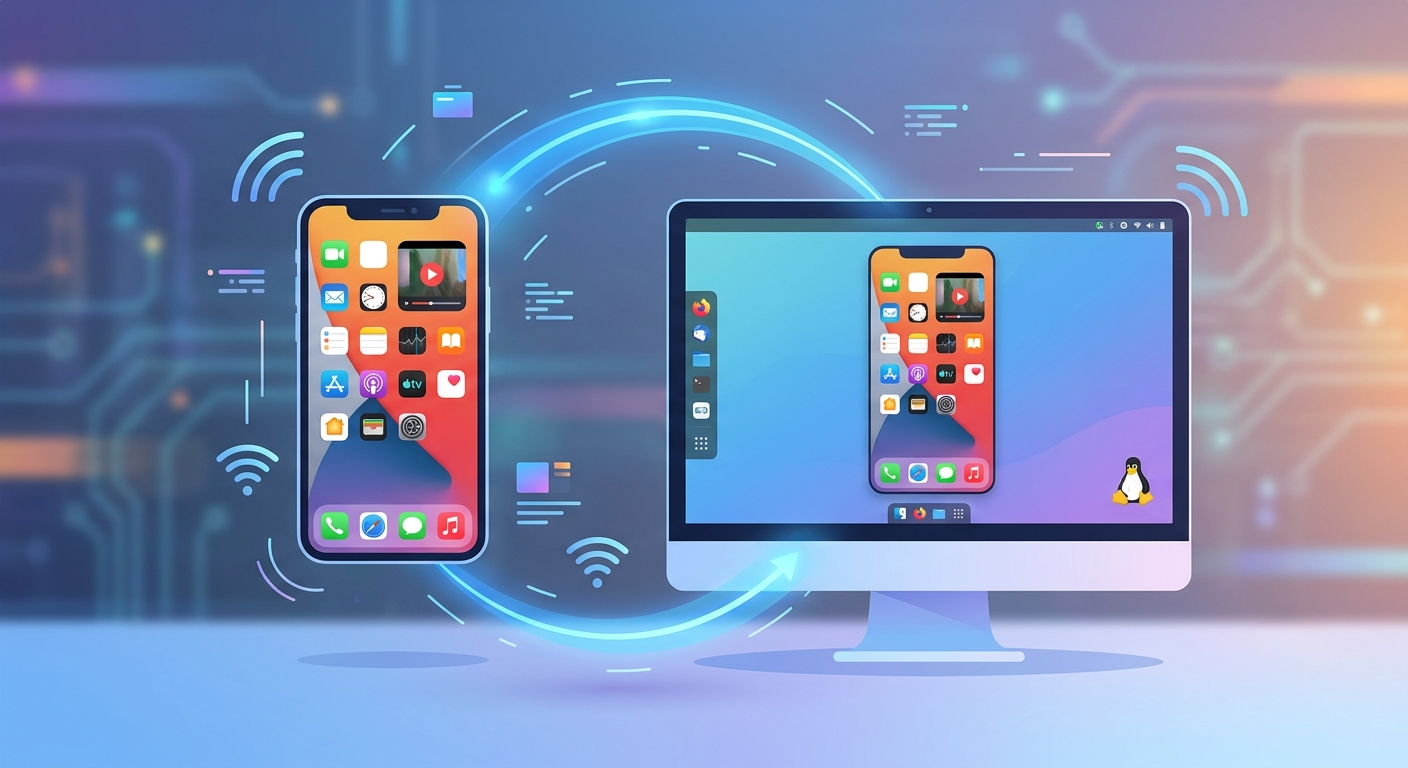
Mirroring your iPhone screen to a Linux computer might seem tricky at first. Apple prefers its own ecosystem, which makes native cross-platform screen sharing feel restricted.
However, you can display your iPhone screen on Linux quickly and smoothly. You do not need to jailbreak your phone or pay for expensive software.
This guide breaks down the easiest methods to mirror your iPhone to any Linux distribution, including Ubuntu, Linux Mint, Fedora, and Arch.
Why Mirror Your iPhone to a Linux PC?
Connecting your iOS device to a Linux desktop opens up many useful possibilities.
- Stream Media and Mobile Games: Enjoy videos, photos, and iOS games on a larger monitor.
- Deliver Professional Presentations: Show live mobile app demonstrations directly from your laptop during meetings.
- Record Mobile App Tutorials: Capture high-quality video of your iPhone display for YouTube or online courses.
- Improve Daily Productivity: Keep an eye on incoming iOS notifications without constantly picking up your phone.
Method 1: Mirror iPhone to Linux Using UxPlay (Recommended)
The absolute best way to cast your iPhone to Linux is by using UxPlay. UxPlay is an open-source tool that turns your Linux machine into an AirPlay receiver. Because it uses Apple’s built-in AirPlay technology, you do not need to install extra software on your iPhone.
[ iPhone ] --( AirPlay / Wi-Fi )--> [ UxPlay Server ] --> [ Linux Monitor ]
Step 1: Connect Devices to the Same Wi-Fi Network
Before starting, connect both your iPhone and your Linux computer to the exact same Wi-Fi network. AirPlay requires a shared local network connection to discover nearby devices.
Step 2: Install UxPlay and GStreamer Dependencies
Open your Linux terminal (Ctrl + Alt + T). Next, run the appropriate installation command for your distribution.
For Ubuntu / Debian / Linux Mint:
Bash
sudo apt update
sudo apt install uxplay gstreamer1.0-plugins-bad gstreamer1.0-libav
For Fedora:
Bash
sudo dnf install uxplay gstreamer1-plugins-bad-free gstreamer1-libav
For Arch Linux:
Bash
yay -S uxplay-git
Step 3: Enable the Network Discovery Service
UxPlay relies on Avahi (mDNS) to let your iPhone locate your Linux PC. Ensure the Avahi service is running by entering this command:
Bash
sudo systemctl enable --now avahi-daemon
Step 4: Launch UxPlay in Terminal
Start the AirPlay receiver by simply typing the command below:
Bash
uxplay
Your terminal window will display a message confirming that the AirPlay server is active and waiting for a connection.
Step 5: Start AirPlay on Your iPhone
Now, pick up your iPhone to initiate the screen mirror.
- Swipe down from the top-right corner of your screen to open Control Center.
- Tap the Screen Mirroring icon (two overlapping rectangles).
- Select UxPlay from the list of available devices.
Your iPhone screen will instantly appear in a window on your Linux desktop.
Method 2: Web-Based Screen Mirroring (No Terminal Required)
If you prefer a visual interface over terminal commands, web-based tools offer a great alternative. AirDroid Cast Web allows you to stream your display through any Linux web browser.
Step 1: Open AirDroid Cast Web on Linux
Open Chrome or Firefox on your Linux computer. Navigate to the official website at web.airdroid.com or web.cast.airdroid.com. A unique QR code and a 9-digit cast code will appear on your browser screen.
Step 2: Install AirDroid Cast on Your iPhone
Go to the Apple App Store on your iPhone. Search for AirDroid Cast and install the free mobile application.
Step 3: Scan and Cast
Open the app on your iPhone and tap Scan QR Code. Point your camera at your Linux monitor to scan the web page code. Finally, accept the prompt on your phone to begin mirroring instantly.
Method 3: USB Cable Screen Mirroring Options
Wireless casting is convenient, but wired mirroring provides lower latency and higher stability for fast action.
While tools like scrcpy work primarily for Android, Linux users can achieve low-latency iOS USB streaming using UxPlay with USB tethering or OBS Studio with video capture plugins.
- Connect your iPhone to your Linux PC via a Lightning or USB-C cable.
- Enable USB Tethering in your iPhone Settings under Personal Hotspot.
- Launch UxPlay in your terminal with network binding set to your USB interface address.
This setup eliminates wireless lag and delivers smooth frame rates for mobile gaming sessions.
Performance Tweaks for Ultra-Smooth Mirroring
If you experience latency or choppy video playback while mirroring, apply these quick performance adjustments.
- Set Custom Resolution: Force UxPlay to run at your display resolution by running
uxplay -s 1920x1080. - Enable Fullscreen Mode: Press
F11while the UxPlay window is active to toggle full-screen view. - Adjust Screen Orientation: Pass orientation flags such as
uxplay -r Loruxplay -r Rif your phone display appears rotated. - Check Firewall Rules: If your phone cannot find UxPlay, allow local mDNS and AirPlay ports through
ufwby runningsudo ufw allow 5353/udp.
10 Frequently Asked Questions (FAQs)
Conclusion
Mirroring your iPhone to a Linux desktop is straightforward once you set up the right tools. By leveraging UxPlay, you can transform your Linux machine into an efficient AirPlay server in just a few minutes. Whether you want to stream media, demonstrate mobile applications, or record app tutorials, this setup provides a fast, reliable, and completely free solution. Choose the method that best matches your technical comfort, follow the simple steps, and enjoy your iOS content on the big screen!