
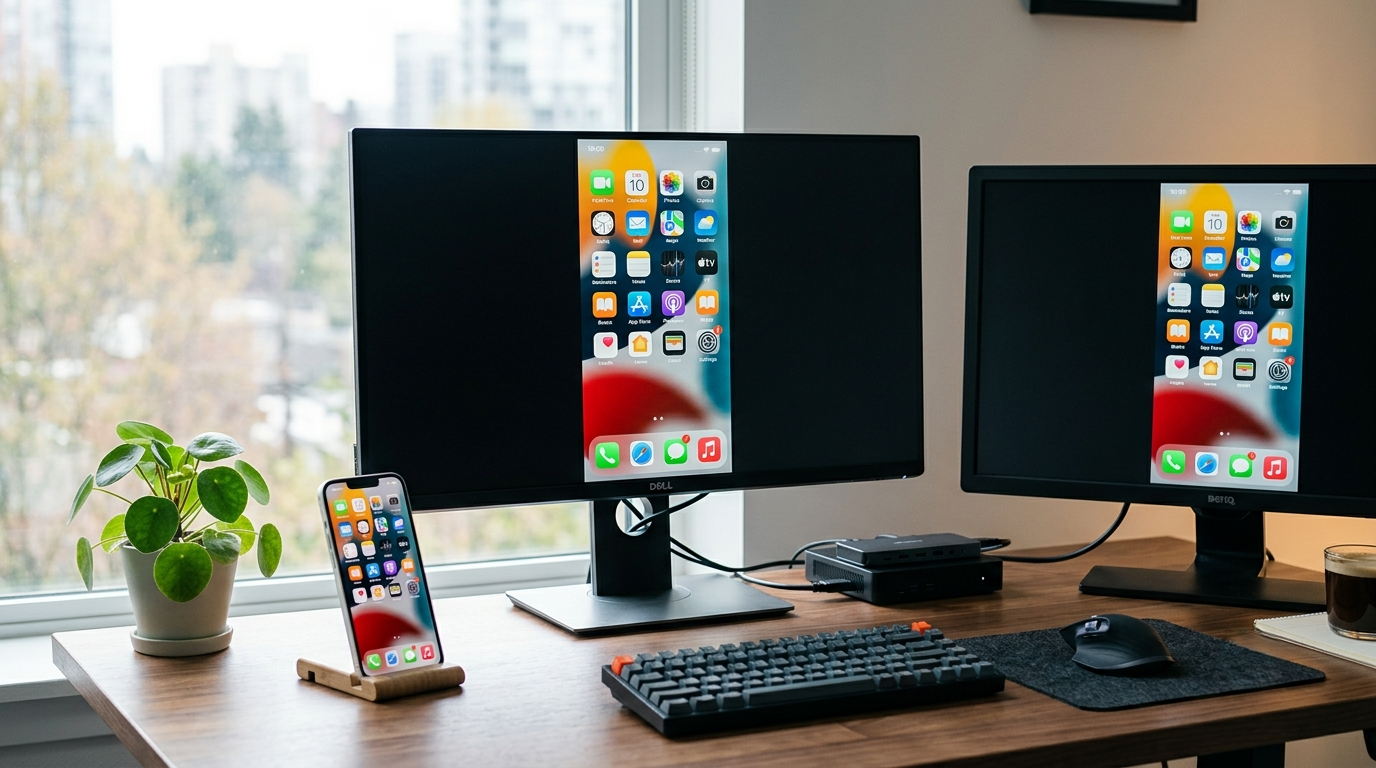
Connecting your iPhone to a single display is simple. However, learning how to mirror iPhone to multiple screens simultaneously requires specific tools and setup steps. Whether you need to present to a large audience, stream across multiple monitors, or set up a multi-display workstation, this guide covers every effective method available today.
Why Mirror iPhone to Multiple Screens and Displays?
Learning how to mirror iPhone to multiple screens solves distinct technical and organizational challenges across different environments:
- Education and Training: Instructors can broadcast a mobile app demo to a main classroom projector while keeping a secondary monitor facing themselves or a remote audience.
- Corporate Presentations: In large conference rooms, driving multiple screens ensures every attendee has an unobstructed view without requiring additional playback hardware.
- Content Creation and Live Streaming: Gamers and creators often route their iPhone output to a broadcast monitor and a capture PC at the same time to manage chat and preview feeds.
- Multi-Room Entertainment: Hosting events or streaming media to living rooms and outdoor displays simultaneously improves accessibility for larger groups.
Native AirPlay Limits When You Mirror iPhone to Multiple Screens
Native AirPlay 2 allows you to stream audio to multiple compatible speakers at once. However, video AirPlay natively supports only one display target at a time from an iOS device.
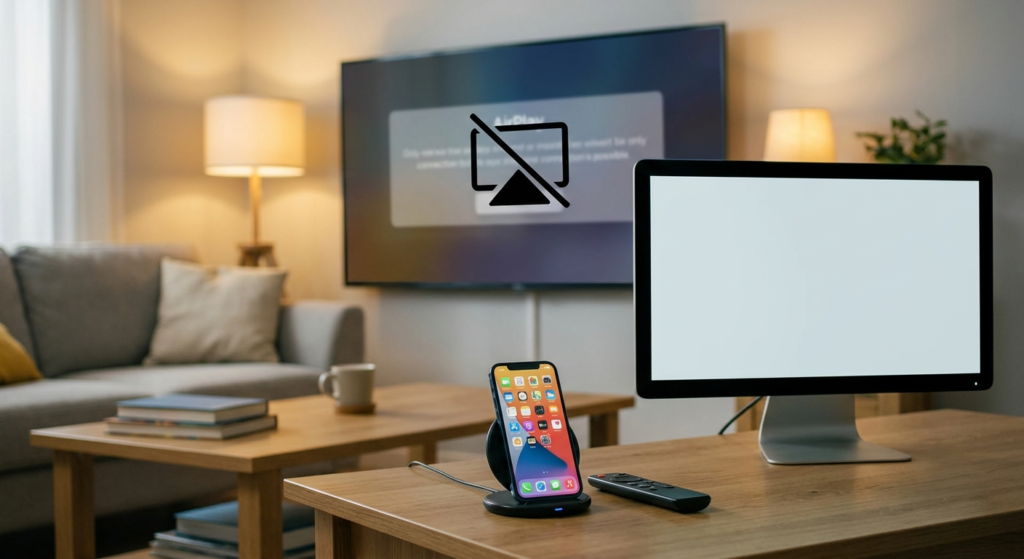
If you tap the Screen Mirroring icon in the iOS Control Center, you can only select a single Apple TV, Smart TV, or Mac. Selecting a new display automatically disconnects the previous connection.
To bypass this limitation and mirror iPhone to multiple screens, you must use software-based receivers, hardware splitters, or specialized broadcast tools. Below are the three most reliable approaches.
Method 1: Using Software Receiver Apps on PC or Mac to Mirror iPhone to Multiple Screens
Using computer software is the most flexible way to output your screen to several monitors. In this setup, your computer acts as an AirPlay receiver, capturing the iPhone screen and spreading it across connected external displays.
Best Software Options
- Reflector 4: Turns any Windows or macOS machine into a multi-device AirPlay receiver with built-in recording options.
- LonelyScreen: A lightweight AirPlay receiver designed for simple desktop setups.
- AirServer: An enterprise-grade receiver supporting simultaneous AirPlay, Cast, and Miracast streams.
Step-by-Step Setup Guide
- Connect your iPhone and your host computer (Mac or PC) to the same Wi-Fi network.
- Download and launch your chosen software on the computer.
- Connect your secondary monitors to your host computer using HDMI or USB-C cables.
- On your computer, open system Display Settings and extend your desktop across all connected monitors.
- On your iPhone, swipe down from the top-right corner to open the Control Center.
- Tap the Screen Mirroring icon.
- Select your computer from the list of available AirPlay targets.
- Once your iPhone appears on the computer, stretch or duplicate the receiver window to mirror iPhone to multiple screens smoothly.
Method 2: Hardware HDMI Splitter Setup to Mirror iPhone to Multiple Screens
If you prefer a direct wired connection without relying on local network stability, a physical hardware splitter is the best option. This method provides zero latency, making it ideal for video playback and live gaming demonstrations.
Required Hardware
- Apple Lightning to Digital AV Adapter or USB-C Digital AV Multiport Adapter.
- High-Speed HDMI Cables.
- Powered 1×2 or 1×4 HDMI Splitter (ensure HDCP compliance and proper display resolutions).
Step-by-Step Setup Guide
- Connect the Digital AV Adapter directly to your iPhone charging port.
- Plug one end of a main HDMI cable into the adapter output port.
- Connect the other end of that HDMI cable into the HDMI Input port on your powered HDMI splitter.
- Connect separate HDMI cables from the HDMI Output ports on the splitter to each target screen.
- Plug in the power supply for the HDMI splitter to ensure stable signal amplification.
- Turn on all target displays and set their input source to the corresponding HDMI port.
- Your iPhone screen will clone automatically, allowing you to mirror iPhone to multiple screens in real time.
Method 3: Third-Party Mobile Apps to Mirror iPhone to Multiple Screens
Certain dedicated third-party apps and casting hardware kits allow multi-screen distribution without needing a full PC setup. These setups are particularly useful for trade shows or quick mobility needs.
Using App-Based Ecosystems
Solutions like LetsView or ApowerMirror offer multi-platform support. By installing the receiver clients on multiple Smart TVs, Fire TV Sticks, or Android boxes, you can manage casting streams through a central account or local network bridge.
USB Wired Connection (The SSetup Instructionspeed King)
- Install the receiver application on each target Smart TV or streaming stick.
- Ensure all receiving devices and your iPhone reside on a stable 5 GHz Wi-Fi connection.
- Open the controller application on your iPhone and pair it with the active receiver codes displayed on your screens.
- Initiate the multi-device broadcast from the app menu to mirror iPhone to multiple screens.
Essential Performance Tips for Smooth Multi-Screen Mirroring
Broadcasting high-definition video feeds to several displays demands significant bandwidth and system processing. Follow these optimization steps to prevent lag, frame drops, or audio desynchronization:
- Use a 5 GHz Wi-Fi Band: Standard 2.4 GHz bands are prone to signal interference. Always connect your iPhone and receivers to a 5 GHz network for wireless setups.
- Keep iOS and Software Updated: Ensure your iPhone is running the latest iOS version to prevent AirPlay handshake bugs. Update receiver software regularly.
- Check HDCP Requirements: When using HDMI splitters, ensure every component is HDCP compliant. Mismatched security protocols can result in a black screen during media playback.
- Manage Display Resolutions: Match the native resolutions of your secondary screens whenever possible. Scaling different resolutions forces your hardware host to work harder, increasing latency.
Frequently Asked Questions (FAQs)
Conclusion
Learning how to mirror iPhone to multiple screens at the same time is simple once you choose the right method for your needs. For quick software flexibility, setting up a PC receiver like Reflector allows effortless management of multiple desktop windows. For professional presentations, low latency, and high reliability, a powered HDMI splitter provides a plug-and-play hardware solution. Select the setup that fits your equipment and follow the optimization guidelines above to enjoy seamless, synchronized multi-display mirroring.