
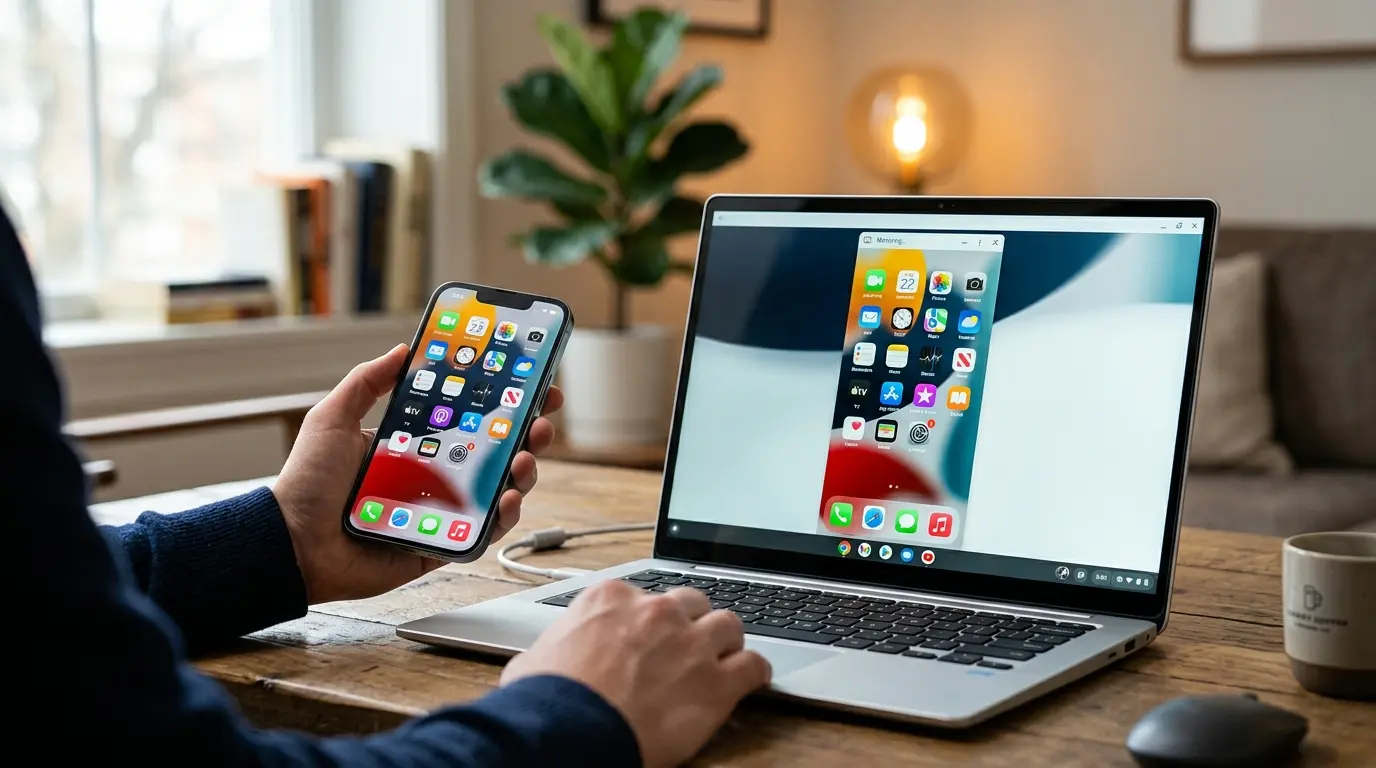
Connecting an iOS device to a Chrome OS laptop usually feels tricky. Apple and Google build different ecosystems, so they do not share native screen-sharing options like AirPlay. However, you can connect both devices quickly with the right software tools.
This detailed guide shows you simple ways to mirror your iPhone screen to your Chromebook. You will learn wireless methods, USB options, and simple steps to display photos, videos, and mobile apps on a bigger screen.
Why Mirror Your iPhone to a Chromebook?
Screen mirroring offers several practical benefits for work, study, and daily entertainment.
- Better Media Viewing: You can watch videos, view photos, and present slideshows on a larger screen.
- Easy Demonstrations: Teachers and presenters can display mobile apps or tutorial steps directly to an audience.
- Streamlined Workflows: Developers and designers can test mobile web views and app interfaces easily.
While direct AirPlay support does not exist on Chrome OS, third-party apps bridge this gap effortlessly.
Method 1: Mirror iPhone to Chromebook Wirelessly (AirPlay Apps)
The most popular way to connect your devices relies on third-party receiver applications. These tools turn your Chromebook into an AirPlay target.
Step 1: Connect to the Same Wi-Fi Network
Both devices must share the same network. Open the Settings app on your iPhone and click Wi-Fi. Check your Chromebook network settings to confirm both devices use the identical network frequency.
Step 2: Install an AirPlay Receiver App on Chromebook
Open the Google Play Store on your Chromebook. Search for web-based receiver tools like AirScreen or Reflector. Install your selected application and launch it on your Chromebook.
Step 3: Enable AirPlay on iPhone
Swipe down from the top-right corner of your iPhone screen to open the Control Center. Tap the Screen Mirroring icon (two overlapping rectangles).
Step 4: Select Your Chromebook
Your iPhone will search for nearby compatible receivers. Tap the name of your Chromebook or the receiver app displayed on your screen to start mirroring immediately.
Method 2: Screen Mirroring via Web Tools (No App Installation)
If you cannot install Play Store apps on your Chromebook, browser-based tools offer a convenient alternative.
Using Web-Based Mirroring Solutions
- Open the Chrome browser on your Chromebook and visit a web receiver service like VNC Viewer or LetsView Web.
- Download the matching helper app on your iPhone from the Apple App Store.
- Scan the QR code displayed on your Chromebook screen using your iPhone app.
- Tap Start Broadcast on your iPhone to share your screen through the web browser.
This approach works on managed Chromebooks where Google Play Store access remains restricted by administrators.
Method 3: Connect iPhone to Chromebook Using USB Cable
A wired connection provides higher stability and lowers latency compared to wireless streaming.
Setting Up Cable Mirroring
- Connect your iPhone to your Chromebook using a Lightning-to-USB cable.
- Select Trust This Computer on your iPhone prompt and enter your passcode.
- Open a supported Chrome OS mirroring app or android extension like Scrcpy (via Linux environment).
- Authorize media permissions on your phone to display your screen.
Wired setups reduce lag significantly, making them ideal for mobile gaming or high-definition video playback.
Best Practices for Smooth Screen Mirroring
You can improve performance and reduce display delay by following these optimization tips:
- Use 5GHz Wi-Fi: High-frequency Wi-Fi connections handle video data faster than standard 2.4GHz bands.
- Close Background Apps: Shut down unused applications on your iPhone to free up processing memory.
- Keep Software Updated: Update your iOS version and Chrome OS operating system regularly to avoid compatibility issues.
- Lower Resolution Settings: If video playback stutters, reduce the output resolution in your receiver app settings.
Frequently Asked Questions (FAQs)
Conclusion
Mirroring your iPhone screen to a Chromebook is straightforward once you use the right software. Wireless tools like AirScreen work best for quick presentations, while wired connections deliver low lag for media streaming. Choose the method that best matches your setup, adjust your network settings for smooth playback, and enjoy your mobile content on a larger Chromebook display.