
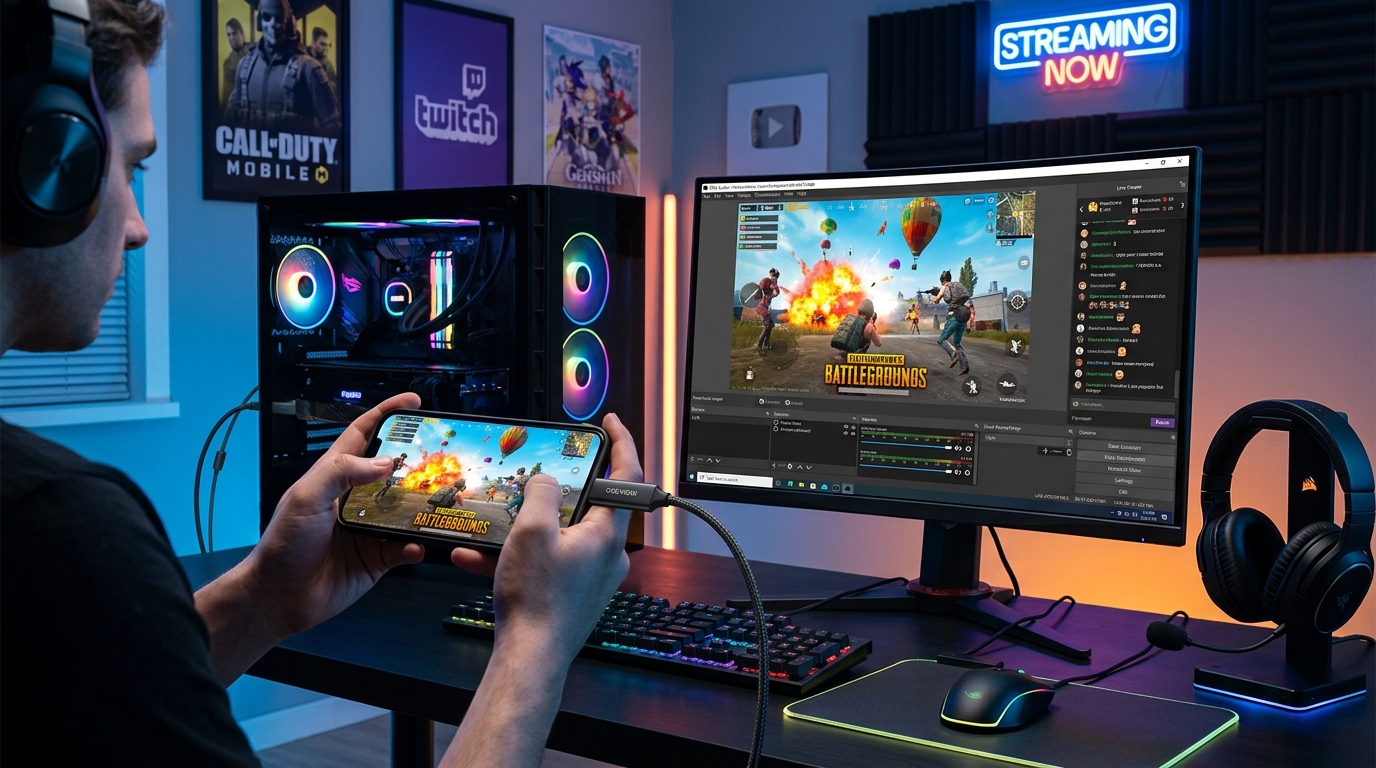
Mobile gaming has exploded into a global phenomenon. Players spend hours competing in games like PUBG Mobile, Call of Duty Mobile, and Genshin Impact. Playing on a compact mobile display can feel restrictive during intense matches. Broadcast creators need a clean method to send raw iOS gameplay directly to desktop streaming software. Learning how to screen mirror iPhone to PC gives you a major advantage.
A larger desktop display boosts your spatial awareness. PC setups unlock crisp audio routing, direct OBS integration, and precise recording tools. You can stream directly to Twitch, YouTube, or TikTok without draining your phone battery. This complete guide covers setup methods, low-latency tools, audio configurations, and streaming optimizations.
Why Screen Mirror iPhone to PC for Gaming and Live Streaming?
Screen mirroring bridges the gap between mobile flexibility and desktop performance. Mobile processors deliver impressive graphics, but tiny screens limit control and viewing precision. Mirroring your iOS device to a PC elevates your gaming experience instantly.
- Enhanced Visual Clarity: Spot enemies faster on a massive 24-inch or 27-inch desktop monitor.
- Zero Battery Drain: USB mirroring setups charge your iPhone while streaming long sessions.
- Professional Audio Control: Route internal game sound and microphone audio independently into OBS Studio.
- Better Thermal Management: Offloading stream encoding to your PC stops your iPhone from overheating and thermal throttling.
USB vs. Wireless Screen Mirroring: Which Is Best for Gamers?
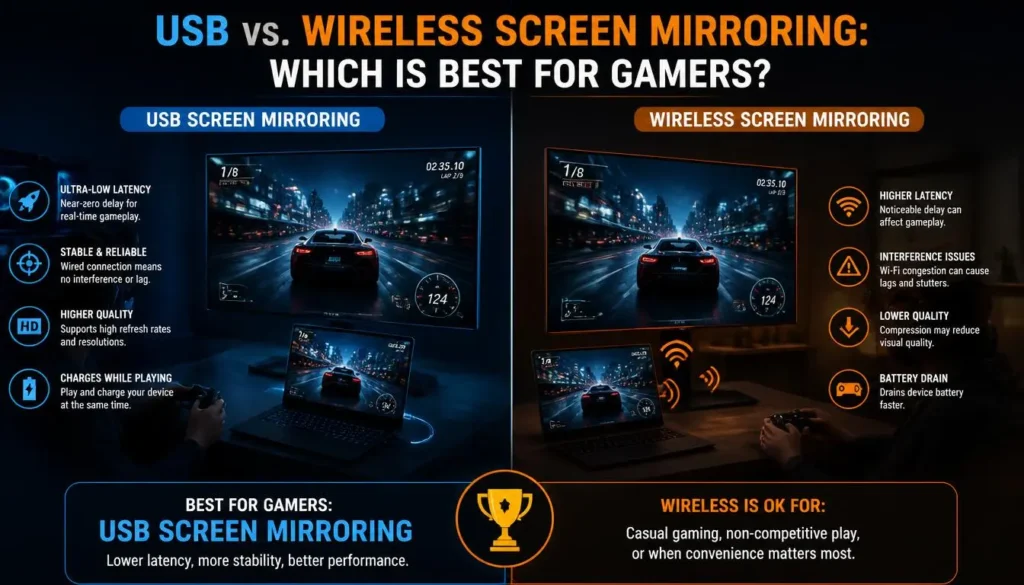
Choosing the right connection type determines your gameplay quality. Wireless AirPlay offers quick convenience, while USB connections deliver rock-solid performance.
Wired USB connections remain the gold standard for competitive gaming and live streaming. Wireless connections suffer from Wi-Fi congestion, packet loss, and frame drops. USB mirroring guarantees stable bitrate delivery and ultra-low input lag.
Top Software to Mirror iOS Screen to Windows PC
Several software applications capture iOS screens effectively. Here are the most reliable tools used by top creators:
1. Elgato Screen Link / Cam Link
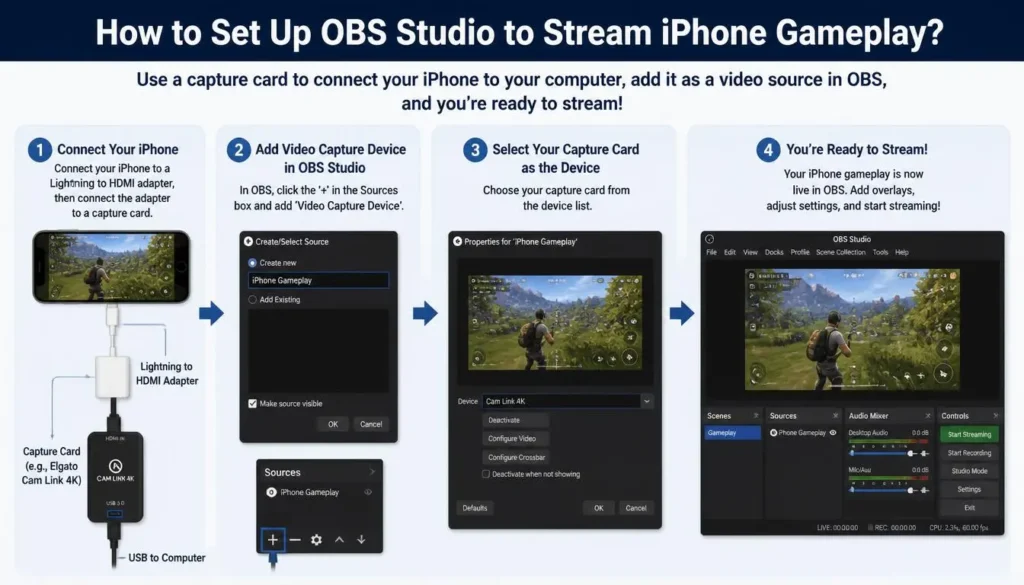
Elgato tools deliver clean hardware capture. Using a Lightning or USB-C to HDMI adapter paired with a capture card sends zero-latency feed directly into your PC setup.
2. ApowerMirror / StarzSoft StarzMirror
These dedicated software mirrors support both USB and Wi-Fi modes. They feature built-in game keymapping, screen recording, and 60 FPS output options.
3. AirServer & Reflector 4
AirServer and Reflector turn your Windows PC into an AirPlay receiver. They work well for wireless casting, though they rely heavily on a high-speed Wi-Fi network.
Step-by-Step Setup: Mirroring iPhone to PC via USB Cable
Follow these steps to establish a lag-free USB connection for your mobile gaming setup:
- Enable Developer Options: Connect your iPhone to your PC using a certified Lightning or USB-C cable.
- Trust the Computer: Tap Trust This Computer on your iPhone prompt and enter your passcode.
- Launch Mirroring Software: Open your chosen desktop software (e.g., ApowerMirror, DouWan, or StarzMirror).
- Select USB Mode: Select the USB Connection tab inside the desktop application.
- Confirm iOS Permissions: Allow display permissions on your phone to start instant low-latency mirroring.
Setting Up OBS Studio to Stream iPhone Gameplay
Streaming mobile gameplay requires proper scene building in OBS Studio. Proper capture settings ensure your stream looks smooth for viewers.
- Add Display or Window Capture: Open OBS Studio, click the + icon under Sources, and select Window Capture.
- Target Mirroring App: Select your active mirroring software window from the drop-down menu.
- Match Resolution and Frame Rates: Set your OBS base canvas to 1920×1080 and match your source output to 60 FPS.
- Crop Black Bars: Hold the
Altkey in OBS and drag the bounding box handles to trim extra window borders.
How to Route iPhone Audio to PC Without Lag
Audio desync ruins broadcast quality quickly. Mobile game sound must sync perfectly with your webcam and commentary.
- Direct USB Audio Passthrough: Modern mirroring software routes internal iOS audio digitally over the USB cable.
- Auxiliary Cable Method: Connect a 3.5mm audio cable from your phone (or adapter) into your PC’s Line In port.
- OBS Audio Mixer Setup: Add an Audio Input Capture source in OBS, then select your Line In device. Turn on Monitor and Output in Advanced Audio Properties to hear gameplay through your PC headphones.
Troubleshooting Common Screen Mirroring Issues
How to Fix Black Screen During Mirroring
Black screen issues occur when copy-protected content blocks recording. Close background media apps like Netflix or Apple TV on your iPhone before starting your game stream.
Resolving Input Lag and Stuttering
Disconnect unnecessary Wi-Fi devices from your network. Lower your mirroring app output resolution from 4K to 1080p at 60 FPS to conserve PC processing power. Always switch from Wi-Fi casting to a direct USB cable connection.
Frequently Asked Questions (FAQs)
Conclusion
Learning how to screen mirror iPhone to PC transforms your mobile gaming setup. Switching to a wired USB connection eliminates delay, protects your battery, and delivers crisp 60 FPS footage. Combining reliable capture tools with OBS Studio gives you complete control over your broadcast audio, video overlay, and layout. Connect your iOS device via USB, configure your OBS scene, and start streaming your mobile gaming sessions to the world today.