
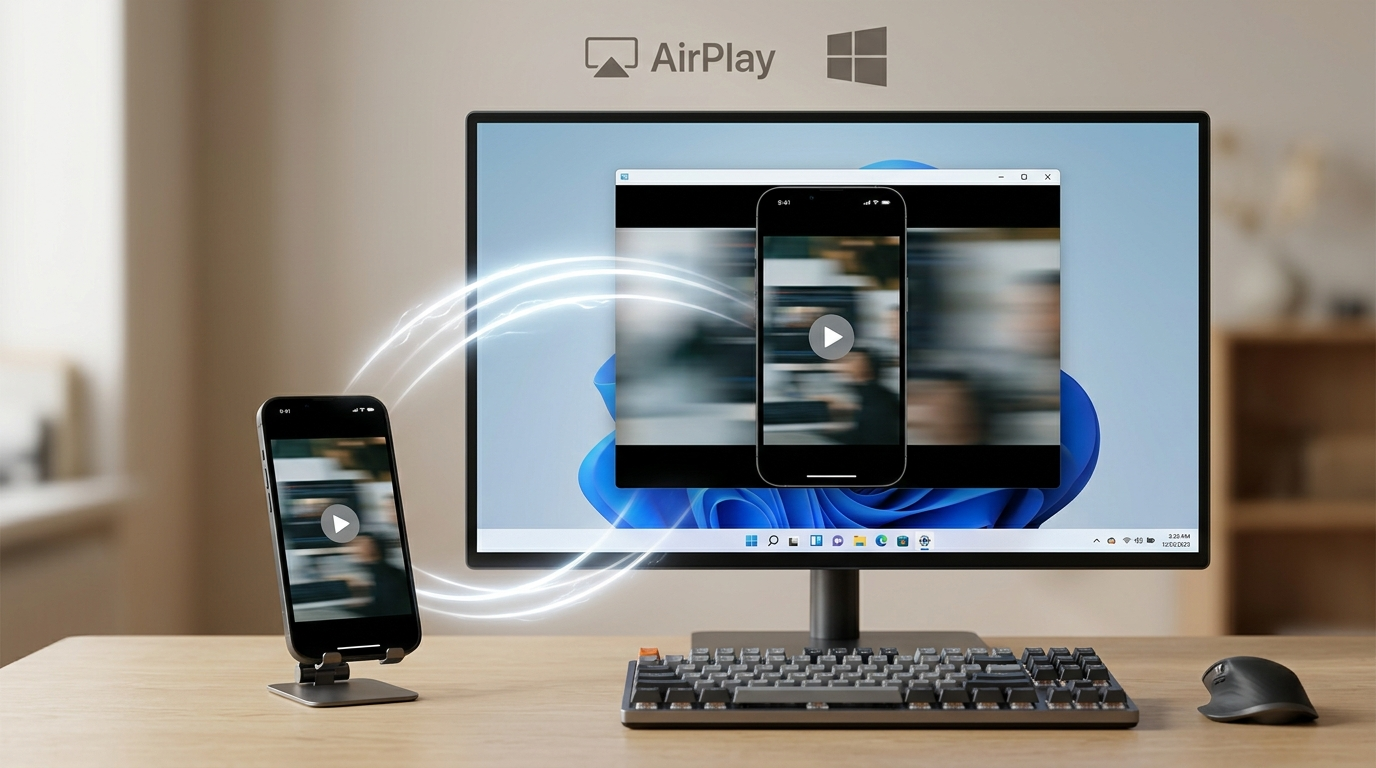
Screen mirroring lets you project your iPhone display onto a larger screen. You can stream videos, share presentation slides, or display mobile games effortlessly.
Apple designs AirPlay to connect devices smoothly within its ecosystem. However, mastering iOS screen mirroring to non-Apple hardware like Windows PCs or Android TVs requires specific steps. This guide explains everything you need to know about setting up and troubleshooting display connections.
What Is Screen Mirroring on iOS?
Screen mirroring duplicates your iPhone display in real-time onto an external monitor, TV, or laptop. It sends audio and video streams wirelessly across a shared Wi-Fi network.
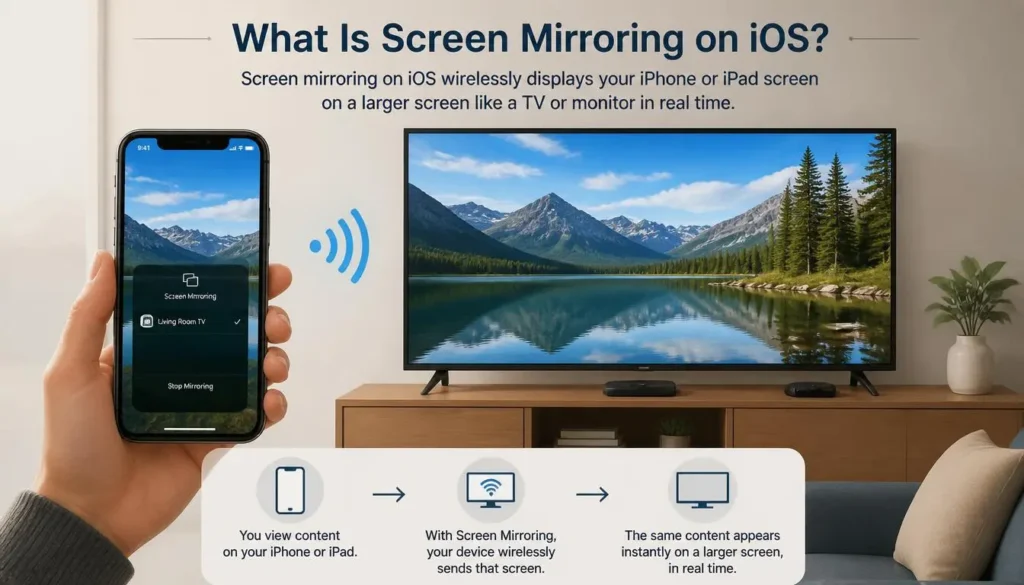
Apple uses two main protocols for display sharing:
- AirPlay Streaming: Sends specific media files like photos or videos directly to a target device without showing your phone’s full user interface.
- Screen Mirroring: Duplicates your entire mobile screen, including app navigation and notifications.
Modern software updates refine this connectivity. Consequently, smooth iOS screen mirroring relies on lowering latency and improving frame stability for wireless playback.
How to Screen Mirror iPhone to Apple TV or Mac
Connecting your iPhone to an Apple TV or compatible Mac requires only a few taps. Native support ensures low input lag and sharp image rendering.
- Connect your iPhone and Mac or Apple TV to the same Wi-Fi network.
- Swipe down from the top-right corner of your screen to open the Control Center.
- Tap the Screen Mirroring button (represented by two overlapping rectangles).
- Select your target Mac or Apple TV from the list.
- Enter the AirPlay passcode shown on the display if prompted.
To stop mirroring, open the Control Center again and tap Stop Mirroring.
How to Screen Mirror iPhone to Windows 11 PC
Windows 11 does not include native AirPlay receiver software out of the box. You must install a lightweight receiver application to bridge the gap between iOS and Windows.
- Step 1: Download a trusted receiver app on Windows 11, such as LetsView, AirDroid Cast, or Reflector.
- Step 2: Launch the application on your PC. Allow firewall access for private networks if prompted.
- Step 3: Ensure both devices use the same Wi-Fi frequency (5GHz yields the best results).
- Step 4: Open the Control Center on your iPhone and tap Screen Mirroring.
- Step 5: Choose the Windows PC from the detected devices list.
Using a 5GHz Wi-Fi connection reduces transmission delays significantly. It provides a smooth experience for productivity tasks and casual viewing.
How to Mirror iPhone to Smart TVs (Samsung, LG, Roku, Android TV)
Most modern smart TVs support native AirPlay 2 connectivity. If your TV lacks native AirPlay support, third-party casting tools can bridge the connection.
- For AirPlay-Compatible TVs: Power on your TV and connect it to your home Wi-Fi. Open the Control Center on your iPhone, select Screen Mirroring, and choose your TV.
- For Non-AirPlay Android TVs: Install receiver apps like AirScreen or CastForTV directly from the Google Play Store on your TV. Open the app on your TV, then connect your iPhone via the standard AirPlay menu.
- For Roku Devices: Open your Roku settings menu. Navigate to Apple AirPlay and HomeKit, and toggle AirPlay to On. Connect using your iPhone’s Control Center.
How to Fix Screen Mirroring Lag and Stuttering
Wireless mirroring issues usually stem from local network congestion. Follow these straightforward optimizations to eliminate delay during your iOS screen mirroring session:
- Switch to 5GHz Wi-Fi: Standard 2.4GHz bands suffer from heavy signal interference. Modern 5GHz or Wi-Fi 6 channels offer superior bandwidth.
- Disable Low Power Mode: Navigate to
Settings > Batteryand turn off Low Power Mode. This ensures your iPhone maintains full processing performance. - Turn Off VPNs: Active VPN services create network routing hops. Disabling them on both devices restores direct local communication.
- Use USB Wired Connection: Connect your iPhone directly using a Lightning or USB-C cable for zero-latency requirements like competitive gaming.
10 Frequently Asked Questions (FAQs)
Conclusion
Seamless iOS screen mirroring makes it easy to share mobile content on large displays. You can stream to an Apple TV, share work on a Mac, or project to a Windows PC with minimal setup. Maintaining a fast Wi-Fi connection minimizes input delay and provides a smooth experience. Select your target device, open your Control Center, and start sharing your screen instantly.