
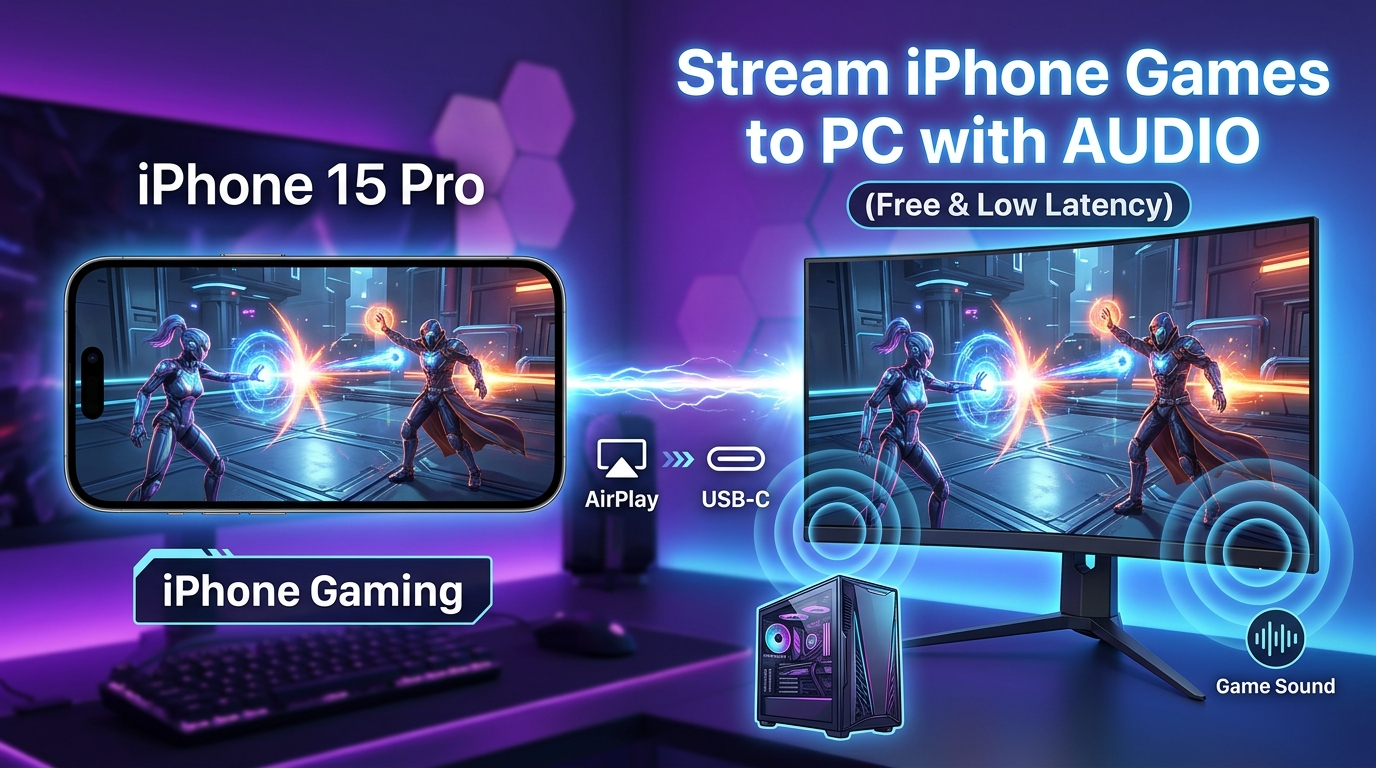
Mobile gaming offers intense action on titles like Call of Duty Mobile, PUBG, and Genshin Impact. However, playing on a small screen can limit your true potential. Learning how to stream iPhone games to PC with audio gives you a massive visual advantage. It also allows you to enjoy rich game sound through your computer speakers or headset.
Many creators face a major obstacle during setup. They easily send the video feed to Windows, but the game sound remains trapped on the phone speakers. You can solve this problem quickly using the right tools.
This complete guide explains how to stream iPhone games to PC with audio using official Apple technology and simple desktop apps. We will look at both wireless AirPlay setups and high-speed USB cable connections.
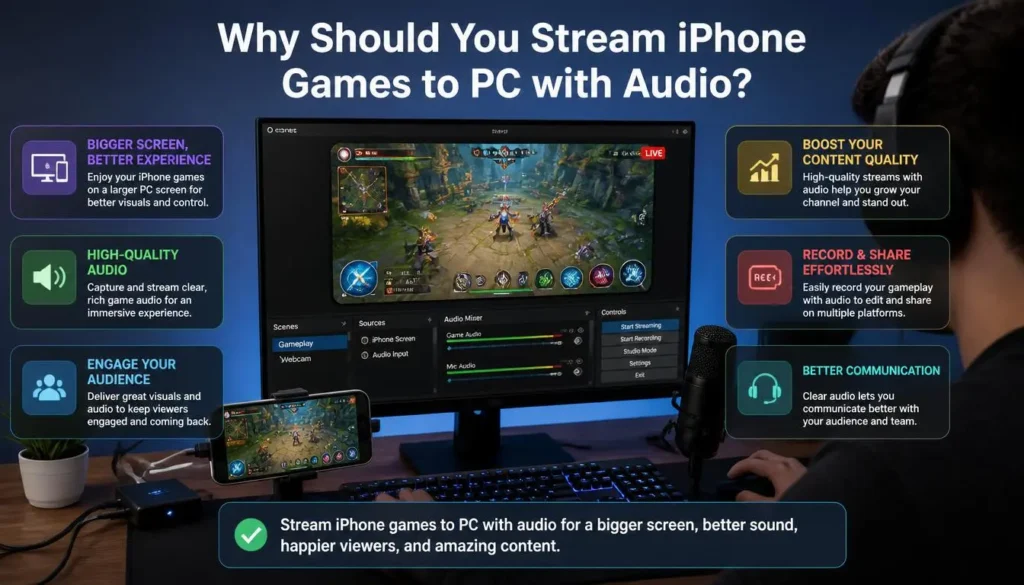
Why Should You Stream iPhone Games to PC with Audio?
Choosing to stream iPhone games to PC with audio transforms your handheld gaming routine into a high-performance desktop experience.
- Bigger Screen Display: Spot hidden enemies faster on a large monitor compared to a small phone screen.
- Direct Game Audio Capture: Route internal game sound straight into your headphones for crisp spatial sound.
- Easy OBS Recording: Broadcast your mobile gameplay easily to Twitch, YouTube, or Discord.
- Reduced Battery Heat: Keeping your phone screen brightness down during desktop mirroring protects your device.
Method 1: How to Stream iPhone Games to PC with Audio Wirelessly via 5KPlayer
Apple uses AirPlay technology to mirror iOS screens wirelessly. Windows does not support AirPlay natively, but free software can turn your PC into an AirPlay receiver instantly.
How Third-Party Software Solves the Problem
Connect your iPhone and Windows PC to the exact same Wi-Fi network. FStep 1: Prepare Your Wi-Fi Connectionor best results, connect your phone to a 5GHz Wi-Fi band and use an Ethernet cable on your PC.
Step 2: Launch 5KPlayer to Stream iPhone Games to PC with Audio
Download the free 5KPlayer software onto your Windows computer. Install the program and launch it. Ensure the built-in AirPlay feature is toggled ON inside the main dashboard. Allow firewall access if Windows prompts you.
Step 3: Trigger iOS Screen Mirroring
Swipe down from the top-right corner of your iPhone to open the Control Center. Tap the Screen Mirroring icon (two overlapping rectangles). Select 5KPlayer from the list of available devices. Your phone screen and internal audio will appear on your monitor screen immediately.
Method 2: Stream iPhone Games to PC with Audio via USB Cable (Zero-Lag)
Wireless connections work well for casual gameplay, but competitive multiplayer games require zero latency. A wired USB connection delivers smooth framerates and prevents audio desync.
Step 1: Install ApowerMirror on PC
Download and open ApowerMirror on your Windows computer.
Step 2: Plug in Your Lightning/USB-C Cable
Connect your iPhone to your PC using an authentic Lightning or USB-C cable. Tap Trust This Computer on your iPhone screen and enter your passcode.
Step 3: Enable USB Audio Drivers to Stream iPhone Games to PC with Audio
Select the USB Connection mode inside the ApowerMirror PC app. The software installs a lightweight audio driver automatically. This feature routes both HD video and zero-lag game sound through the cable straight to your PC.
How to Capture Audio and Broadcast Mobile Games with OBS Studio
Once your iPhone screen and audio appear on your desktop, you can capture the feed for live streaming or recording.
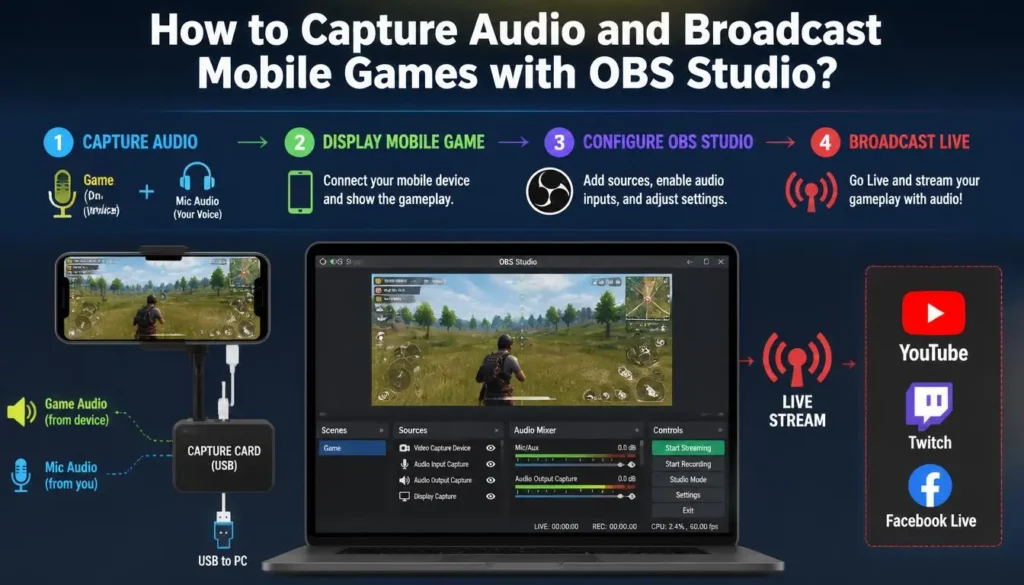
OBS Setup to Stream iPhone Games to PC with Audio
- Open OBS Studio on your computer.
- Click the + button under the Sources box.
- Choose Window Capture and select your mirroring app (e.g., 5KPlayer or ApowerMirror).
- Click + again and select Application Audio Capture.
- Select your mirroring application from the dropdown menu to isolate the game audio cleanly.
Troubleshooting Issues When You Stream iPhone Games to PC with Audio
- No Sound Coming to PC: Turn off the silent switch on the side of your iPhone. Check that your phone volume is turned up, as iOS silences AirPlay audio when physical volume sits at zero.
- Game Audio Delay or Stuttering: Move closer to your Wi-Fi router or switch to a wired USB connection. Disable any active VPNs running on either device.
- Black Screen Display: Close background apps on your phone and restart your screen mirroring software.
Frequently Asked Questions (FAQs)
Conclusion
Learning how to stream iPhone games to PC with audio is a straightforward process when using the right setup. You can choose the wireless freedom of AirPlay receivers or the low-latency stability of a USB cable connection depending on your gaming needs. Connect your devices, adjust your audio settings, and enjoy your favorite mobile games on a bigger display today!