
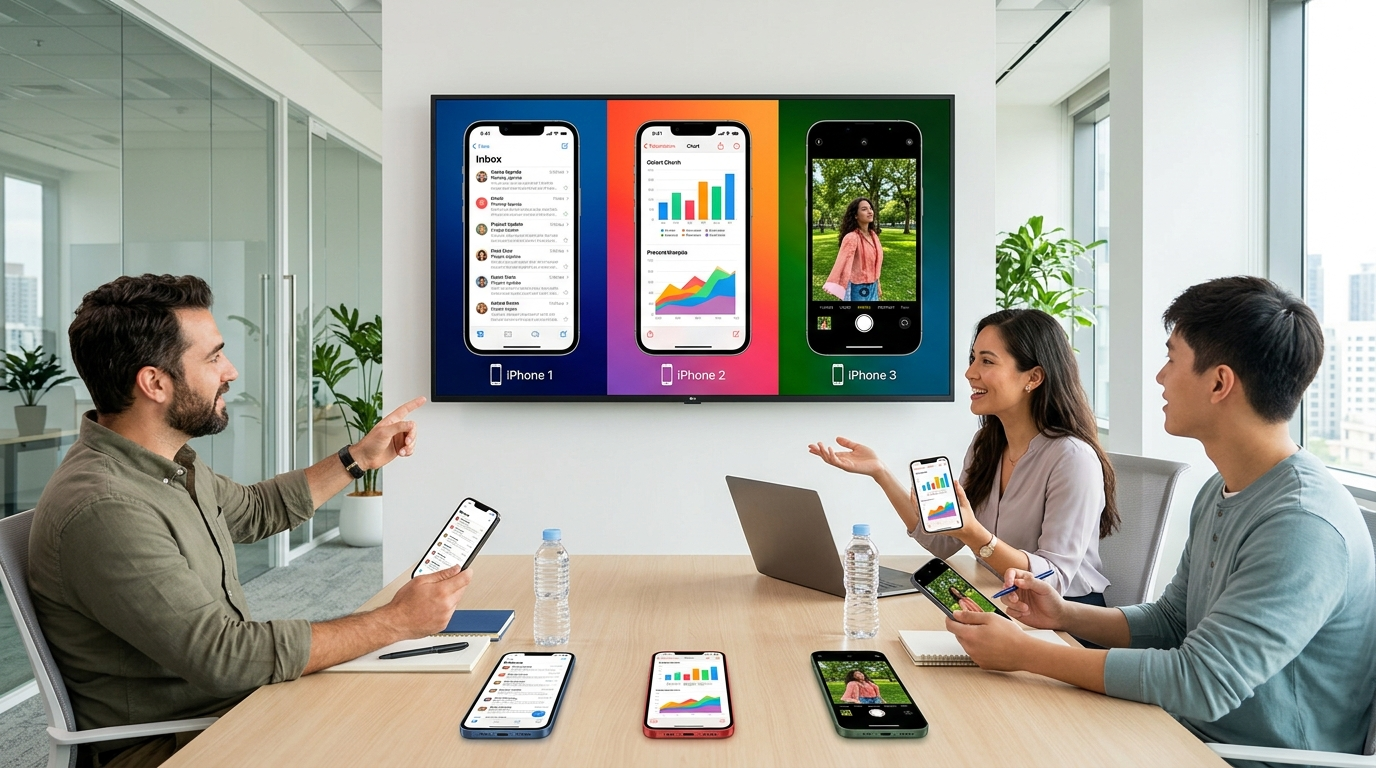
Screen mirroring a single iPhone to a TV or computer is very simple. However, if you want to mirror multiple iphones to one screen at the same time, you need a few clever tricks. Many users want to display two, three, or even four iPhone screens simultaneously on a single monitor.
Whether you are hosting a gaming tournament, conducting a business presentation, or running an interactive classroom, multi-device screen mirroring is a huge game-changer. Fortunately, you do not need expensive hardware setups to achieve this. With the right software tools and proper network configurations, you can cast several iOS devices side-by-side seamlessly.
In this detailed guide, you will learn the best methods, top software tools, and step-by-step instructions to mirror multiple iphones to one screen without lag.
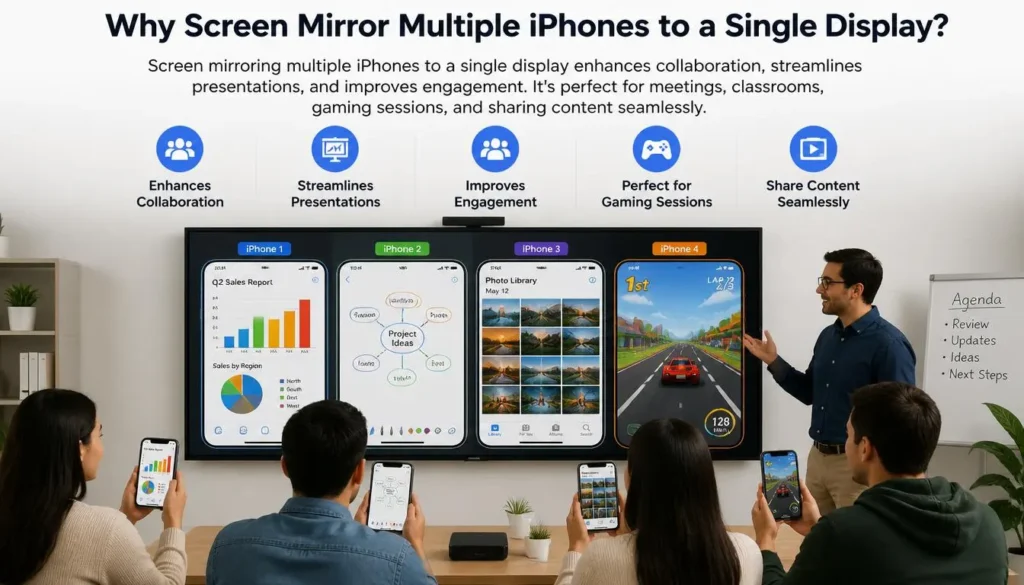
Why Screen Mirror Multiple iPhones to a Single Display?
Sharing multiple phone screens onto one big monitor creates incredible opportunities for collaboration, comparison, and entertainment. Before diving into the technical setup, let us explore why this feature is growing in popularity.
1. Multiplayer Gaming & Live Streaming
Mobile gamers frequently stream gameplay to online platforms. When you cast multiple iPhones to one PC screen, viewers can see every player’s perspective at once. Consequently, esports matches become much more engaging and thrilling to watch.
2. Business Presentations and Product Comparisons
In corporate meetings, app developers and design teams often need to compare user interfaces across different iOS devices. Displaying multiple screens side-by-side allows teams to spot visual bugs and user experience differences in real time.
3. Interactive Educational Classrooms
Teachers can collect assignment submissions or student work directly from multiple iPhones. As a result, students can share their solutions on the classroom projector simultaneously, which fosters an active learning environment.
Can Native Apple AirPlay Mirror Multiple iPhones At Once?
Many iOS users wonder if Apple’s native AirPlay feature supports multi-device screen sharing out of the box. Understanding native limitations helps you choose the right third-party workarounds.
The Limits of Standard AirPlay
By default, Apple limits standard AirPlay connections to a one-to-one ratio. This means an iPhone can send its signal to only one Apple TV or AirPlay receiver at a given moment. Similarly, default receivers like an Apple TV can display only one active iPhone mirror feed.
How Third-Party Software Solves the Problem
Although Apple restricts native multi-streaming, third-party software applications act as multi-channel AirPlay receivers. These applications run on Windows or Mac computers. Therefore, they accept several incoming AirPlay streams at once and arrange them neatly in a grid layout on your computer monitor.
Method 1: Using AirDroid Cast (Best for Ease of Use)
AirDroid Cast is one of the most reliable cross-platform screen-casting tools available today. Remarkably, it allows you to mirror multiple iphones to one screen (up to 5 devices simultaneously) onto a PC or Mac display.
Features of AirDroid Cast
- Supports up to 5 concurrent connections across iOS, Android, and Windows.
- Offers both wireless (Wi-Fi/Cellular) and zero-latency USB cable connections.
- Delivers high-definition video quality with real-time audio synchronization.
Step-by-Step Setup Guide
- Download the Software: Install the AirDroid Cast desktop application on your Windows PC or Mac.
- Launch the App: Open AirDroid Cast on your computer to view the cast code and QR code.
- Install Mobile App: Download AirDroid Cast from the App Store on all participating iPhones.
- Connect Devices: Open the mobile app on each iPhone. Scan the QR code or enter the 9-digit cast code shown on your PC.
- Accept Connections: Grant screen-recording permissions on each iPhone when prompted.
Once connected, all iPhone screens will immediately display side-by-side on your desktop screen.
Method 2: Using ApowerMirror (Best for High-Quality Streaming)
ApowerMirror is another powerful software suite designed for heavy multitasking and gaming streams. It lets you mirror multiple iphones to one screen (up to 4 devices) to a single computer display without delay.
Why Choose ApowerMirror?
- Renders clear HD feeds with smooth frame rates up to 60fps.
- Includes built-in screen recording, screenshot capturing, and drawing tools.
- Allows complete mouse control over iOS devices via Bluetooth connection.
How to Set Up ApowerMirror for Multiple iPhones
- Connect your PC and all iPhones to the exact same Wi-Fi network.
- Install and launch the ApowerMirror application on your computer.
- Open the Control Center on your first iPhone by swiping down from the top right corner.
- Tap the Screen Mirroring (two overlapping rectangles) icon.
- Select your PC’s name from the receiver list.
- Repeat steps 3 through 5 for the second, third, and fourth iPhones.
Your computer screen will automatically arrange the incoming streams into a clean grid view.
Method 3: Using Reflector 4 (Best for AirPlay Wireless Streaming)
Reflector 4 turns your PC or Mac into an advanced AirPlay and Cast receiver. It works wirelessly without requiring any client apps installed on the iPhones.
Key Benefits of Reflector 4
- Uses native iOS AirPlay, so you do not need third-party mobile apps.
- Automatically adjusts screen layouts when new devices connect or disconnect.
- Features customizable device frames, including realistic iPhone colors and borders.
How to Use Reflector 4 for Multi-Screen Mirroring
- Download and open Reflector 4 on your Mac or PC.
- Ensure all iPhones are connected to the same local Wi-Fi router.
- On the first iPhone, swipe open the Control Center and tap Screen Mirroring.
- Choose your computer’s name from the AirPlay list.
- Enter the security PIN shown on your PC screen if prompted.
- Repeat this process for every additional iPhone you wish to cast.
Reflector 4 will instantly reorganize the screen layout to accommodate all active streams equally.
Hardware Requirements and Network Optimization Tips
Mirroring multiple high-definition streams simultaneously demands significant bandwidth and system processing power. If your network is weak, you may experience lagging, audio desynchronization, or unexpected disconnects.
1. Upgrade to a 5GHz Wi-Fi Network
Traditional 2.4GHz Wi-Fi networks get congested quickly when handling multiple device feeds. Therefore, always connect your PC and iPhones to a 5GHz Wi-Fi band for faster data transmission and reduced latency.
2. Use USB Cable Connections for Low Latency
If you require zero input lag for competitive mobile gaming, skip wireless casting. Use Lightning or USB-C cables to plug your iPhones directly into your PC using software like AirDroid Cast or ApowerMirror.
3. Close Unnecessary Background Apps
Each active mirror stream consumes RAM and CPU capacity. Close unused applications on both your computer and mobile devices to maintain smooth performance during your stream.
Comparison Table: Top Multi-Device Mirroring Software
| Software Name | Max Devices Supported | AirPlay Native Support | USB Cable Connection | Ideal Use Case |
| AirDroid Cast | Up to 5 Devices | Yes | Yes | Remote Work & Education |
| ApowerMirror | Up to 4 Devices | Yes | Yes | Mobile Gaming & Live Streaming |
| Reflector 4 | Unlimited (PC Hardware Dependent) | Yes (100% Native) | No (Wireless Only) | Business Presentations |
| OBS Studio + Capture | Unlimited | Indirect (Via Window Capture) | Yes | Advanced Live Streamers |
Frequently Asked Questions (FAQs)
Conclusion
Knowing how to mirror multiple iphones to one screen is surprisingly easy when you use the right software. Although native AirPlay restricts connections to one display at a time, tools like AirDroid Cast, ApowerMirror, and Reflector 4 effortlessly remove those barriers.
By using a fast 5GHz Wi-Fi connection or USB wired cables, you can mirror multiple iphones to one screen simultaneously with crisp HD visuals and zero lag. Choose the software method that fits your needs today, and transform how you present, stream, and collaborate.