
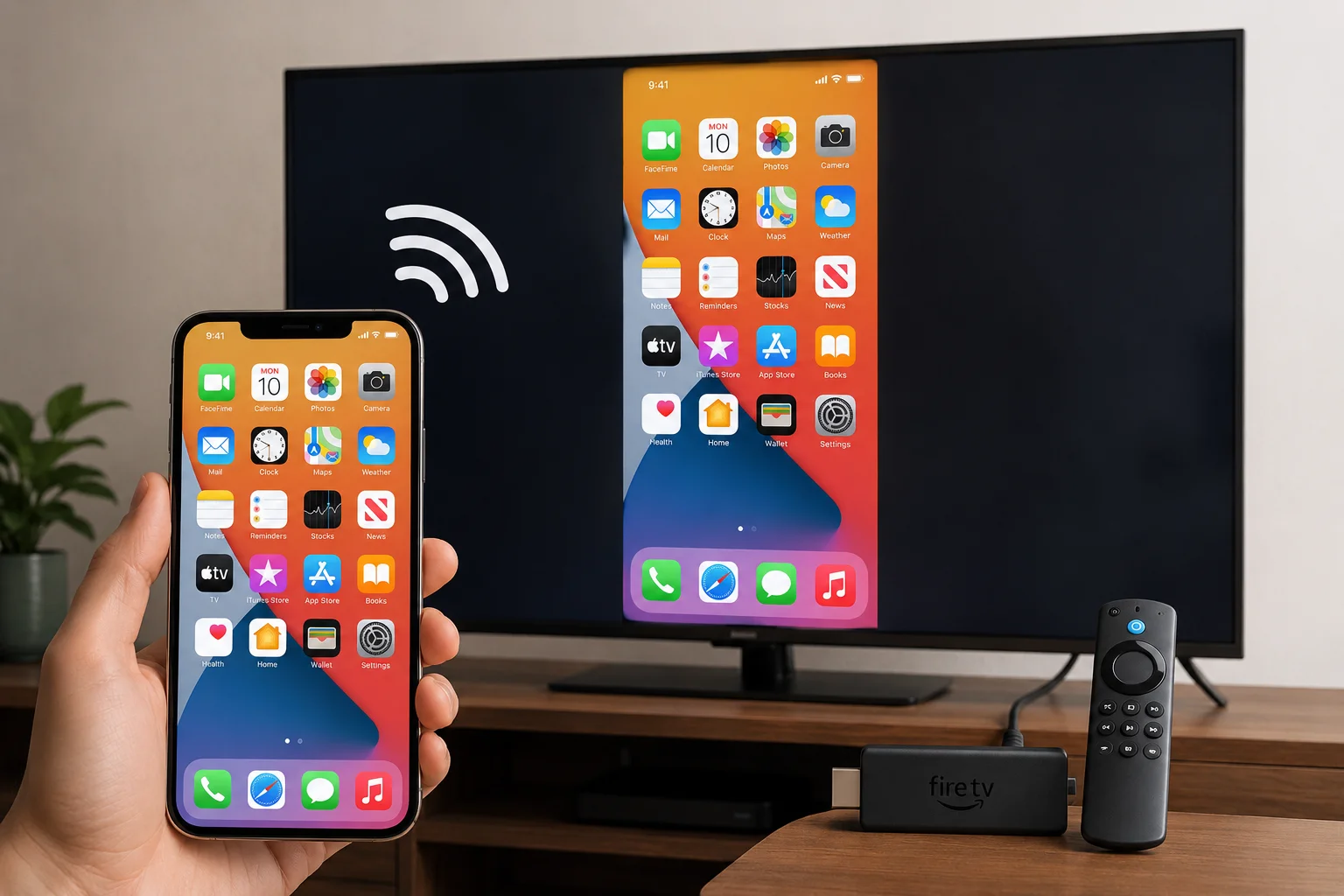
Connecting an iOS device to a smart television should always be effortless. Many users search for ways to mirror iPhone to Fire TV Stick without app downloads to avoid hidden subscription fees, annoying pop-up advertisements, or software lag.
Amazon Fire TV Stick devices run on Android-based operating systems using Miracast technology. Conversely, Apple relies exclusively on its proprietary AirPlay protocol. Because these two technologies speak different wireless languages, native screen mirroring is not enabled out of the box.
However, you can still mirror iPhone to Fire TV Stick without app installations by using built-in phone features and hardware accessories. This comprehensive guide covers every practical, zero-app method available today.
Why Fire Stick and iPhone Do Not Connect Natively
Apple devices use AirPlay to stream video and share screens with external displays. AirPlay requires specific security handshakes and licensed software built directly into the receiving hardware.
Amazon designs Fire TV Stick hardware with Miracast casting protocols. Android and Windows devices support Miracast natively, but Apple intentionally excludes it from iOS.
Because of this protocol clash, a standard Fire Stick cannot see an iPhone in its native screen mirroring menu. Fortunately, clever workaround strategies allow you to mirror iPhone to Fire TV Stick without app software from third-party developers.
Method 1: Mirror iPhone to Fire TV Stick Without App via HDMI Cable
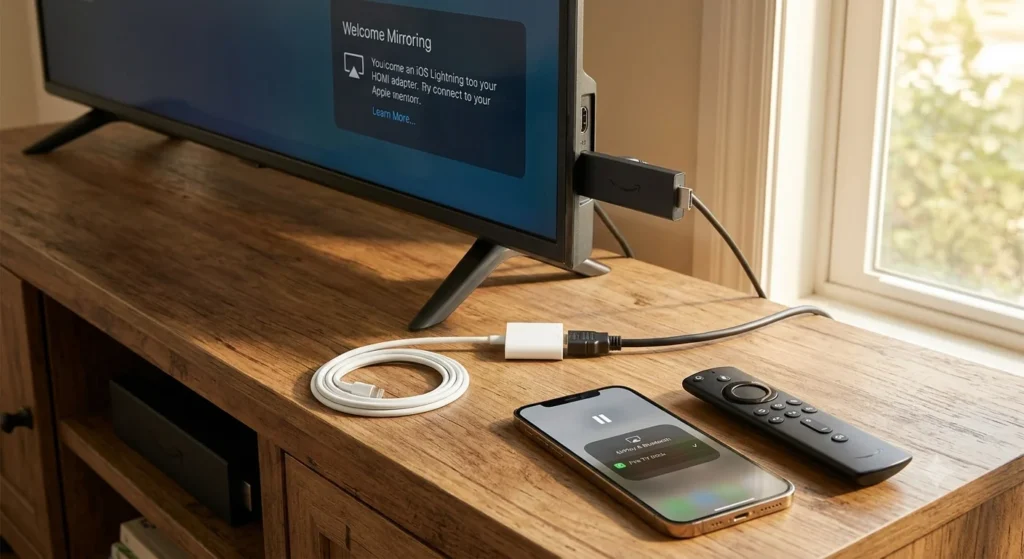
The most reliable way to mirror iPhone to Fire TV Stick without app utilities involves a physical cable setup. Direct physical connections bypass wireless protocol conflicts entirely.
Hardware Required for Direct Cable Connection
You need an official Apple Digital AV Adapter (Lightning or USB-C, depending on your iPhone model) and a standard high-speed HDMI cable. You also need a spare HDMI port on your TV alongside your Fire TV Stick.
Step-by-Step Setup Guide
- Plug the Apple Digital AV Adapter directly into the charging port of your iPhone.
- Connect one end of your HDMI cable to the adapter’s HDMI port.
- Plug the opposite end of the HDMI cable into an available HDMI input on your television.
- Turn on your television and press the Input or Source button on your remote.
- Switch to the HDMI channel corresponding to your cable connection.
Key Benefits of Direct Cable Mirroring
- Zero latency or lag during high-definition video playback or mobile gaming.
- Complete independence from Wi-Fi network stability or router distance.
- Full 1080p or 4K resolution output with crystal-clear digital audio passthrough.
- No background battery drain from heavy wireless encoding algorithms.
Method 2: Mirror iPhone to Fire TV Stick Without App Using In-App Casting
If you only want to stream media like videos or music, you can mirror iPhone to Fire TV Stick without app software running on your phone. Popular streaming applications feature built-in casting tools that communicate across platforms effortlessly.
Supported Applications
Major streaming applications come pre-equipped with native cross-platform casting tools:
- YouTube
- Netflix
- Prime Video
- Spotify
- Tubi TV
Step-by-Step Casting Instructions
- Ensure both your Fire TV Stick and your iPhone connect to the exact same Wi-Fi network.
- Open the desired media application on your iPhone.
- Select and play the video or audio clip you wish to display on your TV.
- Tap the Cast icon (a rectangle with a Wi-Fi wave in the corner) near the top of the video player.
- Choose your Fire TV Stick device from the list of available receivers.
Why In-App Casting Beats Display Mirroring
In-app casting sends media commands directly to the Fire TV internal player rather than streaming your phone’s screen pixels. Consequently, you can lock your iPhone screen or answer text messages without interrupting video playback.
Method 3: Mirror iPhone to Fire TV Stick Without App via Web Browsing
You can mirror iPhone to Fire TV Stick without app downloads by taking advantage of the native Amazon Silk Browser already pre-installed on every Fire TV device.
How Web Browser Mirroring Works
Webcasting links your iPhone mobile browser to the Amazon Silk Browser via a temporary local web connection. This system streams photos, videos, and music without installing extra mobile software.
Step-by-Step Webcasting Process
- Connect your iPhone and Fire Stick to the same home Wi-Fi network.
- Launch the Amazon Silk Browser on your Fire TV Stick.
- Navigate to a web-based casting interface on your TV screen.
- Open Safari on your iPhone and enter the matching receiver portal.
- Scan the QR code displayed on your TV screen using your iPhone camera app.
- Confirm the connection prompt to begin sharing media instantly.
Method 4: How to Mirror iPhone to Fire TV Stick Without App via AirPlay 2
While standalone Fire TV Sticks generally lack native AirPlay hardware integration, select Amazon Fire TV Smart TVs (such as Omni Series models) include native AirPlay 2 support out of the box. This lets you mirror iPhone to Fire TV Stick without app downloads completely natively.
Checking AirPlay Settings on Your TV
- Navigate to Settings on your Fire TV user interface.
- Select Display & Sounds.
- Look for an AirPlay & HomeKit menu entry.
- If this menu exists on your device, enable AirPlay and set discoverability to On.
Connecting via iOS Control Center
- Open the Control Center on your iPhone by swiping down from the top-right corner.
- Tap the Screen Mirroring button (two overlapping rectangles).
- Select your Fire TV device from the populated list.
- Type the four-digit passcode shown on your television screen into your iPhone prompt.
Troubleshooting Options to Mirror iPhone to Fire TV Stick Without App
Wireless media connections occasionally experience temporary hiccups or performance drops. Following these troubleshooting steps restores connection stability rapidly.
1. Match Wi-Fi Frequency Bands
Modern home routers broadcast two frequencies: 2.4 GHz and 5 GHz. The 2.4 GHz band provides longer range, whereas the 5 GHz band delivers faster speeds with less latency. Always connect both your iPhone and Fire TV Stick to the 5 GHz Wi-Fi band for seamless media casting.
2. Disable VPN Connections
Active Virtual Private Networks (VPNs) alter your IP address route. This routing blocks local network device discovery. Disable active VPN apps on both your iPhone and Fire TV Stick before casting.
3. Restart Hardware Regularly
Temporary cache corruption can prevent airplay signals from connecting smoothly. Unplug your Fire TV Stick power adapter for 30 seconds. Restart your iPhone simultaneously to clear system memory.
Comparison Matrix: How to Mirror iPhone to Fire TV Stick Without App
| Method | Extra App Needed? | Connection Type | Video Quality | Setup Time |
| Lightning / USB-C to HDMI | No | Wired Cable | 1080p / 4K | Instant |
| In-App Casting | No | Wireless | 1080p / 4K | 30 Seconds |
| Amazon Silk Browser | No | Wireless Web | 720p / 1080p | 2 Minutes |
| Native AirPlay (Omni Series TVs) | No | Wireless AirPlay | 1080p / 4K | 1 Minute |
Frequently Asked Questions (FAQs)
Conclusion
Finding a way to mirror iPhone to Fire TV Stick without app installations is simple once you know the proper workarounds. While Apple and Amazon employ different wireless technologies, you can easily bypass compatibility roadblocks. Using an HDMI adapter offers top video performance without lag, while built-in casting tools provide effortless wireless convenience for daily streaming. Choose the method that best matches your hardware setup today to enjoy your favorite content on the big screen!