
Your Ultimate Guide to Seamless Screen Sharing
How to mirror iphone without wifi Imagine you are traveling, camping, or dealing with a sudden home internet outage. You want to share a downloaded video, show off your vacation photos, or deliver a business presentation on a bigger screen. Suddenly, you realize there is no Wi-Fi network available.
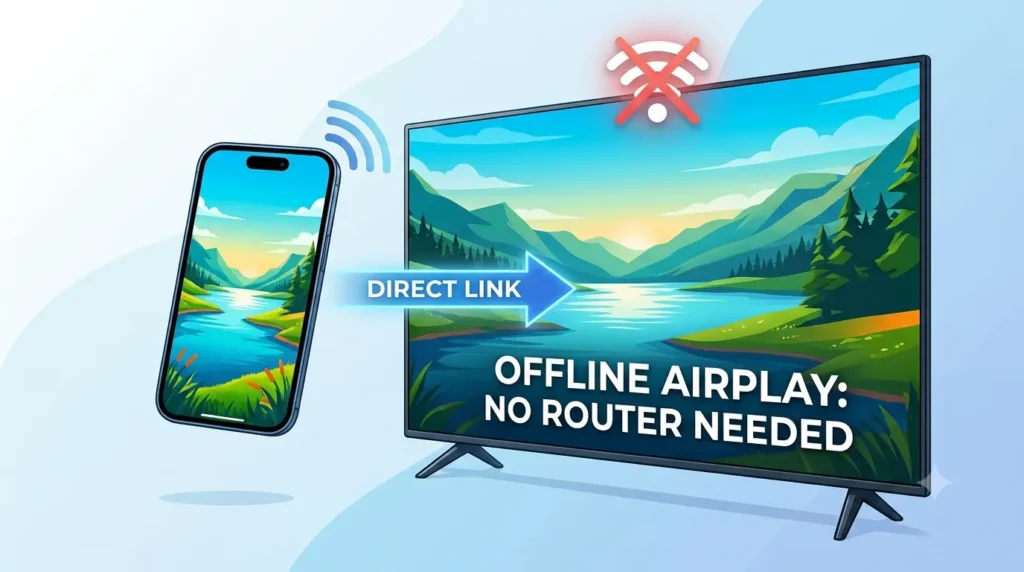
Many people believe that Apple AirPlay and screen mirroring completely rely on a stable home internet router. However, this is a common myth. You can easily mirror your iPhone screen to a TV, monitor, or laptop without any Wi-Fi connection.
This comprehensive guide will walk you through the best methods to connect your iPhone to a larger display without network connectivity. We will discuss wireless options, wired setups, and third-party tools that get the job done instantly.
Understanding the Basics: Can You Screen Mirror Without Wi-Fi?
Yes, you can absolutely mirror your iPhone without a standard Wi-Fi network. Traditional screen mirroring connects both devices to the same wireless router to transmit data. Fortunately, modern technology offers several clever workarounds that bypass the need for an active internet connection.
Apple devices possess built-in features designed specifically for these offline situations. Furthermore, standard hardware adapters can bridge the gap between your phone and any standard television. By understanding how these methods operate, you can choose the perfect option for your specific situation.
Method 1: Use Peer-to-Peer AirPlay (The Wireless Solution)
Peer-to-Peer AirPlay is one of the coolest hidden features in the Apple ecosystem. This technology allows your iPhone and an Apple TV or compatible Smart TV to link up directly. It uses Bluetooth for the initial device discovery and then establishes a temporary, direct wireless connection to stream the video data.
Therefore, you do not need a home router or an internet plan to make this work. Your devices will communicate directly with each other in an ad-hoc fashion.
Hardware and Software Requirements
To use this wireless method successfully, you need an iPhone 5 or later running at least iOS 8. Additionally, your Apple TV needs to be a third-generation rev A model or newer, running Apple TV software 7.0 or later. Many modern AirPlay-compatible smart TVs from brands like Samsung, LG, and Sony also support this direct connection.
Hardware and Software Requirements
- Step 1: Disconnect both your iPhone and your TV from any active Wi-Fi networks. You can do this by selecting “Forget This Network” in your network settings.
- Step 2: Turn on Bluetooth and Wi-Fi on your iPhone via the Control Center. Do not connect to a router; simply ensure the wireless toggles are switched on.
- Step 3: Ensure Bluetooth is active on your Apple TV or Smart TV as well.
- Step 4: Restart both your iPhone and the TV to clear out any old network configurations.
- Step 5: Swipe down from the top-right corner of your iPhone screen to open the Control Center.
- Step 6: Tap the Screen Mirroring icon, which looks like two overlapping rectangles.
- Step 7: Select your Apple TV or Smart TV from the listed devices. If a random PIN code appears on your television screen, type it into your iPhone to secure the link.
Method 2: The Bulletproof Wired Connection (HDMI Adapter)
Wireless options are highly convenient, but they can occasionally suffer from minor lag or signal interference. If you want a flawless, zero-latency experience, a wired connection is your absolute best bet. This approach completely ignores all wireless signals, making it ideal for mobile gaming or watching high-definition movies offline.
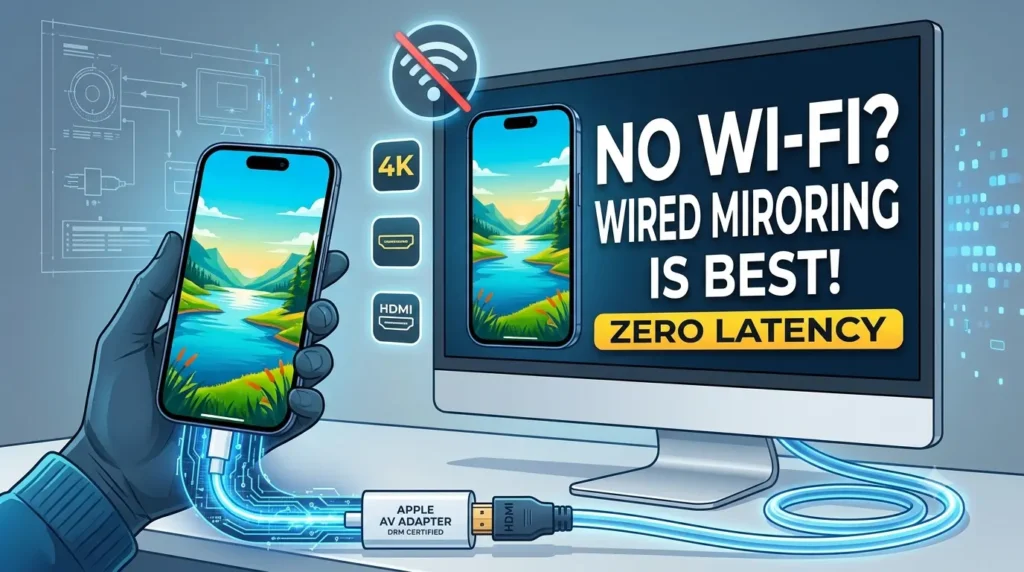
Using a physical cable ensures that your connection remains perfectly stable. Consequently, you will never have to worry about buffering wheels or pixelated video quality.
Choosing the Right Adapter for Your iPhone
Hardware and Software Requirements
The specific cable adapter you need depends strictly on the model of your iPhone.
| iPhone Model Series | Required Port Type | Recommended Official Adapter |
| iPhone 5 through iPhone 14 | Lightning Port | Apple Lightning Digital AV Adapter |
| iPhone 15, 16, and Newer | USB-C Port | Apple USB-C Digital AV Multiport Adapter |
Hardware and Software Requirements
- Step 1: Plug your official Apple Digital AV Adapter directly into the charging port of your iPhone.
- Step 2: Take a standard HDMI cable and connect one end into the HDMI port on the adapter.
- Step 3: Insert the opposite end of the HDMI cable into an open HDMI slot on the back or side of your TV.
- Step 4: Turn on your television and use the remote control to change the input source to the correct HDMI port.
- Step 5: Your iPhone screen will instantly appear on the television. You can now open any app, view photos, or play downloaded offline videos seamlessly.
Method 3: Set Up a Mobile Personal Hotspot
Another excellent wireless alternative involves using your iPhone’s cellular data to create a local wireless network. By turning your phone into a temporary router, you can trick your streaming devices into thinking they are on a standard home network.
However, you should keep an eye on your mobile data allocation. Screen mirroring itself does not consume internet data, but streaming online apps through the hotspot will quickly use up your data allowance.
Hardware and Software Requirements
- Step 1: Open the Settings app on your iPhone and tap on Personal Hotspot.
- Step 2: Toggle the switch next to Allow Others to Join to the green “On” position. Note down the Wi-Fi password listed below the toggle.
- Step 3: Go to your Smart TV or streaming device (like a Roku, Firestick, or Chromecast) and open its network connection menu.
- Step 4: Search for available networks, select your iPhone’s name, and input your hotspot password.
- Step 5: Once the TV connects to your hotspot, swipe down on your iPhone to access the Control Center.
- Step 6: Tap Screen Mirroring and choose your streaming device to begin sharing your display.
Method 4: Mirror iPhone to a Laptop or PC Over USB
Sometimes, you need to mirror your iPhone to a computer instead of a massive television screen. This is incredibly useful for recording mobile app tutorials or sharing content during offline meetings. You can achieve this easily by using a basic charging cable and specialized laptop software.
Hardware and Software Requirements
If you own a MacBook or an iMac, Apple provides a built-in tool that handles wired mirroring flawlessly. First, connect your iPhone to your Mac using a standard Lightning or USB-C cable. Next, open the QuickTime Player application on your computer.
Click on File in the top menu bar and select New Movie Recording. Look closely at the small arrow next to the red record button and click it. Finally, choose your iPhone from the dropdown list of cameras, and your phone screen will display instantly on your Mac.
Hardware and Software Requirements
Windows users can also achieve this by utilizing trusted third-party desktop tools. Applications like AnyMiro, ApowerMirror, or AirDroid Cast allow high-speed USB mirroring. Simply install the application on your PC, connect your iPhone via a USB data cable, and select the “USB Connection” option inside the software dashboard.
Advanced Ranking Strategies for Offline Screen Mirroring
If you want to maintain a great screen sharing experience anywhere, keep these expert tips in mind:
- Download Content Early: Streaming services like Netflix or Disney+ will block mirroring if you have zero internet. Download your favorite movies to your local phone storage while you still have Wi-Fi.
- Charge While Mirroring: Physical adapters often include an extra charging port. Plugin your wall charger to keep your phone battery from draining during a long movie.
- Keep Software Updated: Apple regularly updates AirPlay protocols. Ensure your iPhone runs the latest software version to prevent handshake errors with modern TVs.
Conclusion
Screen mirroring your iPhone without Wi-Fi is incredibly straightforward once you know the proper techniques. Whether you prefer the wireless freedom of Peer-to-Peer AirPlay, the sheer reliability of an HDMI cable, or the flexibility of a mobile hotspot, you are never locked out of the big screen experience. Keep an adapter in your travel bag, and you will always be ready to share your media wherever you go.