
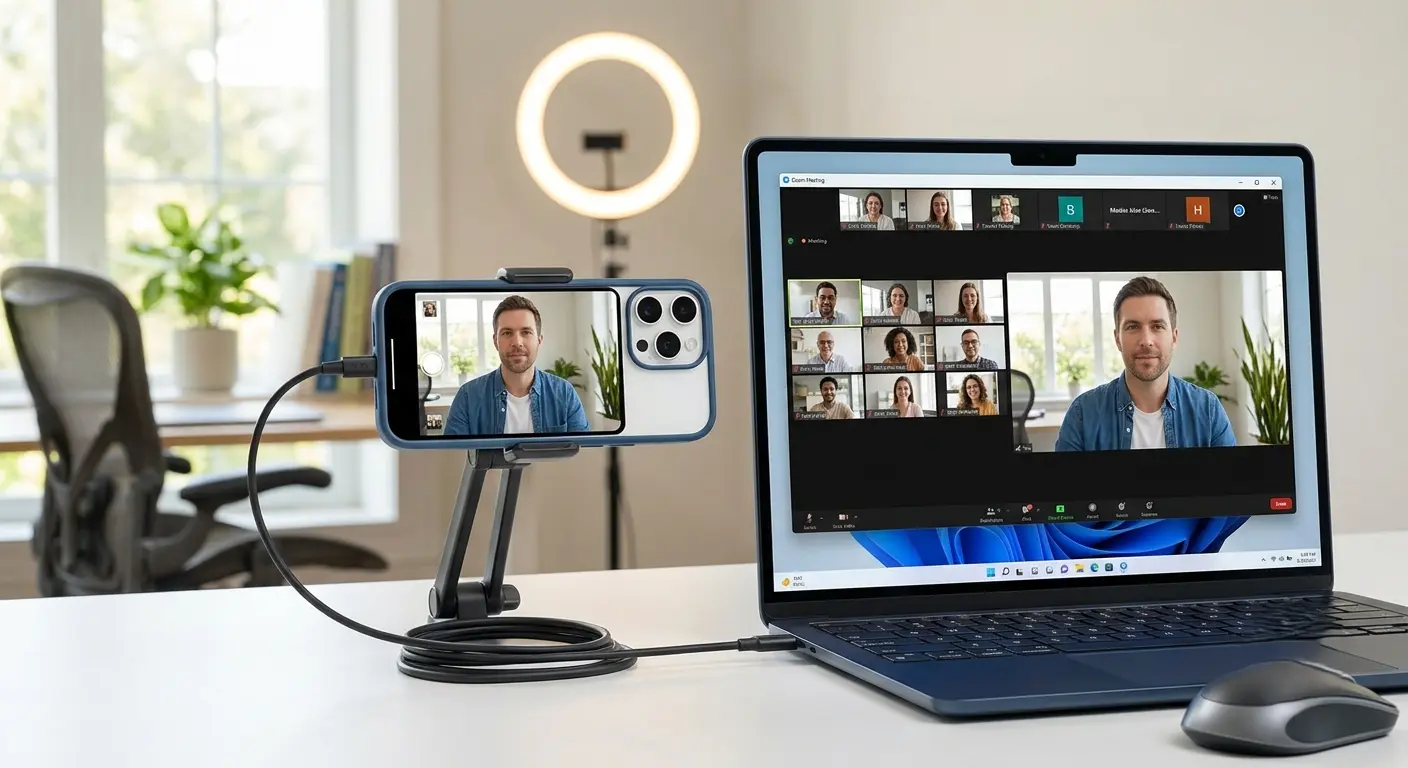
Built-in laptop webcams often produce grainy, dark, and blurry video during critical video meetings. Fortunately, learning how to mirror iPhone camera to PC for Zoom solves this problem without requiring expensive external equipment. Consequently, you can transform your online video presence instantly using the high-definition lens already in your pocket.
Modern iPhones feature advanced lens systems, superior low-light handling, and fast image processing. However, standard laptop cameras struggle in dark environments. When you connect your phone camera to Windows software, your online presence immediately looks crisp and professional. Therefore, this complete guide walks you through every step to mirror iPhone camera to PC for Zoom, Microsoft Teams, and online learning platforms.
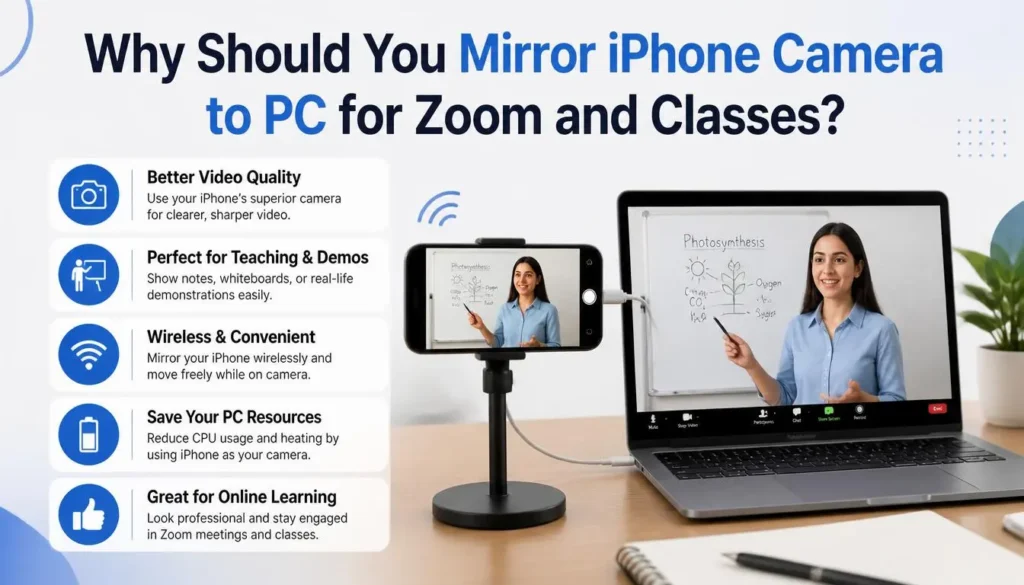
Why Should You Mirror iPhone Camera to PC for Zoom and Classes?
Standard laptop webcams typically feature outdated 720p or basic 1080p sensors. In contrast, modern mobile cameras offer 4K video recording, high dynamic range (HDR), and fast autofocus. As a result, using your phone camera allows you to present assignments clearly and maintain strong visual engagement.
| Standard PC Webcam | iPhone Camera as PC Webcam |
| Low 720p resolution with noise | Crisp 1080p / 4K Ultra HD video |
| Poor performance in low light | High Dynamic Range (HDR) exposure |
| Fixed focus lens | Fast autofocus and optical zoom |
| Distorted color reproduction | Natural skin tones and clarity |
Additionally, using your phone as a webcam gives you complete flexibility over your camera position. For instance, you can easily point the rear lens at a desk to display physical textbook notes or live drawings. Furthermore, students and remote workers save money because they do not have to buy separate webcams.
Best Apps to Mirror iPhone Camera to PC for Zoom
To stream your phone video feed to Windows, you need a lightweight bridge application installed on both devices. Thus, these applications run quietly in the background and appear as standard webcams inside video call software.
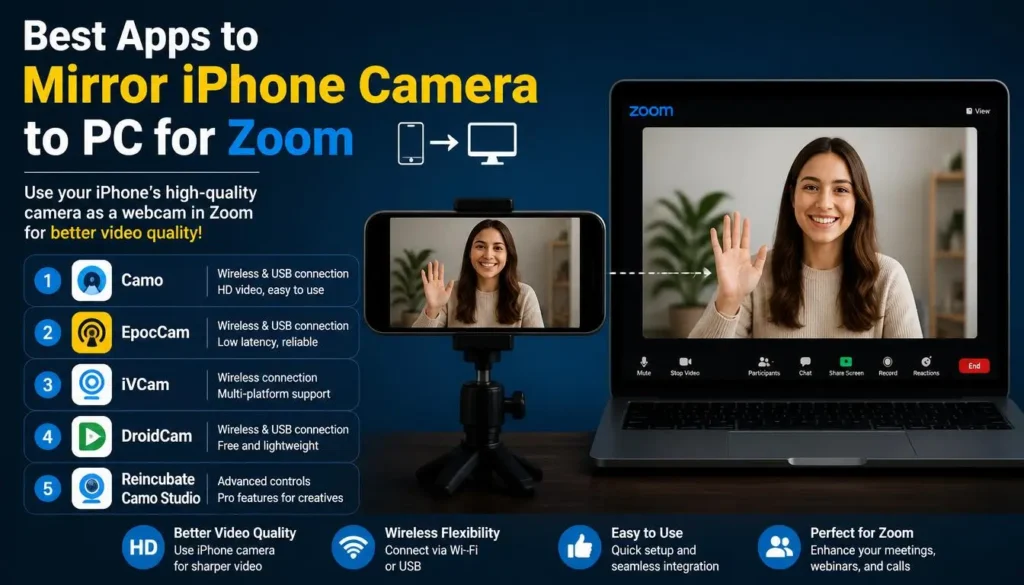
1. Camo by Reincubate
Camo delivers superior color accuracy and granular control over exposure, zoom, and frame rates. Furthermore, it provides clean software controls on Windows while running smoothly on iOS. Hence, it is ideal for teachers who want complete control over their camera feed during long lectures.
2. iVCam
iVCam is a popular tool for Windows users because it supports low latency 4K video connections over both USB and Wi-Fi. In addition, it features manual focus controls, portrait mode, and audio transmission through your phone microphone. Meanwhile, you can easily adjust settings directly from your PC desktop.
3. EpocCam by Elgato
EpocCam integrates seamlessly into production environments and desktop software. Moreover, it pairs effortlessly with Windows, making it a reliable choice for Zoom meetings and online classes.
4. Iriun Webcam
Iriun offers a fast, plug-and-play experience without complicated configuration screens. Besides that, it supports multi-resolution streaming and connects automatically whenever your phone and PC share the same Wi-Fi network.
Step-by-Step Guide: Mirror iPhone Camera to PC for Zoom via USB Cable
A wired USB connection offers maximum stability, zero video latency, and continuous battery charging during long sessions. Therefore, this method is the best option for high-stakes online exams and teaching presentations.
Step 1: Install the Companion Software on PC and iPhone
- Download iVCam or Camo Studio on your Windows PC.
- Next, run the installer and complete the software setup.
- Open the App Store on your iPhone and download the corresponding mobile app.
Step 2: Connect iPhone to PC with a USB Cable
- First, connect your iPhone to your PC using a reliable Lightning or USB-C cable.
- Tap Trust This Computer on your iPhone screen if a pop-up prompt appears.
- Then, enter your iPhone passcode to confirm the secure connection.
Step 3: Launch Both Applications
- Open the companion desktop app on your Windows PC.
- Afterward, launch the app on your iPhone.
- Automatically, the desktop software will detect your video stream and display live video.
Step 4: Select the Camera Source in Zoom Settings
- Launch the Zoom application on your desktop.
- Next, click the gear icon in the top right corner to open Settings.
- Select the Video tab from the left navigation menu.
- From there, click the Camera dropdown menu and select your app source (e.g., iVCam, Camo Camera, or EpocCam).
- Finally, check the box labeled HD to enable crisp high-definition video output.
Step-by-Step Guide: Mirror iPhone Camera to PC for Zoom Wirelessly (Wi-Fi)
If you prefer a clutter-free desk setup, you can connect your phone camera wirelessly over Wi-Fi. Consequently, this approach allows you to move your phone around the room to show physical documents or whiteboards easily.
Step 1: Connect Both Devices to the Same Wi-Fi Network
First, ensure your iPhone and Windows PC connect to the exact same Wi-Fi network router. Meanwhile, disconnect any active virtual private networks (VPNs) on either device, as VPNs can block local device discovery.
Step 2: Start the Wireless Connection
- Initially, launch your selected webcam software on your Windows PC.
- Open the matching app on your iPhone.
- Promptly, the application will scan your local network and connect within seconds.
Step 3: Configure Video Options in Online Class Software
- Open Google Meet, Microsoft Teams, or Zoom.
- Afterward, navigate to Device Settings > Video Input.
- Select the wireless webcam virtual driver from the list.
- Finally, adjust lighting and phone position to frame your video properly.
How to Share iPhone Screen Directly in Zoom Meetings
Sometimes you need to mirror your actual iPhone screen instead of just the camera feed. For example, this technique lets you present mobile apps, digital annotations, or slides directly to your class.
Method 1: Built-In Zoom Screen Mirroring (AirPlay)
- First, join your Zoom meeting on your Windows PC.
- Click the green Share Screen button located on the bottom toolbar.
- Next, select iPhone/iPad from the sharing options.
- On your iPhone, swipe down from the top right corner to open the Control Center.
- Then, tap Screen Mirroring and select Zoom-your PC name from the list.
Method 2: Wired Screen Mirroring
- Connect your iPhone to your PC using your charging cable.
- Afterward, select Share Screen in Zoom and choose iPhone/iPad via Cable.
- Lastly, confirm trust access on your iPhone screen when prompted.
Best Settings for Ultra-Clear Video Quality in Online Classes
To get the absolute best video feed from your phone camera, apply these professional optimization tweaks:
- Use the Rear Camera Lens: Always select the main rear camera on your iPhone because rear lenses feature significantly larger sensors and superior glass elements compared to front selfie cameras.
- Secure Your Phone on a Tripod: Mount your phone on a sturdy desktop tripod or monitor holder, as a stable position eliminates distracting movements during lectures.
- Position Proper Lighting: Sit facing a bright window or place a soft ring light behind your computer screen, since good front lighting removes unwanted shadows and reduces digital noise.
- Keep Phone Charged: Video processing generates heat and consumes battery power quickly. Hence, keep a charging cable connected if you stream long online classes.
Troubleshooting Common Connectivity Issues
| Issue | Possible Cause | Solution |
| Black screen in Zoom | Permission blocked or incorrect source | Enable camera access in Windows privacy settings |
| Laggy video stream | Slow Wi-Fi network | Switch to a wired USB cable connection |
| Device not found | Firewall blocking or different Wi-Fi networks | Disconnect VPNs and check router local connection |
If your PC app fails to discover your iPhone, restart both devices and check your Windows Defender Firewall rules. Additionally, ensure that local network discovery is explicitly permitted for your chosen webcam application.
Frequently Asked Questions (FAQs)
Conclusion
Learning how to mirror iPhone camera to PC for Zoom is one of the easiest ways to improve your online presence for video meetings and online classes. By following this guide, you can eliminate dark, grainy video feeds without spending money on expensive external equipment. Choose between a stable USB connection or a flexible Wi-Fi setup, mount your phone securely, and enjoy crystal-clear video quality in every online session.