
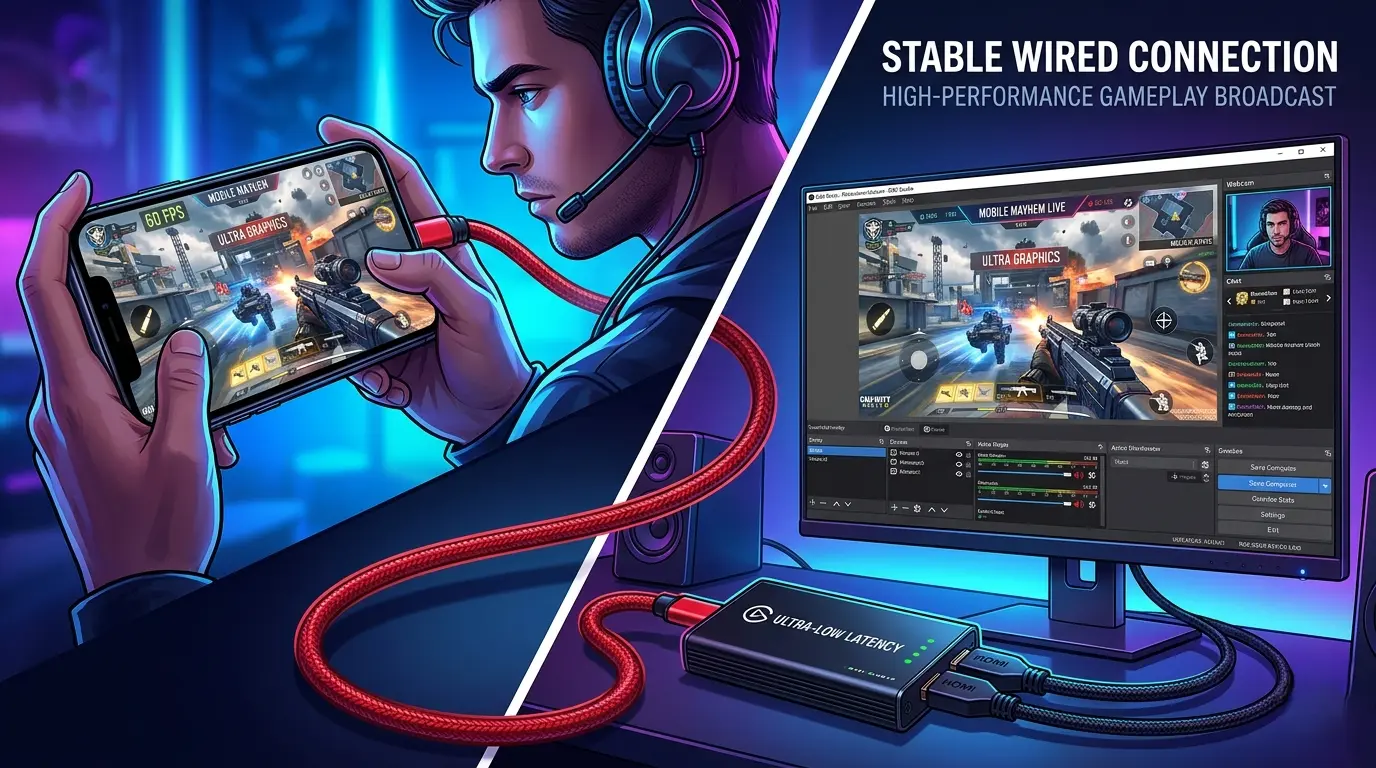
Playing high-octane mobile games on an iPhone provides an incredible rush. However, a tiny screen limits your true audience reach. Streaming your iOS display directly to a bigger display unlocks new possibilities. Creators gain huge advantages in performance, visibility, and broadcast quality.
Many mobile gamers run into major hurdles during setup. Severe latency ruins fast-paced action games like Call of Duty Mobile. Distorted audio turns away potential live viewers quickly. This complete walkthrough solves every common technical issue effortlessly. You will learn how to capture, mirror, and broadcast your iPhone screen seamlessly.
Why Stream iOS Games to a Bigger Display?
Mobile hardware inside modern iPhones handles heavy gaming effortlessly. Yet, broadcasting directly from a phone strains its battery instantly.
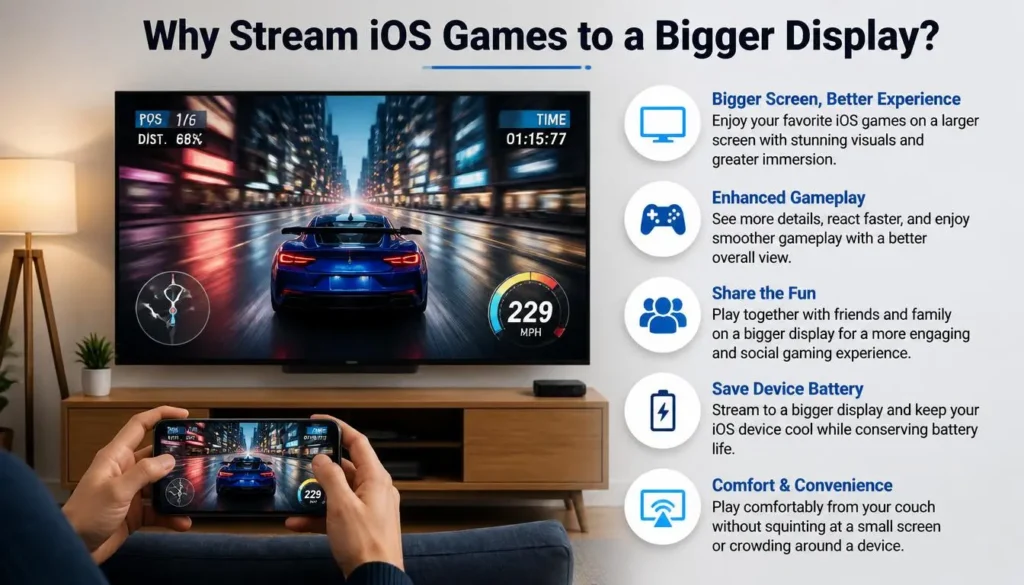
Using external setups offloads computing stress to your computer. This approach keeps your iPhone cool during long sessions. It prevents sudden frame drops during critical competitive moments.
Better Stream Controls and Overlays
Computer setups allow rich overlays, webcams, and custom alerts. You can control audio tracks independently with hardware tools. Chat widgets stay clearly visible on a secondary monitor.
Superior Thermal Management
Direct mobile broadcasting overcharges phone batteries rapidly. Offloading screen encoding keeps temperatures low continuously. That means zero thermal throttling during extended gameplay.
Hardware vs. Software Capture Methods
Choosing the correct capture method determines your overall stream quality. Players can pick hardware capture cards or software mirroring tools.
| Capture Method | Latency | Setup Cost | Stability |
| USB-C / HDMI Capture Card | ~0ms | Moderate | Rock Solid |
| Wired Software Mirroring | <50ms | Low | Very High |
| Wireless AirPlay | 100ms+ | Free | Moderate |
Option A: Hardware Capture Cards
Hardware capture cards provide pristine visual quality with zero frame drop. You run a Lightning or USB-C adapter directly into an HDMI capture card.
This hardware route delivers uncompressed video feeds straight into OBS Studio. It eliminates software overhead completely on your host computer.
Option B: USB Software Mirroring
Software tools send video via USB cables. They offer reliable performance without extra hardware costs. Wired connections outperform wireless setups consistently.
How to Set Up OBS Studio for iOS Gaming
OBS Studio remains the top broadcast software for mobile gamers. Setting up your canvas properly ensures clean output for viewers.
Step 1: Add Video Capture Source
Open OBS Studio on your PC or Mac. Create a new scene and click the plus icon under Sources. Select Video Capture Device for capture cards or Window Capture for mirroring apps.
Step 2: Configure Canvas Resolution
Set your base canvas resolution to 1920×1080 pixels. Most mobile titles scale best within standard 16:9 widescreen formats. Adjust screen borders to remove vertical black bars.
Step 3: Capture Internal Game Audio
Select your digital audio device in the OBS audio properties panel. Ensure game sound passes through without desktop echo effects. Separate mic audio from game sound on isolated tracks.
Optimizing Audio: Game Sound and Voice Chat
Capturing clean audio causes confusion for many mobile streamers. Discord calls often clash with internal game sounds during live broadcasts.
Routing Internal iOS Audio
Apple limits standard direct digital audio routing options. Using wired USB connections routes audio streams digitally into your computer mixer. That keeps game sounds crisp and completely lag-free.
Managing Teammate Discord Chat
Run Discord directly on your broadcast PC rather than your phone. Use a splitter cable setup or multi-client USB headsets. You hear teammates clearly while keeping full control over stream levels.
Eliminating Input Lag and Frame Drops
Smooth streams demand consistent 60 FPS performance without stuttering. Latency degrades competitive gameplay speed instantly.
- Disable Background Sync: Turn off automatic iOS background updates before going live.
- Lock Screen Refresh: Set your iPhone screen refresh rate to match OBS output settings.
- Use Direct Cables: Avoid Wi-Fi mirroring whenever playing competitive shooters.
- Enable Guided Access: Lock your screen inside the game to block accidental notification pull-downs.
Frequently Asked Questions (FAQs)
Final Thoughts
Setting up an iOS mobile gaming stream opens huge opportunities for content creation. Choosing a stable wired setup avoids frustrating technical issues entirely. Clear audio routing and structured scenes keep your viewers engaged throughout every broadcast. Apply these configurations to build a high-performing mobile gaming channel today!